# Pinokio
Pinokio is your **Localhost Cloud**: run anything locally—apps, AI, agents, and web servers—on your own machines with a full toolchain built in.
## 1. The Localhost Cloud
All-in-one environment ready to run ANY web app/AI servers on your PC, including Python, Node.js, Bun, Git, tmux (macOS/Linux), Conda, and more out of the box.
### 1.1. 100% Local, running on your PC

A lot of desktop apps nowadays are wrappers that mainly connect to some cloud service. **Pinokio is the exact opposite.**
In fact, the main philosophy of Pinokio is: **"The Localhost Cloud"**, a cloud that runs privately and locally on your machines.
### 1.2. All-in-One Platform
Pinokio is like [Vercel](https://vercel.com/), but for localhost.
Practically speaking, it's a platform that lets you host all kinds of web apps and AI apps on your personal computer, and use like they're from public web.
In order to facilitate this, the platform comes with the core runtimes, package managers, and tools you need to build and run things on your machine.
Depending on your platform, Pinokio comes with tools such as:
- Python
- Node.js
- Bun
- Git
- uv
- tmux (macOS/Linux)
- Conda
- Homebrew
- FFmpeg
- Caddy (Reverse Proxy)
- Can programmatically install ANYTHING additional.

### 1.3. Extensible
Thanks to the built in package managers like **Conda**, **Homebrew**, **Bun**, and **npm**, it is extremely simple to automatically install additional packages.
Of course, Pinokio has full access to shell commands so you can pretty much install anything even when there are no pre-packaged binaries.
## 2. Package Install Protection
Installing 3rd party packages is one of the biggest risks in local app platforms.
Pinokio uses Bluefairy to add a freshness delay to supported package-manager install and update flows. The default delay is `72h`.
Turning it on or off:
- App shells default to Protection `On`.
- The terminal `Protection` toggle controls the default for that app.
- For an explicit shell API call, set `params.bluefairy` to `"on"` or `"off"`.
When Protection is off, Pinokio does not inject Bluefairy, and `npm`, `uv`, and `bun` run normally.
Built-in installer, reinstall, and repair flows default to `bluefairy: "off"`.
Not covered:
- `npx`, `uvx`, raw `pip` / `python -m pip`, `conda`, `brew`, `cargo`
### 2.1. npm
- Protected commands: `install`, `i`, `add`, `ci`, `update`, `up`, `dedupe`, `audit fix`
- Freshness policy: Bluefairy applies npm's normal age gate. On newer npm it uses `--min-release-age`; on older npm it falls back to `--before`.
- Exact pins: too-new exact direct pins are still blocked.
### 2.2. uv
- Protected commands: `uv pip install`, `uv pip sync`
- Freshness policy: Bluefairy injects a uv policy file with `exclude-newer`.
- Exact pins: exact direct pins are exempted package-by-package with `exclude-newer-package`, so direct exact pins can stay exact.
### 2.3. bun
- Protected commands: `bun install`, `bun add`, `bun update`
- Freshness policy: Bluefairy applies Bun's `minimum-release-age` policy.
- Exact pins: too-new exact direct pins are still blocked.
---
## 3. Auto-launch
Running web applications locally usually means dealing with a repetitive workflow: launch the server, wait for it to start up, then begin working. You can't leave everything running indefinitely, so this cycle repeats every time you need the app.
Public web apps solve this perfectly—just open a URL and start working instantly. The server is always ready.
What if we could have this exact experience for localhost apps? ---- If the app is not already running, automatically launch, and then redirect after launching when you enter the URL.
And that's what Auto-launch does!
### Start with Pinokio
Any installed app can be configured to start automatically when Pinokio starts.

Once you enable startup launch, Pinokio starts the selected apps when Pinokio launches.

### When the app is not running
When the app is not running already, it will automatically launch the app, and then redirect you it after launching.

### When the app is already running
When the app is already running, it will just work.

### Management page
The `/autolaunch` page lets you search installed apps, pick a launch script, toggle startup, disable startup globally, and manage launch dependencies from one screen.

Enabled apps sort to the top. The detail panel shows the current script, menu-discovered scripts, local script files, manual relative paths, and dependencies.
### Launch script settings
Pinokio stores app auto-launch settings in the app `ENVIRONMENT` file:
```text
PINOKIO_SCRIPT_AUTOLAUNCH=start.js
PINOKIO_SCRIPT_AUTOLAUNCH_ENABLED=true
```
- `PINOKIO_SCRIPT_AUTOLAUNCH`: the script Pinokio should launch for the app.
- `PINOKIO_SCRIPT_AUTOLAUNCH_ENABLED`: whether the script should run automatically when Pinokio starts. If the flag is omitted for an app with an auto-launch script, Pinokio treats it as enabled. Use `false`, `0`, `no`, or `off` to disable startup launch.
## 4. Orchestration
Orchestration lets an app declare other apps that must launch first. This is useful when one app depends on another local server, such as an Ideogrammar launcher that requires ComfyUI, or an app that needs Ollama running before it starts.
### 4.1. Launch in order
Let's say we just installed an app named Ideogrammar. Ideogrammar requires ComfyUI to be running before it launches. We can say:
1. Ideogrammar **requires** ComfyUI
2. When you launch Ideogrammar, you want it to trigger the launch of ComfyUI first, wait until it's ready, and only then, launch itself.
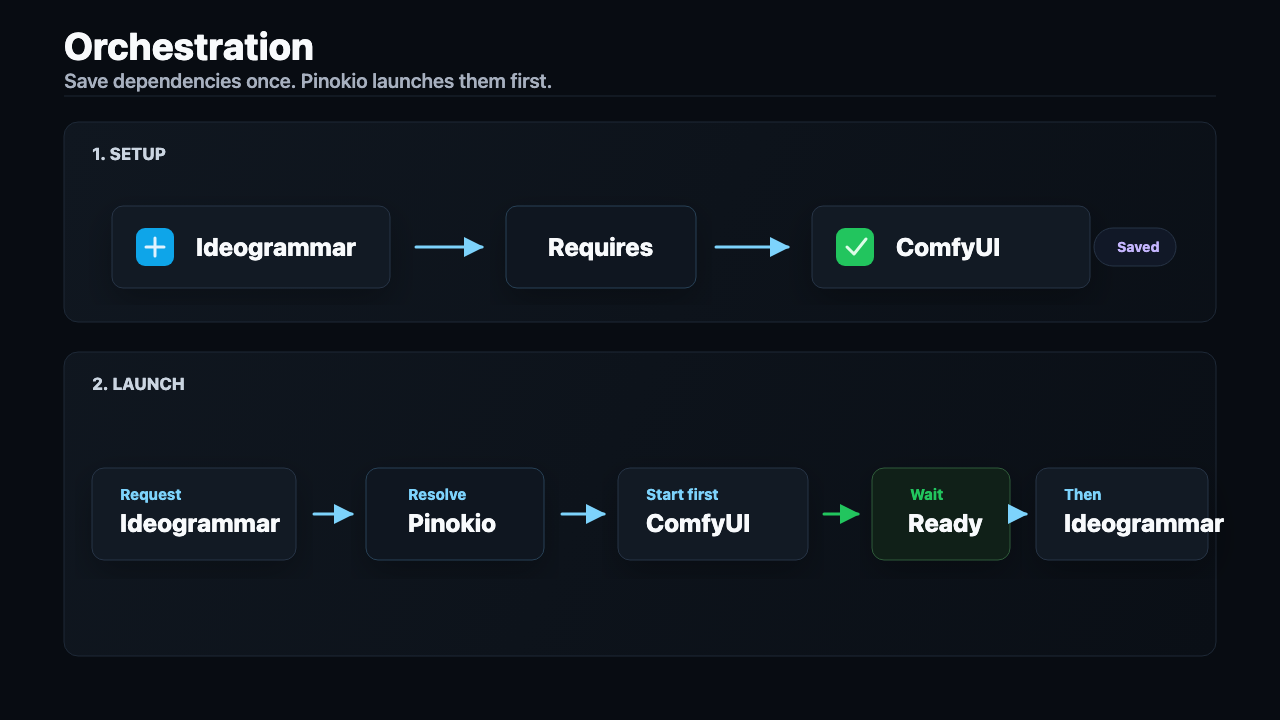
In this case, you can go into the app's Autolaunch setting (at the bottom left corner), click **Add dependency** and choose the required app (ComfyUI).

Pinokio stores launch dependencies in the app `ENVIRONMENT` file:
```text
PINOKIO_SCRIPT_REQUIRES=comfyui.git,ollama
```
- `PINOKIO_SCRIPT_REQUIRES`: optional comma-separated app folder names that must be ready before the selected launch script continues.
When you launch an app with dependencies, Pinokio starts missing requirement scripts first, waits until they are ready, then continues the target script.

### 4.2. Recursive dependency
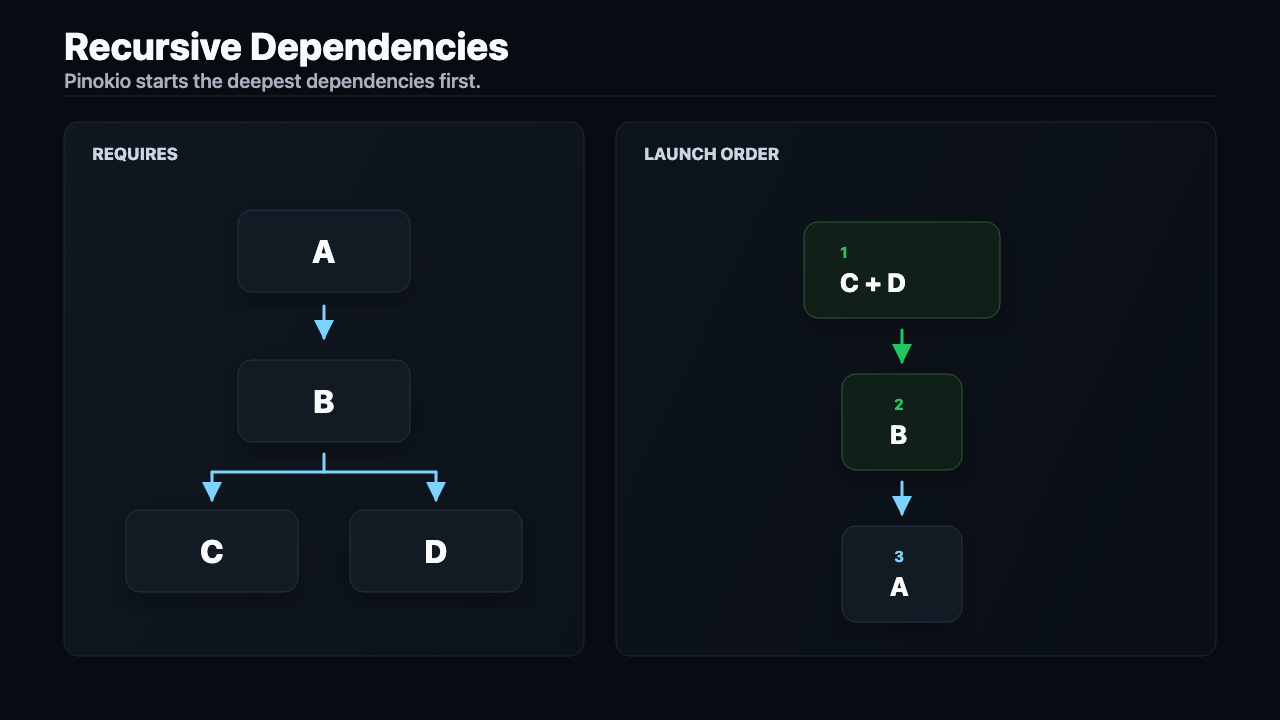
Launch requirements are resolved recursively. For example, if A depends on B, and B depends on C and D, Pinokio launches C and D, waits until both are ready, launches B, waits until B is ready, then launches A.
### 4.3. Autolaunch + Orchestration
This applies to both startup autolaunch and manual app launches. Dependencies do not need to be enabled for startup auto-launch, and Pinokio blocks missing scripts or dependency cycles instead of launching a partial graph.

A required app is considered ready when its launch script reaches the same Pinokio ready state used by [`ready()`](#ready). If a dependency is a server app, make its launch workflow wait for a concrete readiness signal before it completes, such as a `process.wait` URL check or a `shell.run` parser that waits until the app prints its serving URL.
---
## 5. Agent Interpreter
> Install once, talk to any agent.
Anything you install in Pinokio INSTANTLY can talk to ANY AI agent (Claude Code, Codex CLI, Codex Desktop, Gemini CLI, Antigravity, Cursor, etc.)
Zero work required. Pinokio **automatically** figures out how your app works, and creates custom skills for ANY app installed in pinokio.

### 5.1. What is it?
Normally, if you want an agent to use an app, you have to manually teach it where the app lives, how to start it, how to tell when it is ready, and how to talk to it. That glue work usually has to be repeated for every app and every session.
Pinokio solves this by giving installed apps a standard agent-facing layer automatically. It gives agents:
- a standard way to discover installed apps
- reusable workflows that do not have to be re-explained in every chat
- a way to start apps automatically if they are not already running
- reusable generated clients for talking to apps after first use
- provider-native instruction files for persistent workspaces
- and more
The best part is, you do NOT have to understand ANY of this. It "just works".
Go ahead, try opening any of your favorite AI agent (Codex CLI, Claude Code, Gemini CLI, Codex Desktop, etc.):
1. They should already be aware of a skill named `pinokio`.
2. Use that skill and try asking anything that can be solved by any app in your pinokio. (Example: "Generate a speech audio of 'hello, how are you?'")
3. And watch your AI agent automatically discover Pinokio, ask Pinokio which apps to use, pick an app, launch if not already running, and make a request, to finally give you the result you were looking for.
### 5.2. Works with any agent
It works with any AI agent. You can use the built-in CLI agents in pinokio:
Or you can use any external AI agents:
- Codex CLI in terminal
- Claude Code in terminal
- Codex Desktop
- Gemini CLI
- Cursor
- Anything else
### 5.3. Example
Launch and control Pinokio and all its apps automatically through autonomous agent systems like [Openclaw](https://openclaw.ai/), [Hermes Agent](https://hermes-agent.nousresearch.com/), and more.
Here's an example where I'm using my Discord iPhone app to connect to my desktop at home to generate a video using LTX-2.3 Video model through [WanGP installed in Pinokio](https://pinokio.co/apps/github-com-pinokiofactory-wan):
> This is purely through the agent, WITHOUT touching Pinokio at all. This means you can use any 3rd party messaging apps like Discord, Whatsapp, Telegram, etc. to control Pinokio and installed apps.
### 5.4. How does it work?
Pinokio includes a built-in interpreter layer that lets all your apps talk to AI agents **without you having to do anything**.
- No need to write an MCP server
- No need to write a SKILL.md
It "just works".
Pinokio achieves this by shipping with a set of APIs and built-in `SKILL.md` files (installed automatically under `~/.agents/skills`).
These built-in skills can be used by:
- agents running inside Pinokio
- compatible external agents such as Claude Desktop, Codex Desktop, Gemini, and other agent apps that honor the same skill files
Even if an agent does not support the `~/.agents/skills` standard (for example Claude Desktop), you can just download the built-in `SKILL.md` file from the **Settings** page, and then just import into your agent manually, and then everything should **just work**.

### 5.5. Pinokio skill
The built-in `pinokio` skill is the main interpreter between agents and installed apps.
Basically, you just talk to ANY of your favorite AI agent, and they will automatically connect to Pinokio and launch and run apps, all automatically, without you doing anything.
In practice, this means:
1. the agent can search installed apps
2. Pinokio prefers the right app using exact matches, stars, usage history, readiness, and search score (When you "star" an app, they are prioritized; Otherwise, frequently used or most recently used apps are prioritized)
3. if the app is not running yet, Pinokio can start it automatically
4. Pinokio waits until the app is actually ready
5. on first use, the agent can generate a reusable client for that app and keep using it later
Generated reusable clients are stored under:
`PINOKIO_HOME/agents/clients//.`
This is also why app starring and launch history are important. The same preference data used by the home page also helps Pinokio rank apps for agent workflows.
That preference data is stored at:
`PINOKIO_HOME/cache/apps/preferences.json`
### 5.6. Gepeto skill

The built-in `gepeto` skill is the companion interpreter for building Pinokio launchers and Pinokio-native apps through chat, from ANY AI agent.
In other words, Pinokio can be used both to **run apps with agents** and to **build new launchers with agents**.
### 5.7. Automatic skill discovery
Pinokio automatically places the `gepeto` and `pinokio` skills inside `~/.agents/skills` folder when you run pinokio, which means most AI agents (The ones that automatically look up that path for skill discovery) will find them automatically. They will **"just work"**.
Such agents, which auto-discover skills this way are: **Codex CLI**, **Codex Desktop**, **Gemini CLI**, **Openclaw**, etc. For these agents, you do NOT need to do anything. The skills will just be there, and automatically work.
### 5.8. Manual skill discovery
Unlike the agents mentioned in the previous section, there are some agents that do NOT automatically discover skills from pre-defined locations, and you have to manually import the skills.
These agents include: Manus Desktop, etc.
In these cases, you will have to:
1. Download the SKILL.md files from Pinokio:
- pinokio skill: http://localhost:42000/settings/docs/pinokio/download
- pinokio skill: http://localhost:42000/settings/docs/gepeto/download
2. Import the skill.md files into the agents manually.
For example on Manus desktop:

### 5.9. Skills should automaticallly work
In most cases, the `pinokio` and `gepeto` skill will automatically trigger whenever you ask for something that requires some complex app usage, such as local video ai generation, etc.
For example, if you simply say:
> "Generate a video of a cat playing the piano, using LTX-2.3 model"
it will automatically trigger the `pinokio` skill and look for available apps on pinokio, then launch, and then actually run the prompt. All automatically.
### 5.10. Manually activating the skills
But if you do NOT want to rely on the skills being automatically triggered based on your prompt, and force the skill to always trigger, you can explicitly activate them. For example in Codex desktop you can start typing `/pinokio` and it will let you select the pinokio skill:

Here's an example where I activate the `pinokio` skill in Claude code by typing `/pinokio`:

### 5.11. Manage skills
Pinokio ships managed skills that can be synced into local agent skill folders. The Skills page shows the source library, sync targets, validity, conflicts, and ON/OFF state for each managed skill.

Built-in `pinokio` and `gepeto` skills can be disabled without deleting their source copies, and additional skills can be downloaded from a Git URL.
---
## 6. Live resource usage display
App pages show live resource usage for the current app workspace, including disk, RAM, CPU, and VRAM when the platform can report it.
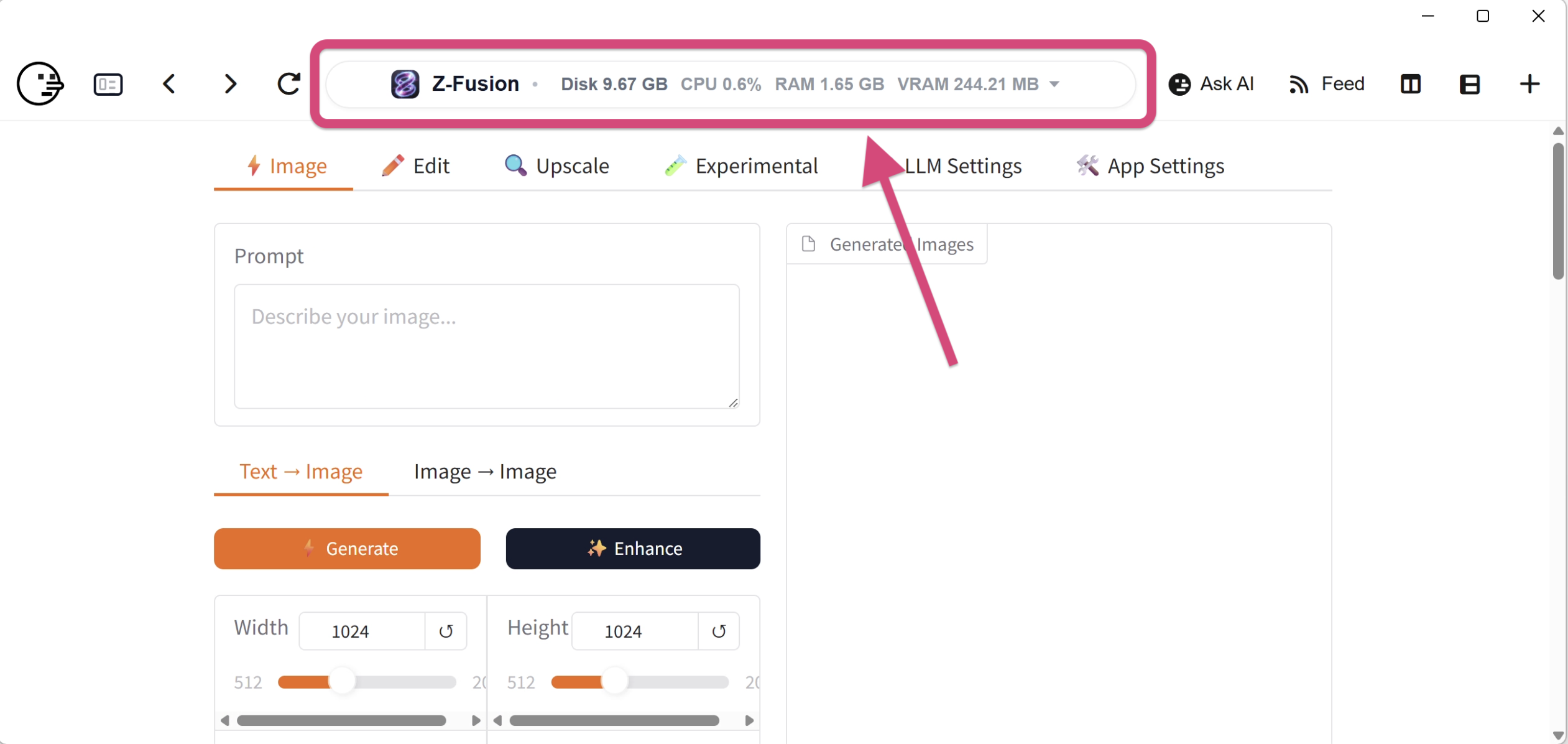
You can configure what gets displayed by clicking the info bar, which will display a dropdown:

What it looks like:

---
## 7. Instant HTTPS Web Domains
Instant HTTPS URLs for all your localhost apps, like https://comfyui.localhost
### 7.1. Custom Domains

Custom domains in pinokio is super simple---the folder names are the domain names. That's it.
Give memorable domain names for locally installed apps. No more localhost URLs with ever-changing PORTs.
Regardless of which port the apps launch from, they will ALWAYS have the fixed HTTPS domain.
### 7.2. Automatic HTTPS for External Apps

**Simply by keeping Pinokio on,** ALL apps running on your machine (even external 3rd party apps like Ollama, LMStudio, etc) gets an HTTPS url.
The convention is:
```
http://localhost:
```
becomes
```
https://.localhost
```
Examples:
1. **Ollama:** which runs on http://localhost:11434 automatically gets the url: https://11434.localhost
2. **LM Studio:** which runs on http://localhost:1234 automatically gets the url: https://1234.localhost
3. **ComfyUI Desktop:** which runs on http://localhost:8188 automatically gets the url: https://8188.localhost
### 7.3. Custom Domains for External Apps
What if you want to get custom domains for ANY web server running on your machine? Even the ones that have NOTHING to do with Pinokio? (Llamabarn, Ollama, LM Studio, ComfyUI Desktop, etc.) Simple, simply create a folder with the custom name and connect a port.
Here's an example where I instantly get a local web domain for a locally running LlamaBarn server (https://github.com/ggml-org/LlamaBarn):

1. Go to the network page
2. Find the server you want
3. Click "Get .localhost domain"
4. Enter the domain and wait
5. That's it! You can now start using `https://WHATEVER.localhost` directly in any browser.
---
## 8. Login with localhost

Pinokio lets you log into online services like Hugging Face, GitHub, X.com, etc. from Localhost apps.
This means your localhost app can:
1. Utilize online identity in the app logic (Example: Display the logged in user's profile and profile information in the web UI)
2. Access online resources that require authentication (Example: Download Hugging Face models that require login, Clone private GitHub repositories, etc.)
3. Publish online from localhost apps: 1-Click publish a trained model to Hugging Face, 1-Click publish to GitHub.
4. and more
### 8.1. Hugging Face
When you log into Hugging Face from Pinokio, Pinokio uses a native device-authorization flow and stores the token in a shared token file.

Apps launched through Pinokio automatically receive `HF_TOKEN_PATH`, which points to that shared token file. By default this is:
```text
PINOKIO_HOME/cache/HF_AUTH/token
```
Because the token path is separate from `HF_HOME`, each app can keep its own model/cache folder while still using the same logged-in Hugging Face account. This makes it possible to:
1. Download private models from Hugging Face
2. Publish to Hugging Face
### 8.2. GitHub
When you log into GitHub from Pinokio, Pinokio uses a managed Git Credential Manager path. After login, you can run `git` commands or `gh` commands ([GitHub CLI](https://cli.github.com/)) to do things like:
1. Create repos on GitHub
2. Clone private GitHub repos
3. Publish to GitHub
---
## 9. Universal Agent Memory
Built-in memory for ALL AI agents. No complicated infrastructure. All based on flat files. No setup required. Everything just works, automatically.
### 9.1. Every terminal event logged

Everything that happens in terminals is stored in memory. This includes:
1. `/logs/api`: Automated script logs (Install script logs, launch script logs, etc.). The launch script logs contain the actual application execution logs.
2. `/logs/dev`: CLI agent logs. All the conversation history with AI agents like codex, claude code, gemini cli, etc.
3. `/logs/shell`: Actual shell usage. All user interaction with the terminal is logged.
App script logs are also grouped into launch sessions. Each app stores a session index at `logs/sessions/index.json`, and each session has a manifest at `logs/sessions/.json` listing the scripts that ran and the log files they produced. Related app runs, such as an install script that launches helper scripts and then starts the default launch script, can be grouped into one session so the logs can be reviewed together.
The Logs page can build a shareable app issue report from the latest session by default. Pinokio tails the relevant logs from that session, includes the app/system context, redacts common secrets and local paths, and can open the report in Ask AI, post it to the community, or package it as a zip.
You can also switch between previous launch sessions and post or inspect the logs for a specific session instead of only using the latest `LATEST` log pointer.
Raw top-level log files can be reviewed with the **Redact** action before generating the zip. Reviewed `.json`, `.log`, and `.txt` files are written into the zip with the reviewed redactions applied; nested files and unsupported file types are not accepted as redaction overrides.
### 9.3. Agent agnostic

Everything is stored as files. No database. No API. Just flat files. This means there is no extra infra needed, and ANY AI agent can access the memory simply by reading the files.
- CLI Agents: Codex CLI, Claude Code, Gemini CLI, etc.
- Standalone Agents: Cursor, Windsurf, etc.
### 9.3. Portable
Everything is stored as files under the `logs` folder inside the project folder. This means you can just copy the entire project folder to another machine and pick up where you left off.

### 9.4. 1-click fix
Since the agents are instructed to automatically reference the logs, debugging is as easy as saying "Fix". No need to paste error messages--the agents should just figure out by accessing the memory. It just works.

### 9.5. Cross-session memory
Since everything is logged, every session can access the old history. This means you can start a new session and resume where you left off last session by asking the agent to first recall what happened so far.

### 9.6. Multi agent communication
All agents can access the same memory, since the "memory" is simply a bunch of log files.
This makes it easy to make multiple agents collaborate on tasks using the same memory, for example:
1. Start codex CLI and ask it to write down a detailed plan.
2. Start claude code and review plan from codex, and if nothing is wrong, build it.

---
## 10. Get Help
### 10.1. Ask the Community
The Logs surface includes a **Get Help** workflow for app workspaces. It can build a Markdown report from the current app's recent logs, show which files are included, estimate the report size, run privacy review, and hand the result to an AI agent or Pinokio Community.

When you need community help, the report can be posted with the selected session logs attached.

### 10.2. Ask AI Agent
When you want a local agent to fix the app, the same report can be opened in Ask AI with the app code, docs, usage context, and selected logs available.

When an app run fails, Pinokio can guide you directly to Get Help from the error state.

You can also quick-access the agent sidebar by clicking the "Ask AI" button on the nav bar.
It lets you open installed tools against the current app folder without leaving the app page.
Ask AI groups the available tools into 2 categories:
- **Terminal Plugins:** start an interactive session inside Pinokio
- **Desktop Plugins:** open an external desktop app or IDE pointed at the current app folder
The drawer can search terminal agents, desktop agents, and project shells from the current app context.

---
## 11. Publish Launchers
- Launchers: Publish apps to run locally
- AI-Generated Launchers: Launchers are automatically generated when you build your apps in pinokio folders
### 11.1. Package cloud apps to run locally

Pinokio makes it easy to package any cloud app into a pack that can run locally.
1. Package an app in a launcher
2. Publish the packed repository to git hosting services
3. 1-Click download, install, and run.
### 11.2. Automatic packaging with AI agents

While you can manually write the scripts that package the application, it's much simpler to just let an AI agent do it.
And Pinokio has this agent built-in. All you need to do is build apps inside the Pinokio folder
The Pinokio Packaging Agent seamlessly works with ANY AI coding agent:
- CLI Agents: Claude code, Codex CLI, Gemini CLI, etc.
- Standalone Applications: Cursor, Windsurf, etc.
### 11.3. 1-Click Publish to GitHub
Thanks to the "login with localhost" feature, it is as easy as 1 click to create github repositories and publish to them, which instantly makes your packaged apps available for download by other people.

---
## 12. LWW (LAN-Wide-Web)
Pinokio automatically creates a private web made up of all the machines on your office/home network (LAN --- Local Area Network)
### 12.1. Automatic Localhost Discovery

Pinokio automatically discovers ALL servers running on your machine (localhost), regardless of whether it was launched by Pinokio or not.
For example, external applications that operate based on a server will be instantly accessible for surfing from Pinokio. Some examples:
- ComfyUI Desktop
- LMStudio
- Ollama
- Any Docker Container
### 12.2. Private web made up of PCs

Instantly discover and surf every machine on your LAN as if it's public web.
---
## 13. Cell
Adaptive container elements that can become anything - AI, terminals, apps, remote machines.
### 13.1. 1-click create
Spin up a new cell with 1 click.

### 13.2. Parallel Browsing
You can spin up multiple windows side by side. This lets you do all kinds of powerful things. For example,
Talk to AI agent on one cell, watch the generated app on another cell:
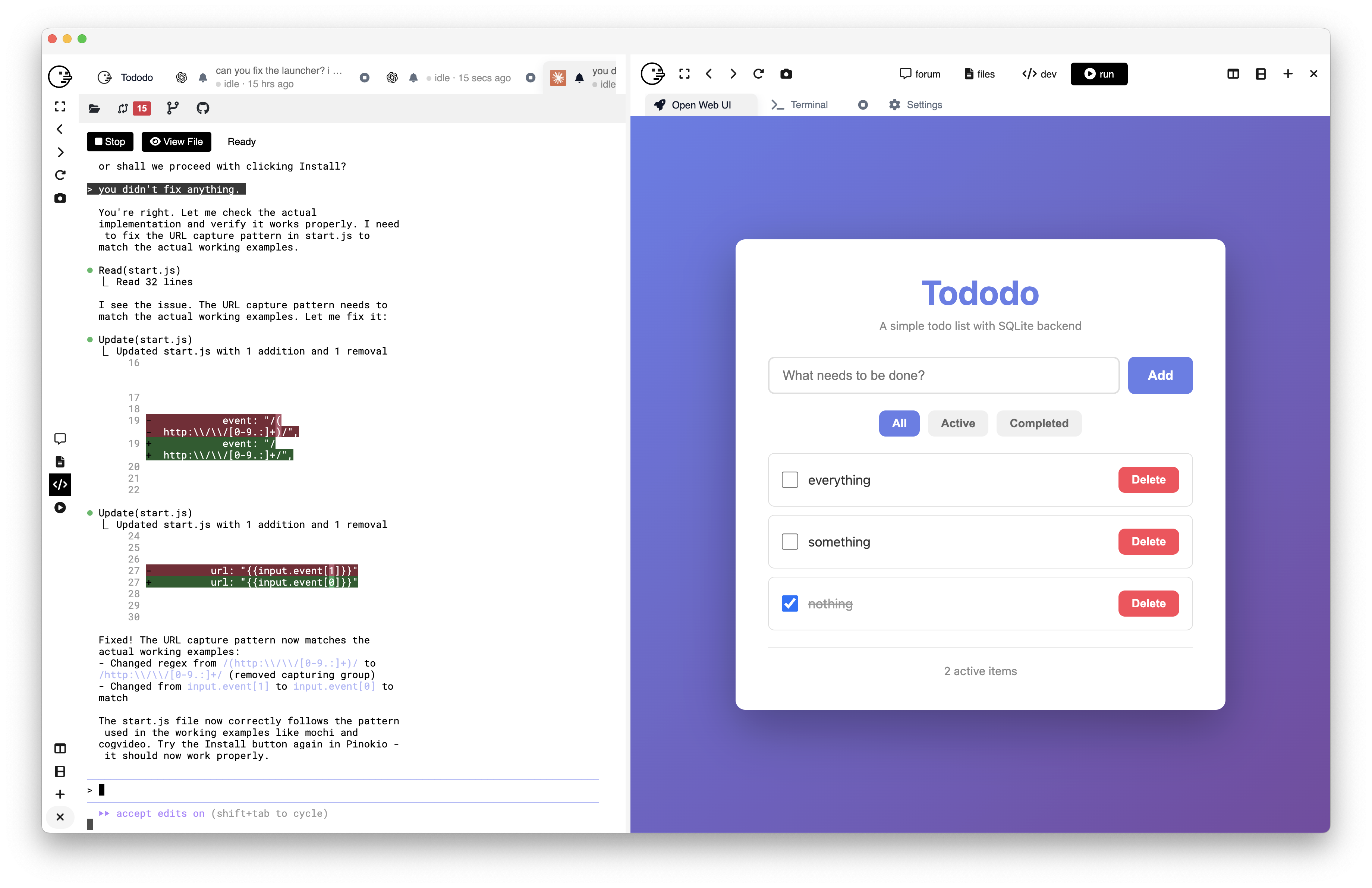.
Run an app on one cell, watch its backend logs on another cell:

Run an app while monitoring processes with terminal apps (like top, htop, etc.)

### 13.3. No limits
You can keep creating as many cells as you want, each cell is independent from each other.

---
## 14. 1-Click Version Control
One click version control
### 14.1. Jump across versions
Switch to any past version you prefer.

### 14.2. Save versions
You can make git commits (save version) with one click
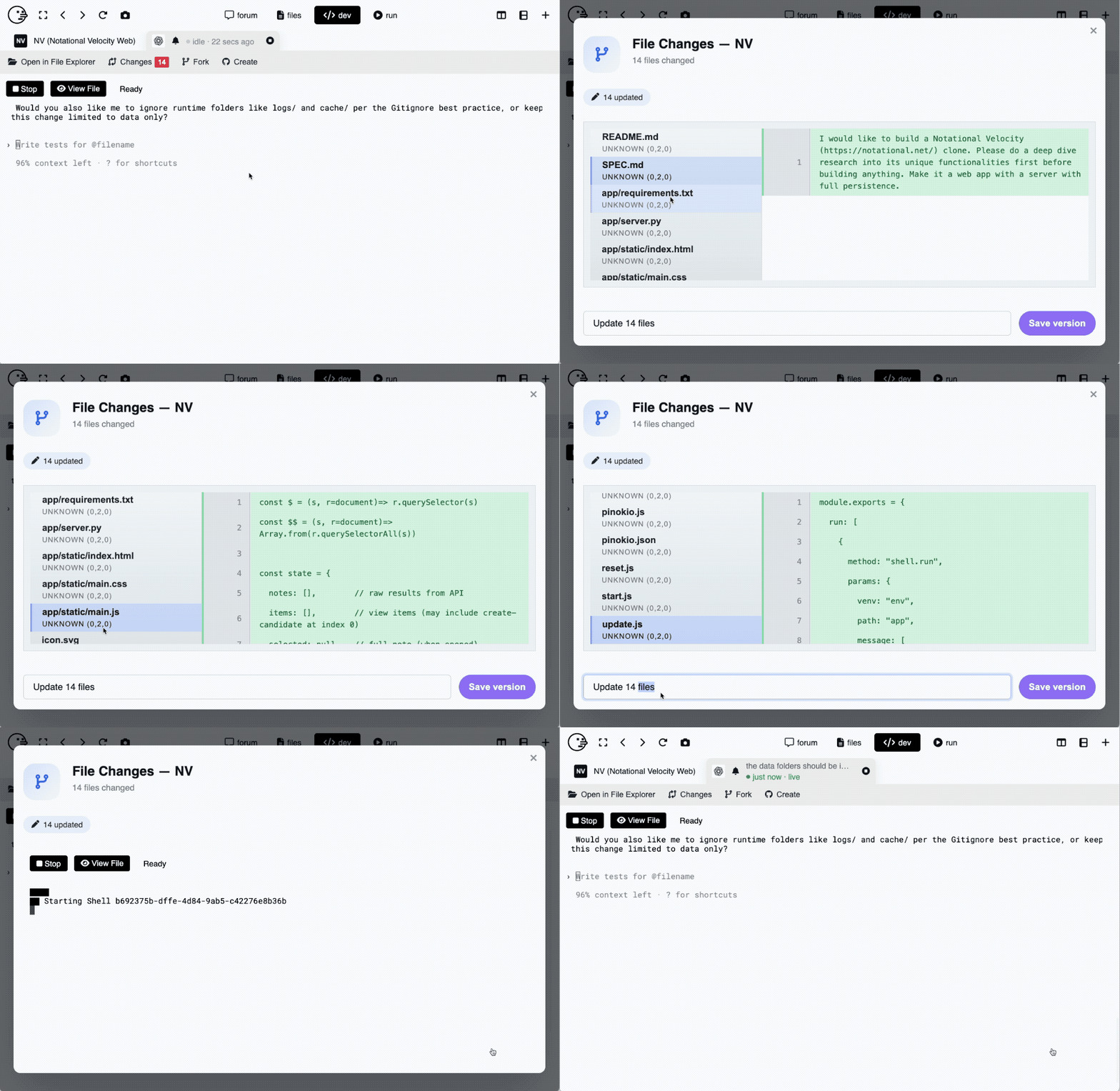
### 14.3. Create a repository on GitHub
Create your own repository on GitHub with 1-click.
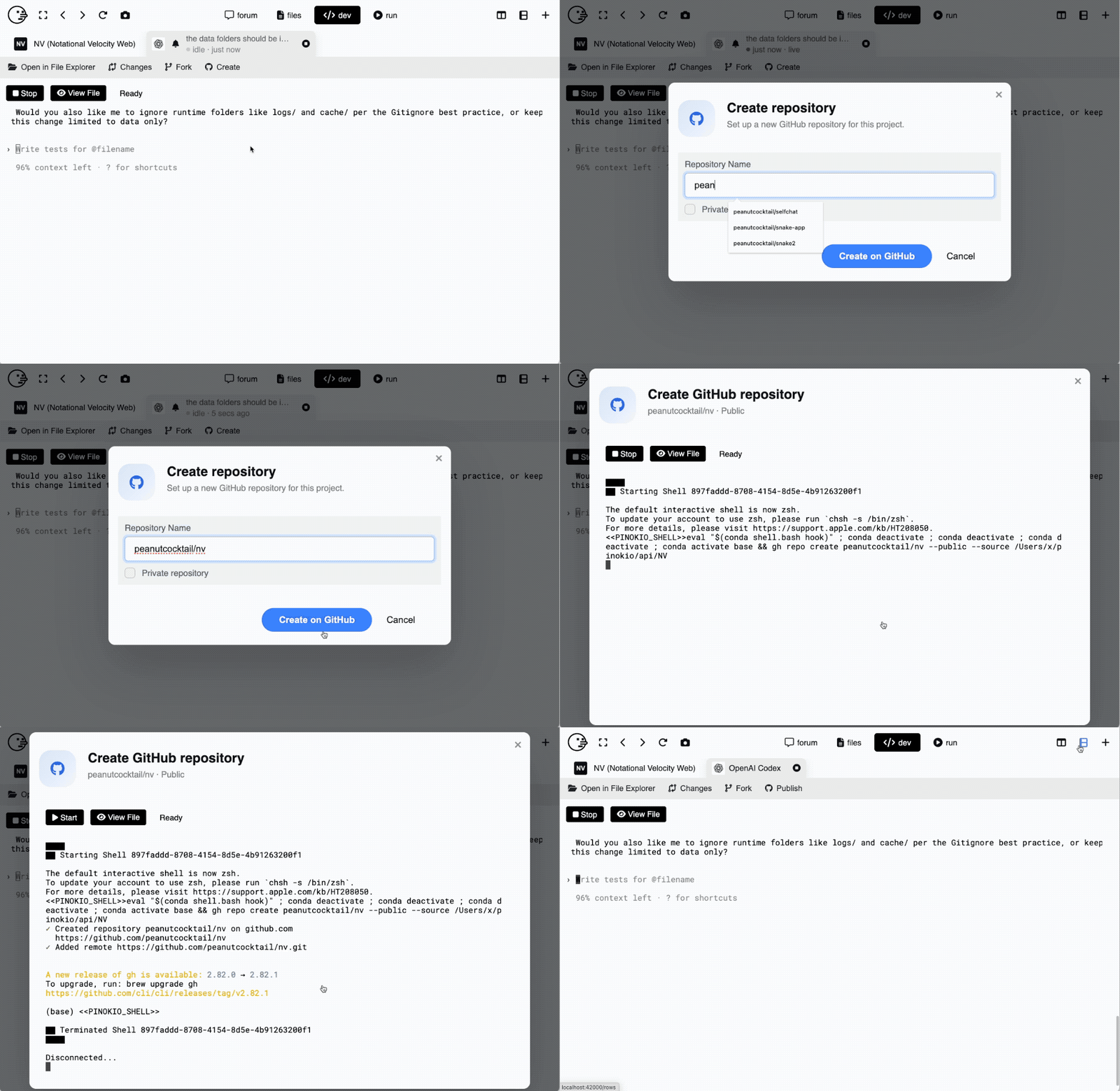
### 14.4. Publish to GitHub with 1-click
Publish your project to GitHub with one click.

### 14.5. Automatic Version Control
Simply by creating a project in Pinokio folders, you get version control out of the box.
## 15. Disk Saver
AI apps often download their own copies of the same models, runtimes, libraries, and other large files. Disk Saver finds files with identical contents and lets them share physical storage while every app keeps the file name and location it expects.
Using the Disk Saver feature, you can free up A LOT of your disk space by simply deduplicating redundant files on your disk. Here's an example of how much I personally saved on my own machine:

*The totals above are an example. Your files and potential savings will be different.*
- **Scan safely:** Scanning is read-only. It does not link, replace, or delete files.
- **Keep app folders intact:** Deduplication saves space without moving files into a central library or changing their paths.
- **Stay in control:** Use **Make separate** to give a deduplicated path its own physical copy again.
- **Remove abandoned data:** When no app path uses managed data anymore, it can appear in **Trash** for review. **Empty Trash** permanently removes that unused data after safety checks.
- **Scan beyond Pinokio:** Add model libraries, caches, old Pinokio Homes, project folders, and other locations on compatible drives.
Complete Disk Saver guideScanning, result views, deduplication, Trash, safety, and troubleshooting.
---
## 16. Background Mode
Pinokio can run in two different modes:
1. **Desktop mode:** The default pinokio desktop app.
2. **Background mode:** Launch Pinokio as a background process. Displays the Pinokio icon on the menubar, and opens the app in a regular browser.
You can switch back and forth from the settings page:

When you switch to background mode, Pinokio will relaunch as a menubar item (No desktop app) and open a localhost URL at http://localhost:42000

---
# Use Cases
## 1. Build a 1-click launcher
Now anyone can build a 1-click launcher for any project just with a prompt.
**Step 1. Click "Create" from Pinokio home**

**Step 2. Enter "1 click launcher for `project url or name`", set the project name, select the AI agent/IDE to work with, and click "Create"**

**Step 3. Build using your favorite AI agent/IDE**
Pinokio will automatically instruct whichever AI agent or IDE you use to automatically structure the project with a built-in launcher. Build your launcher with your AI.

**Step 4. Launch**
When the build has finished, switch to "Run" mode to launch the app using the created app its launcher.

**Step 5. Publish**
Use the built-in github publish feature to publish your launcher to github, and share with others.
## 2. Start a project with a built-in launcher
It doesn't have to be about building a launcher for existing projects---you can create ANY project with 1-click launcher built-in!
All you need to do is initialize your project from Pinokio.
1. Click "Create" from Pinokio home
2. Enter some prompt and select an AI agent to open with
3. It should initialize a new project (with pinokio launcher built-in) and open the selected AI agent/IDE
4. Start building
5. once finished, open the "run" mode and check that the launcher and the app are working
## 3. Your own custom app
Take any app and customize it to your liking:
1. Clone an app
2. Go to dev mode and launch some AI agent
3. Ask it to change the app to your liking (Change UI, etc.)
## 4. Bring all apps to local
Bring all online apps to local so you can run privately.
If you have an app or an online service that you use often but want to run locally, simply:
1. Click "create"
2. Enter "a clone of the app at `app URL`". Feel free to make it as detailed as possible.
3. All projects created inside Pinokio will automatically have a built-in 1-click launcher, so just switch to "run" mode after you finish building.
## 5. Save space across local apps
When several apps contain byte-identical models, runtimes, or dependencies, Disk Saver can reuse the underlying storage without changing their independent folder structures. [Learn how Disk Saver works](disk-saver.md).
---
# Building a launcher
## Components
A Pinokio launcher project usually has 4 core parts:
1. **Config:** `pinokio.json` determines how the project is displayed.
- automatically generated when a project is created.
2. **Environment:** `ENVIRONMENT` stores environment variables to be auto-imported into all scripts in the project.
- automatically generated when a project is created.
3. **Script:** the actual script files that can run stuff.
4. **Launcher:** `pinokio.js` builds the UI that displays links to the scripts so users can run them with 1-click.
Here's an example file structure for a project named `my_project`:
```
~/pinokio
/api
/my_project
pinokio.json <= config
ENVIRONMENT <= environment file
pinokio.js <= launcher (may link to start.js, install.js, and update.js)
start.js <= script
install.js <= script
update.js <= script
```
### Config
`pinokio.json` stores the project information such as `title`, `icon`, `description`, etc., which determines how each project is displayed on Pinokio:
It determines how the project is displayed on Pinokio:

`pinokio.json` also stores other information such as `posts`, `links`, etc. which display links that show up when the project is published:

### Environment
`ENVIRONMENT` file stores custom environment variables that get imported into scripts automatically.
Automatically generated when a project is created, and can be edited through the built-in **Configure** menu:

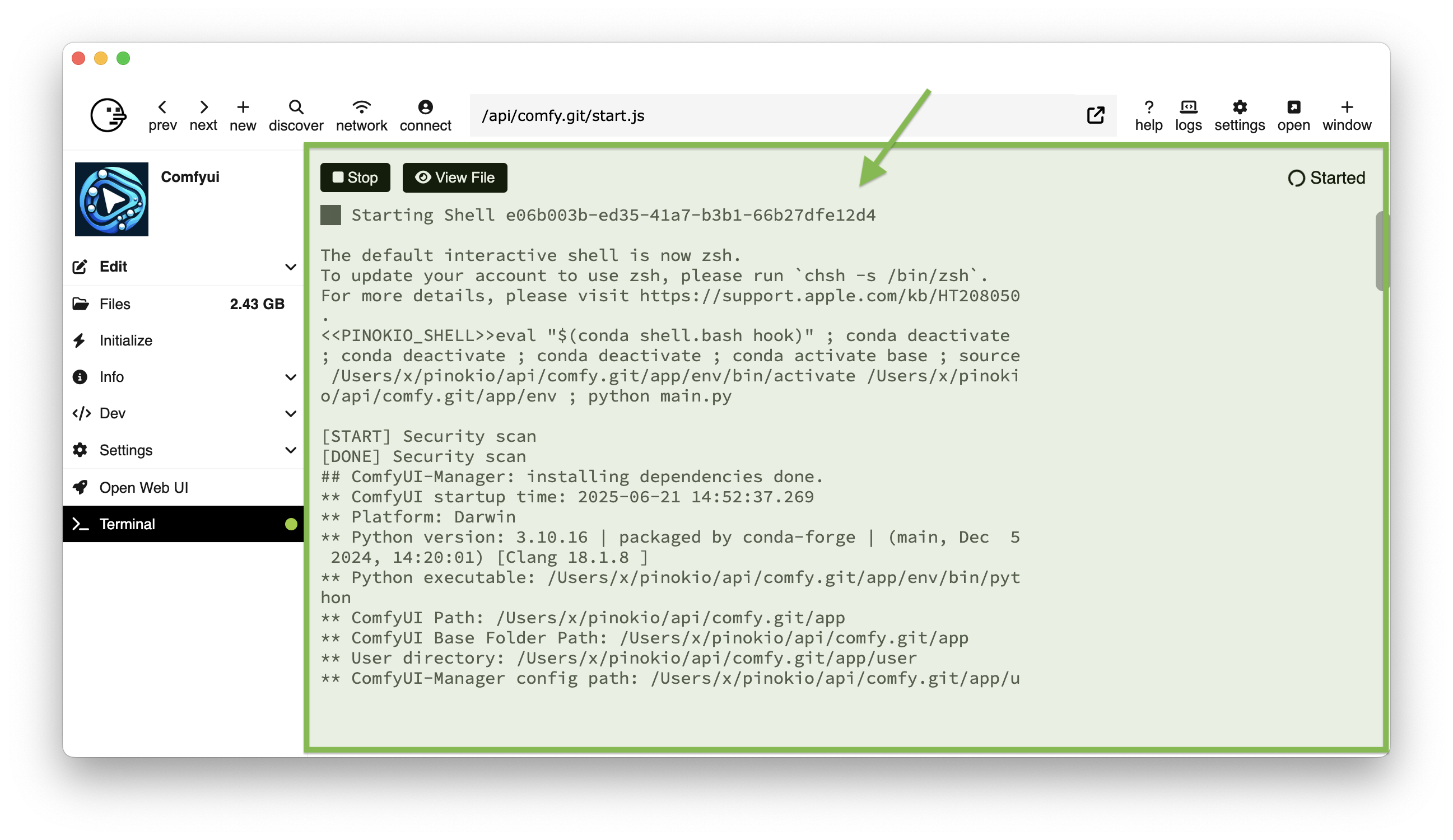
### Script
Projects can have multiple scripts, which are written in `json` or `javascript`.
Scripts do NOT run on their own, but either triggered by user interaction (via the launcher) or programmatically (using an API named `script.start`).
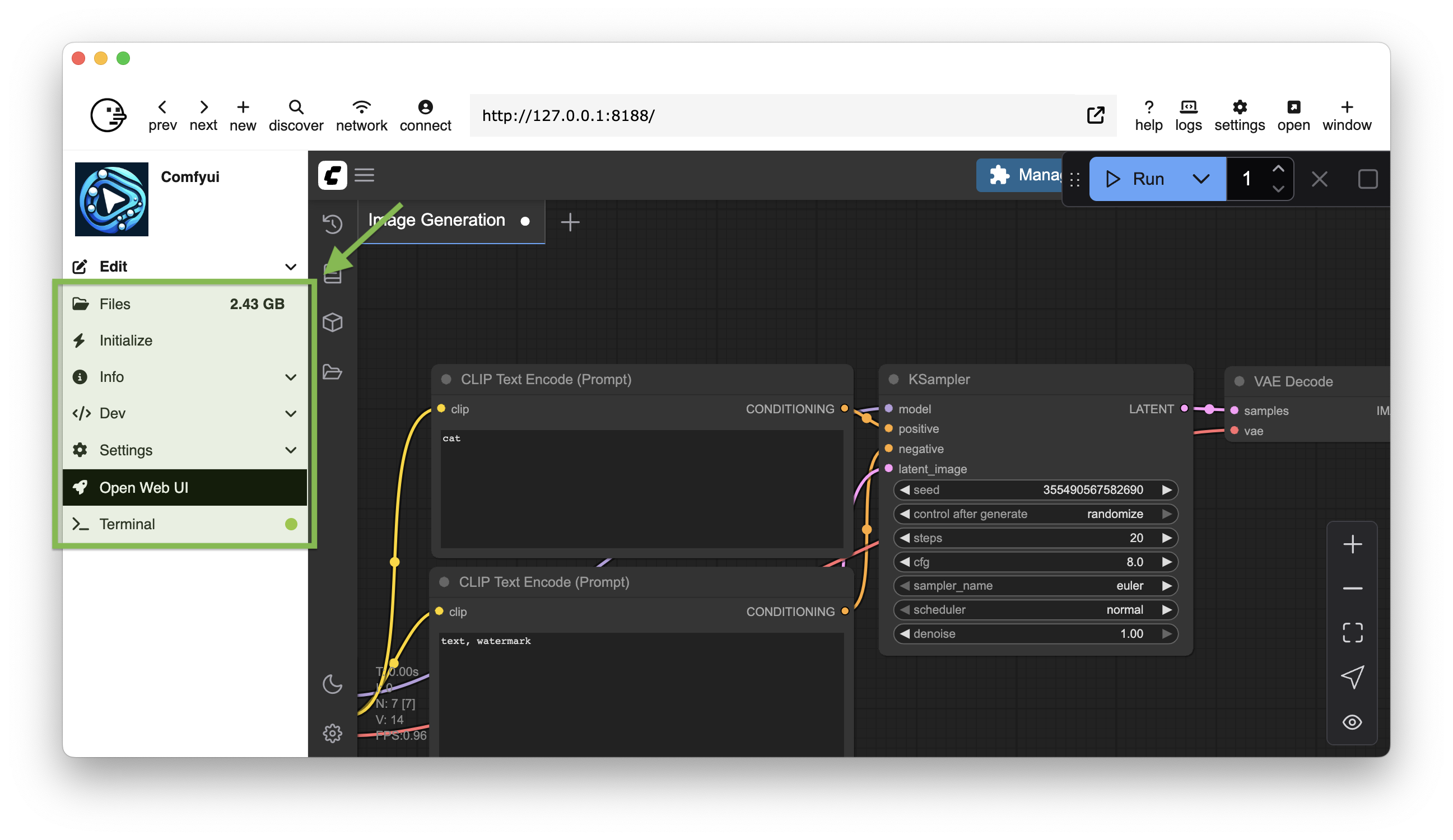
### Launcher
`pinokio.js` creates a menu UI that lets users launch scripts with 1-click.
---
## Config
Config files are used for storing project metadata. The file name is `pinokio.json`.
1. The `pinokio.json` file is automatically generated when you create a new project.
2. You can use the **Edit** menu in Pinokio to edit the metadata (including uploading the icon file).
3. Or, you can manually edit the `pinokio.json` file.
### Syntax
A typical config file looks like this:
```json
{
"title": ,
"description": <description>,
"icon": <icon>,
"posts": [
<x.com url>,
<x.com url>,
...
}]
"links": [
{
"title": <title>
"value": <value>
},
{
"title": <title>
"links": [
{
"title": <title>
"value": <value>
},
...
]
},
...
]
}
```
- `title`: The title to display for the launcher
- `description`: The description to display for the launcher
- `posts`: the items in this array will be displayed in the Newsfeed section.
- `<x.com url>`: include any x.com post here and they will be rendered in the Newsfeed section.
- `links`: the items in this array will be displayed in the right sidebar on the info page.
- `<title>`: The title of the link
- `<value>`: The URL of the link
- `<links>`: Create a nested `"links"` array
### Display
The `title`, `description`, and `icon` fields are used to declare how the launcher is displayed.
```json
{
"title": "Comfyui",
"description": "The most powerful and modular diffusion model GUI, api and backend with a graph/nodes interface. https://github.com/comfyanonymous/ComfyUI",
"icon": "icon.jpeg"
}
```
The metadata attributes (`title`, `description`, `icon`) determine how the projects are displayed on the home page:

Also the launcher page:

### Newsfeed
The newsfeed section can be populated simply by adding x.com links to the `"posts"` array in the `pinokio.json` file:
```json
{
"posts": [
"https://x.com/cocktailpeanut/status/1901791032947450088",
"https://x.com/cocktailpeanut/status/1901748455418347554",
"https://x.com/cocktailpeanut/status/1901698217831703023",
"https://x.com/TheAwakenOne619/status/1901389626931318923",
"https://x.com/cocktailpeanut/status/1901373187667222923",
"https://x.com/hasigoki/status/1901296301301731620",
"https://x.com/cocktailpeanut/status/1901092072263922062",
"https://x.com/cocktailpeanut/status/1901058105934573799",
"https://x.com/cocktailpeanut/status/1900995261947932714",
"https://x.com/cocktailpeanut/status/1901037301989515373",
"https://x.com/cocktailpeanut/status/1900630168638812243",
"https://x.com/cocktailpeanut/status/1900603261352374405",
"https://x.com/cocktailpeanut/status/1900589434153869378",
"https://x.com/Gun_ther/status/1900363944578990399",
"https://x.com/napoleon21st/status/1900423646960902614",
"https://x.com/GorillaRogueGam/status/1900956591530103110",
"https://x.com/DavidFSWD/status/1901096862352110092",
"https://x.com/cocktailpeanut/status/1900237861955527161",
"https://x.com/cocktailpeanut/status/1897017429433442429",
"https://x.com/dgoldwas/status/1897005272453054671",
"https://x.com/dgoldwas/status/1896999854418940049",
"https://x.com/cocktailpeanut/status/1896977467031871632",
"https://x.com/cocktailpeanut/status/1896968455280349548",
"https://x.com/lmontoya/status/1896837315634557412",
"https://x.com/Teslanaut/status/1896837830099468759",
"https://x.com/deepbeepmeep/status/1896681152024563765",
"https://x.com/cocktailpeanut/status/1896669569626099988",
"https://x.com/deepbeepmeep/status/1896264231122772069"
]
}
```

### Profile Links
#### Simple Info Links
Just by setting the `"links"` array, you can display as many links as you want:

```json
{
"links": [{
"title": "GitHub",
"value": "https://github.com/ai-anchorite"
}]
}
```
#### Nested Info Links
Sometimes you want to add some structure to the links by creating multiple sections. You can simply nest the `"links"` array inside a `"links"` array to achieve this:
```json
{
"links": [{
"title": "deepbeepmeep (wrote the app)",
"links": [{
"title": "X",
"value": "https://x.com/deepbeepmeep"
}, {
"title": "GitHub",
"value": "https://github.com/deepbeepmeep"
}]
}, {
"title": "cocktailpeanut (wrote the launcher)",
"links": [{
"title": "X",
"value": "https://x.com/cocktailpeanut"
}, {
"title": "GitHub",
"value": "https://github.com/cocktailpeanut"
}, {
"title": "Discord",
"value": "https://discord.gg/TQdNwadtE4"
}]
}]
}
```

---
## Environment
Often, scripts may require certain environment variables to be set in order to run properly.
Pinokio automatically imports environment variable values from a file named `ENVIRONMENT`.
### Syntax
The `ENVIRONMENT` file must follow the unix shell variable format, for example:
```
S3_BUCKET="YOURS3BUCKET"
SECRET_KEY="YOURSECRETKEYGOESHERE"
```
### How it works
Whenever a script runs, it looks for an `ENVIRONMENT` file in the root path. If it exists, the stored environment variable values are automatically imported into the environment. Here's an example:
```
#####################################################################################################################
#
# SD_INSTALL_CHECKPOINT
# - Delete this field if you don't want to auto-download a checkpoint when installing
# - Replace the URL with another checkpoint link if you want a different checkpoint
#
#####################################################################################################################
SD_INSTALL_CHECKPOINT=https://huggingface.co/stabilityai/stable-diffusion-xl-base-1.0/resolve/main/sd_xl_base_1.0.safetensors
```
Then we can use the `SD_INSTALL_CHECKPOINT` variable in the script via the `env` variable:
```json
{
"run": [{
"method": "fs.download",
"params": {
"uri": "{{env.SD_INSTALL_CHECKPOINT}}",
"dir": "app/models/Stable-diffusion"
}
}]
}
```
You can also edit the contents of the `ENVIRONMENT` file in the **Configure** tab:

---
## Script
scripts are the scripts that actually run stuff on your machine. You can write as many scripts as you want, and there is no restriction on the file names.
### Syntax
Run scripts can have 3 attributes:
```json
{
"version": <schema_version>,
"run": [
<step>,
<step>,
<step>,
...
],
"daemon": <daemon>,
"env": [
<prerequisite_env>,
<prerequisite_env>,
...
]
}
```
- `<schema_version>`: script schema version (current version is `8.0.0`)
- `<step>`: The `run` array contains multiple `<step>` items. Each `<step>` is executed one by one, with each step passing down its return value to the next step.
- `<daemon>`: whether to keep the script running after all `<step>` items have finished executing. For example, when you have a script that starts a web server, if you do not set `"daemon": true`, the script will terminate and kill the server at the end. Required for all apps that needs to keep running. Not needed for one off apps that run and return immediately.
- `<prerequisite_env>`: prerequisite environment variable declaration. A lot of apps require setting some environment variables (such as `OPENAI_API_KEY`) before running. The `<prerequisite_env>` declaration lets you declare the environment variables that need to be set before running a script.
- When this is set, the script automatically displays a form before running a script, allowing the user to enter the corresponding environment variable value.
### Lifecycle
The script lifecycle is very simple:
```json
{
"env": [
<prerequisite_env>,
<prerequisite_env>,
...
],
"run": [
<RPC>,
<RPC>,
<RPC>,
<RPC>,
<RPC>,
...
]
}
```
1. The `env` array is optional. Only required for scripts that require setting some environment variables before running. When this is set, Pinokio automatically displays a form (if the specified environment variables are not already set) to let the user enter the values, which then gets stored in a file named `ENVIRONMENT`. Once this is set, next time the script runs, it will reference the `ENVIRONMENT` file to automatically use the environment variable value.
2. The `run` array is an ordered list of RPC calls.
3. Pinokio walks through the `run` array to run the steps one by one.
4. Each `<RPC>` is [freshly decoded](#decode-cycle) with the [template interpreter](#template-interpreter) before executing.
5. After each step, the return value of each step is passed down to the next step in the form of [input](#input).
6. Each step can make use of the `input` variable passed in from the previous step in their template expression to dynamically construct the method to run.
7. When it reaches the end of the `run` array, the script halts, and all the processes associated with the script is garbage collected.

---
### Environment Processing
#### ENVIRONMENT
A lot of apps require you setting some environment variable values such as `OPENAI_API_KEY`, before running.
With Pinokio, you do not need to manually specify the environment variables every time you run these apps thanks to the [ENVIRONMENT](#environment-1) file.
Every pinokio project has a file named `ENVIRONMENT` which stores environment variable values. Wheenver script files are run, the values in the `ENVIRONMENT` file are imported automatically.
Pinokio also uses `ENVIRONMENT` for runtime policy controls. Bluefairy reads these variables when it is enabled for a shell:
```bash
# master switch
BLUEFAIRY_ENABLED=1
# default freshness delay
BLUEFAIRY_DELAY_HOURS=72
# optional per-manager delay overrides
BLUEFAIRY_NPM_DELAY_HOURS=72
BLUEFAIRY_PYTHON_DELAY_HOURS=72
BLUEFAIRY_BUN_DELAY_HOURS=72
```
Set `BLUEFAIRY_ENABLED=0` to disable Bluefairy entirely in shells where it is injected. Per-shell `params.bluefairy` still overrides that shell's on/off state.
#### env
Instead of the user manually visiting the **Configure** tab to edit the environment variables, a script may EXPLICITLY display a form to let users set the environment variables before starting.
This can be achieved using the `env` array.
1. If the environment variables are already set in the `ENVIRONMENT` file, it will just use those variables to start automatically without pausing.
2. If the environment variables are NOT yet set, it will NOT start the script, but display a form that needs to be filled out. Once the user submits the form, the values get stored into `ENVIRONMENT`, and then the script processing starts, using the newly set e environment variables.
To achieve this, you can attach a `env` array in a script.
```
{
"env": [<requiremd_env>, <required_env>, ...],
"run": [
...
]
}
```
where `<required_env>` is an object that describes the required environment variables:
```
<required_env> := {
key: <environment_variable_name>,
title: <title>,
description: <description>,
default: <default_value>,
host: <key_host>,
}
```
- `<environment_variable_name>`: The name of the environment variable needed to start the script.
- `<title>`: (optional) A simple title for the field
- `<description>`: (optional) description for the field
- `<default>`: (optional) a default value that will be pre-filled when the form is rendered.
- `<key_host>`: (optional) hostname for fetching the default value from the shared key storage
#### Basic usage
For example, let's say our script looks like the following:
```json
{
"env": [{
"key": "OPENAI_API_KEY"
}],
"run": [
{
"method": "shell.run",
"params": {
"venv": "venv",
"message": "python app.py",
}
}
]
}
```
When the user runs this script for the first time, the `OPENAI_API_KEY` environment variable won't be filled out, therefore will be prompted with you will be prompted with a form to fill out the `OPENAI_API_KEY` environment variable:

When the user submits the form, the submitted value will be stored inside the [ENVIRONMENT](#ENVIRONMENT) file.
Then from the next time the script runs, it will automatically import the `OPENAI_API_KEY` environment variable from the `ENVIRONMENT` file instead of displaying the form.
#### Display more info
You can add more details to the form fields using attributes like `title` and `description`:
```json
{
"env": [{
"title": "openai api key",
"description": "enter your openai api key. you can get it at https://platform.openai.com/api-keys",
"key": "OPENAI_API_KEY"
}, {
"title": "huggingface token",
"description": "enter your huggignface token. you can get it at https://huggingface.co/settings/tokens",
"key": "HF_TOKEN"
}],
"run": [{
"method": "shell.run",
"params": {
"venv": "venv",
"message": "python app.py"
}
}]
}
```
The resulting form fields will display more details:

#### Autofill
You can program the form to launch with a default value filled in, using the `default` attribute:
```json
{
"env": [{
"title": "OPENAI API Key",
"description": "OPENAI API KEY https://platform.openai.com/api-keys",
"key": "OPENAI_API_KEY",
"default": "THIS_IS_A_FAKE_API_KEY"
}],
"run": [{
"method": "shell.run",
"params": {
"venv": "venv",
"message": "python app.py"
}
}]
}
```
Here the script sets the `default` to `THIS_IS_A_FAKE_API_KEY`. You can see it below:

> **NOTE**
>
> The default value is NOT saved to the `ENVIRONMENT` file until the user submits the form. It's literally just a default value to display when the form shows up.
#### Autofill from shared key store
Autofilling is great but it's not very powerful if you can only autofill fixed values.
What if there was an autofill feature that works just like how web browsers autofills passwords for every website using its private key storage?
This is where the key store comes in. and you can trigger it simply by including the `host` attribute (a website hostname). Here's an example:
```json
{
"env": [
{
"key": "OPENAI_API_KEY",
"host": "openai.com"
},
{
"key": "HF_TOKEN",
"host": "huggingface.co"
}
],
"run": [
{
"method": "shell.run",
"params": {
"venv": "venv",
"message": "python app.py"
}
}
]
}
```
Note that each `env` item now has a `host` attribute.
Just like how browser password managers store passwords tied to a web domain, Pinokio autofill lets you save keys under each host.
When the user submits the above form, two things will happen:
##### 1. Save to ENVIRONMENT
The `OPENAI_API_KEY` and `HF_TOKEN` environment variables will be stored into the `ENVIRONMENT` file in the project folder.
##### 2. Save to shared key storage
The key storage (located at `$PINOKIO_HOME/key.json`) will store the submitted values as follows:
```json
{
"openai.com": [
"sk-proj-XXXXXXXXXXXXXXXXXXXXXXXXXXXXXXXXXXXX"
],
"huggingface.co": [
"hf_SKXXXXXXXXXXXXXXXXXXXXXXXXXXX"
]
}
```
1. Note that the keys are stored under an **array**.
2. This is because keys can have multiple values
##### 3. Automatic import
Once the environment variables are stored, the same script will skip the `env` step and go straight to running the script instructions next time it's run.
If you wish to edit the `ENVIRONMENT` file, you can easily do so in the **Configure** tab.
##### 4. Autofill from other scripts
Now here comes the true power of shared key store autofill---when you have another project (without the ENVIRONMENT set) that references the hosts (`openai.com` or `huggingface.co`), the fields will be autofilled by loading from the shared key storage.
Let's say there's another project that includes a script that looks like this:
```json
{
"env": [
{
"key": "OPENAI_API_KEY",
"host": "openai.com"
},
{
"key": "HF_TOKEN",
"host": "huggingface.co"
}
],
"run": [
{
"method": "shell.run",
"params": {
"message": "python different_app.py"
}
}
]
}
```
Since this is a completely different project, the `ENVIRONMENT` file need to be set again when the user runs it for the first time. When it's run for the first time, the user will get the following form, with the `OPENAI_API_KEY` and `HF_TOKEN` fields autofilled (by looking up the `$PINOKIO_HOME/key.json` file:

---
### Script Processing
A script is made up of one or more instructions.
1. Walks through the script `run` array one by one while keeping a state machine.
1. For each instruction, interprets the dynamic instruction (templates) using the state machine.
3. After the instruction is interpreted, it is executed.
Here's an example script:
```json
{
"run": [
{
"method": "jump",
"params": {
"id": "{{gpu === 'nvidia' ? 'cuda' : 'cpu'}}"
}
},
{
"id": "cpu",
"method": "shell.run",
"params": {
"message": "pip install torch torchvision torchaudio"
}
},
{
"id": "cuda",
"method": "shell.run",
"params": {
"message": "pip install torch torchvision torchaudio --index-url https://download.pytorch.org/whl/{{Number.parseFloat(gpu_driver || '0') >= 580 ? 'cu130' : 'cu128'}}"
}
}
]
}
```
This script is made up of 3 instructions:
Instruction 1:
```json
{
"method": "jump",
"params": {
"id": "{{gpu === 'nvidia' ? 'cuda' : 'cpu'}}"
}
}
```
Instruction 2:
```json
{
"id": "cpu",
"method": "shell.run",
"params": {
"message": "pip install torch torchvision torchaudio"
}
}
```
Instruction 3:
```json
{
"id": "cuda",
"method": "shell.run",
"params": {
"message": "pip install torch torchvision torchaudio --index-url https://download.pytorch.org/whl/{{Number.parseFloat(gpu_driver || '0') >= 580 ? 'cu130' : 'cu128'}}"
}
}
```
#### Instruction
An instruction is a modified version of [JSON-RPC](https://www.jsonrpc.org/specification).
```json
{
"id": <RPC_id>,
"when": <RPC_condition>,
"method": <RPC_method>,
"params": <RPC_params>,
"next": <RPC_next>
}
```
1. `<RPC_id>`: **optional.** mark this RPC call with the id of `<RPC_id>`. a `jump` RPC call can jump to any step within the `run` array.
2. `<RPC_condition>`: **optional.** if evaluated to `true`, run this step. Otherwise go to the next step.
3. `<RPC_method>`: The RPC method to call
4. `<RPC_params>`: A JSON parameter to pass to the `<RPC_method>` as payload. The `<RPC_params>` object will be available as the value `{{input}}` template expression on the next step.
5. `<RPC_next>`: **optional.** The `id` or `index` of the next instruction to jump to. If not specified, moves on to the next instruction in the `run` array.
> To learn about all the available RPC APIs, see the [script](#script) section.
##### id
The `id` attribute can be used to mark an instruction, so it can be referenced from the other parts of the script. More specifically, you can use the `jump` API to jump to the `id`.
```json
{
"run": [{
"method": "jump",
"params": {
"id": "{{gpu === 'nvidia' ? 'cuda' : 'cpu'}}"
}
}, {
"id": "cpu",
"method": "shell.run",
"params": {
"message": "pip install torch torchvision torchaudio"
}
}, {
"id": "cuda",
"method": "shell.run",
"params": {
"message": "pip install torch torchvision torchaudio --index-url https://download.pytorch.org/whl/{{Number.parseFloat(gpu_driver || '0') >= 580 ? 'cu130' : 'cu128'}}"
}
}]
}
```
In above example, when the script starts running it encounters a `jump`.
1. If `gpu === 'nvidia'`, it jumps to the instruction marked as `cuda` (the third instruction in the `run` array)
2. If otherwise, it jumps to the instruction marked as `cpu` (the second instruction in the `run` array)
##### when
The `when` attribute can be used to conditionally run instructions (or skip) depending on the condition.
```json
{
"run": [{
"when": "{{gpu !== 'nvidia'}}",
"method": "shell.run",
"params": {
"message": "pip install torch torchvision torchaudio"
}
}, {
"when": "{{gpu === 'nvidia'}}",
"method": "shell.run",
"params": {
"message": "pip install torch torchvision torchaudio --index-url https://download.pytorch.org/whl/{{Number.parseFloat(gpu_driver || '0') >= 580 ? 'cu130' : 'cu128'}}"
}
}]
}
```
- `run[0]` is run if the selected GPU is not NVIDIA. (On NVIDIA machines, this step is ignored and goes to the next step immediately)
- `run[1]` is run if the selected GPU is NVIDIA.
##### method
You can use one of many system API methods to run things.
> Learn more here: [API](#api).
Also, for more advanced usage, you may implement your own custom method implementation using a JavaScript function.
> Learn more about custom instructions here: [Custom Instruction](#custom-instruction)
##### params
Parameters that get passed to the method specified by the `method` attribute (only for the system API, not required for custom JavaScript instructions).
##### next
While you can write a separate `jump` instruction to jump to instructions, often you may want to jump without creating a separate instruction.
For example you may want to jump to an instruction after executing the current execution. This is where the `next` attribute comes in.
The `next` attribute can take the following values:
1. **id**: if an id is specified, and an instruction with the id exists in the same script, it jumps to that location after the current instruction.
2. **index:** jumps to the `run[index]` instruction after running the current instruction.
3. `null`: jumps to the end where the script ends.
Here's an example:
```json
{
"run": [
{
"when": "{{gpu === 'nvidia'}}",
"method": "shell.run",
"params": {
"message": "pip install torch torchvision torchaudio --index-url https://download.pytorch.org/whl/{{Number.parseFloat(gpu_driver || '0') >= 580 ? 'cu130' : 'cu128'}}"
},
"next": "install"
},
{
"when": "{{platform === 'darwin'}}",
"method": "shell.run",
"params": {
"message": "pip install torch torchvision torchaudio"
},
"next": "install"
},
{
"method": "notify",
"params": {
"html": "Exception handling"
},
"next": null
},
{
"id": "install",
"method": "script.start",
"params": {
"uri": "install.js"
}
}
]
}
```
1. The first instruction (`run[0]`) jumps to `install` after execution, which calls `script.start` to launch `install.js`
2. The second instruction (`run[1]`) also jumps to `install` after execution, which calls `script.start` to launch `install.js`
3. If none of the above two instructions are executed, the `notify` API is executed, and then jumps to `null`, which halts the script WITHOUT running the `install.js`.
#### Interpretation
Being able to run things is great, but if the commands were static, it would not be powerful.
Fortunately, Pinokio has a dynamic interpreter that runs commands using the memory.
1. **Templates:** Anything wrapped in `{{ }}` will be dynamically filled out for each step, using the script memory.
2. **State Machine:** As a script gets executed, a state machine keeps track of the script memory, filling in the templates right before each instruction is about to run.
##### Templates
Here's an example of using system variables to run different commands depending on the platform (using the `platform` variable)
```json
{
"run": [
{
"method": "shell.run",
"params": {
"message": "python app.py --port {{port}}"
}
}
]
}
```
This is a script made up of a single step `shell.run`, where we can see the template expression `{{port}}`.
The [port](#port) variable returns the next available system port. In this case let's assume it returns `42003`.
After interpretion it results in something like:
```json
{
"method": "shell.run",
"params": {
"message": "python app.py --port 42003"
}
}
```
This command then runs `python app.py --port 42003`. The running phase will be explained in the next section.
##### State Machine
The template expressions are instantiated freshly at the beginning of every step in the `run` array, using the up-to-date memory variables available at the time of parsing.
For example let's say we have a logging script:
```json
{
"run": [{
"method": "log",
"params": {
"raw": "running instruction {{current}}"
}
}, {
"method": "log",
"params": {
"raw": "running instruction {{current}}"
}
}, {
"method": "log",
"params": {
"raw": "running instruction {{current}}"
}
}]
}
```
Since the [current](#current) variable returns the index of the currently executing step in the `run` array,
1. First it will run the `run[0]` step, and print `running instruction 0`
2. Then it will run the next step `run[1]`, and print `running instruction 1`
3. Finally it will run the final step `run[2]`, and print `running instruction 2`
#### Execution
Once each step has been instantiated (from the interpet phase), the result is passed to the JSON-RPC processor to actually run the step.
Here's an example script with 3 steps:
```json
{
"run": [{
"method": "jump",
"params": {
"id": "{{gpu === 'nvidia' ? 'cuda' : 'cpu'}}"
}
}, {
"id": "cpu",
"method": "shell.run",
"params": {
"message": "pip install torch torchvision torchaudio"
}
}, {
"id": "cuda",
"method": "shell.run",
"params": {
"message": "pip install torch torchvision torchaudio --index-url https://download.pytorch.org/whl/{{Number.parseFloat(gpu_driver || '0') >= 580 ? 'cu130' : 'cu128'}}"
}
}]
}
```
Here's the step 1:
```json
{
"method": "jump",
"params": {
"id": "{{gpu === 'nvidia' ? 'cuda' : 'cpu'}}"
}
}
```
Let's say the selected GPU is NVIDIA. Then the instantiated JSON-RPC object will be:
```json
{
"method": "jump",
"params": {
"id": "cuda"
}
}
```
This calls the `jump` API method, which jumps to the step labled as `"id": "cuda"`, which is step 3:
```json
{
"id": "cuda",
"method": "shell.run",
"params": {
"message": "pip install torch torchvision torchaudio --index-url https://download.pytorch.org/whl/cu128"
}
}
```
Here, it runs the `shell.run` API method, which starts a new shell and runs the command specified in the `message` attribute (`pip install ...`)
After the final step is run, the script finishes.
---
### Daemon script
When a Pinokio script finishes running, every shell session that was spawned through the script gets disposed of, and all the related processes get shut down.
For example, let's try launching a local web server using [http-server](https://github.com/http-party/http-server). Create a new folder named `httpserver` under the Pinokio `api` folder, and create a new script named `index.json`:
```json
{
"run": [{
"method": "shell.run",
"params": {
"message": "npx -y http-server"
}
}]
}
```
Then go back to Pinokio and you'll see this app show up on the home page. Click through and click the `index.json` tab on the sidebar, and it will start this script, which should launch the web server using `npx http-server`.
But the problem is, right after it launches the server it will immediately shut down and you won't be able to use the web server.
This is because Pinokio automatically shuts down all processes associated with the script when it finishes running all the steps in the `run` array.
To avoid this, you need to tell Pinokio this app should stay up even after all the steps have run. We simply need to add a `daemon` attribute:
```json
{
"daemon": true,
"run": [{
"method": "shell.run",
"params": {
"message": "npx -y http-server"
}
}]
}
```
Now retry starting the script, and you'll see that the web server starts running and does not shut down.
The web server will serve all the files in the current folder (in this case just `index.json`), like this:

You can stop the script by pressing the "stop" button at the top of the page.
> Learn more about daemon mode [here](#daemon-mode)
---
### Advanced Scripting with JavaScript
#### JavaScript vs. JSON
You can also write JavaScript files to implement a script. The benefits of writing in Javascript are:
1. You have access to all node.js APIs
2. Dynamically construct the scriptusing node.js APIs
3. Can write [custom instructions](#custom-instruction)
#### Syntax
Simply export the same JSON script, but written in JavaScript. Exactly the same except it's stored as a `.js` file.
```javascript
// start.js
module.exports = {
"run": [
{
"method": "shell.run",
"params": {
"message": "git clone https://huggingface.co/spaces/cocktailpeanut/BRIA-RMBG-1.4 app"
}
},
{
"method": "shell.run",
"params": {
"venv": "env",
"path": "app",
"message": "pip install -r requirements.txt"
}
},
]
}
```
#### Custom Instruction
The previous section discussed some of the built-in API methods available out of the box.
But you can even write your own custom JavaScript method that can be called using the same JSON-RPC syntax.
There are 2 ways to implement custom script methods:
1. Inline Method: (recommended) This is the easiest way to get started. You can directly include a javascript function as a step inline.
2. Plugin Method: You can also write a separate JavaScript file to declare an API class and call it.
Instead of the JSON-RPC syntax (method, params, next, etc.) you can specify a single `method` JavaScript async function.
The best part is, it can blend into the rest of the JSON-RPC API calls naturally.
##### Syntax
```javascript
module.exports = {
run: [
STEP1,
STEP2,
...,
{
method: async (req, ondata, kernel) => {
// do whatever you want. here. you have full access to
// 1. ANY JavaScript method
// 2. ANY kernel API call (via `kernel`)
// 3. The terminal (Just call `ondata({ raw: <message> })` to print any message on the executing terminal.
// 4. request object (includes attributes such as req.cwd, req.input, etc.)
return response
}
},
STEPN,
...
}]
}
```
Arguments
1. `req`: Request object
- `cwd`: The current execution path
- `current`: The current step index (If it's the 3rd step, it will return 2)
- `total`: The total number of steps in this script (If there are 4 steps, it will be 4)
- `input`: If the previous step has a return value, it should be accessible via `input`.
- `args`: If the parent script file was launched with params, the params will be available as `args` throughout ALL steps in the script execution.
- `next`: The next step to run
- `parent`: The paret JavaScript file info
- `path`: The script file path (example: `/Users/x/pinokio/api/test/custom/inline.js`)
2. `ondata`: Can be used to print messages to the terminal by calling `ondata({ raw: message })`
3. `kernel`:
- `platform: `darwin`, `win32`, or `linux`
- `arch`: architecture (`arm64`, etc.)
- `envs`: a key/value pair object that contains ALL environment variable values
- `homedir`: The pinokio home path
- `exec()`: A JavaScript interfact to execute shell commands. You can even print to the user facing terminal.
##### Example
Here's an example:
```javascript
const fs = require('fs')
const path = require('path')
module.exports = {
run: [
{
method: "input",
params: {
title: "Command Launcher",
form: [{
title: "Enter the launch command",
key: "start"
}]
}
},
{
method: async (req, ondata, kernel) => {
// copy some template files into the execution folder (req.cwd)
await fs.promises.cp(path.resolve(__dirname, "template"), req.cwd, { recursive: true })
// write a start.json file into the execution folder (req.cwd) using the `req.input.start` value from the previous step.
await fs.promises.writeFile(path.resolve(req.cwd, "start.json"), JSON.stringify({
run: [{
method: "shell.run",
params: {
input: true,
message: req.input.start
}
}]
}, null, 2))
// you can even run some commands in the terminal using the `kernel.exec` API
await kernel.exec({
message: [
"git init",
"git add .",
"git commit -am init"
],
path: req.cwd
}, (e) => {
ondata(e)
})
return {
filepath: path.resolve(req.cwd, "start.json")
}
},
},
{
method: "notify",
params: {
text: "File written to {{input.filepath}}"
}
}
]
}
```
1. First, it calls the `input` JSON-RPC API to take the user input under the key `start`
2. Then this value is passed to the next step as `req.input`.
3. Note that the second step is the `method` async JavaScript function, which takes 3 arguments (req, ondata, kernel), where the `req.input.start` contains the user input from the previous step.
#### Custom Instruction Module
Unlike the Inline method where the custom JavaScript method is included inline as one of the steps, the plugin method lets you:
1. Write a separate JavaScript file to declare the behavior
2. And call the JavaScript file using a JSON-RPC syntax.
3. The main script can be written in pure JSON.
##### Pros & Cons
It is more complex, but the benefit is you can keep all the raw JavaScript functions as separate files, while keeping the actual script purely JSON based.
##### Quickstart
###### 1. Write an API in JavaScript Class
The JavaScript file is where all the logic is written. It must follow the following convention:
```javascript
// api.js
// The class name can be anything, it doesn't matter
const fs = require('fs')
class API {
// req: the request object, where the request.params contains the arguments passed in from an external script
// ondata: can be used to print to the terminal
// kernel: direct access to the kernel
async custom_method(req, ondata, kernel) => {
// Do stuff here. Here's an example
let res = await fetch(req.params.url).then((res) => {
return res.json()
})
await fs.promises.writeFile("result.json", JSON.stringify(res))
}
}
module.exports = API
```
###### 2. Call the API from Script
Now that we've written the logic, we can call it from any Pinokio script. The syntax is the same JSON-RPC syntax.
```json
{
"method": <method_name>,
"uri": <file_path>,
"params": <params>
}
```
The difference in this case is, we have an additional `uri` attribute.
- `<method_name>`: The method name to call
- `<file_path>`: THe file path that contains the API class
- `<params>: The parameters to pass into the API class via `req.params`
For example, to call the `custom_method()` method in the `API` class above, we can do:
```json
{
"run": [{
"uri": "api.js",
"method": "custom_method",
"params": {
"url": "https://jsonplaceholder.typicode.com/todos/1"
}
}]
}
```
This will call the `custom_method()` of the `API` class inside the `api.js` file.
It will pass in `https://jsonplaceholder.typicode.com/todos/1` through the params, so the `req.params.url` will be `https://jsonplaceholder.typicode.com/todos/1`.
##### Example
###### 1. Minimal
First write a JavaScript class file:
```javascript
// plugin.js
class Plugin {
async my_method (req, ondata, kernel) {
ondata({ raw: `\r\nInput Command was ${req.input.start}\r\n` })
}
}
module.exports = Plugin
```
Next, you can call this script from a JSON script:
```json
{
"run": [{
"method": "input",
"params": {
"title": "Command Launcher",
"form": [{
"title": "Enter the launch command",
"key": "start"
}]
}
}, {
"uri": "plugin.js",
"method": "my_method",
"params": {
"launch_command": "{{input.start}}"
}
}]
}
```
###### 2. Writing a browser automation API
Let's say you want to write an API that accepts a URL and opens that URL in a browser automatically.
We can use the `kernel.playwright` variable to use the [Playwright](https://playwright.dev/) that is included in Pinokio kernel. Let's create a `browser.js` file:
```javascript
// browser.js
class Browser {
async open(req, ondata, kernel) {
let { firefox } = kernel.playwright
const browser = await firefox.launch({ headless: false, });
const context = await browser.newContext({ viewport: null })
const page = await context.newPage()
await page.goto(req.params.url)
}
}
module.exports = Browser
```
Now we can call this from a script:
```json
{
"run": [{
"uri": "browser.js",
"method": "open",
"params": {
"url": "https://pinokio.computer"
}
}]
}
```
This will pass in `req.params.url` as `https://pinokio.computer` into the `open()` method in the `browser.js` class, which automatically launches a firefox browser and navigates to the `req.params.url` URL.
---
## Launcher
A launcher script lets you describe a launcher UI. The launcher is the sidebar menu that may let the user:
1. Run scripts
2. Start instant shells
3. Open any web url in a tab
Each project can have at most 1 launcher file, which describes how the launcher works.
To implement a launcher, you must create a file named `pinokio.js` at the root of your project.
Building a UI requires only a single file named `pinokio.js`. Simply place a file named `pinokio.js` in the project root folder.
### Syntax
```javascript
module.exports = {
"version": <script_schema_version>,
"pre": <pre>,
"on": <event_handlers>,
"plugins": [
<plugin_script_path>,
...
],
"menu": <menu>,
}
```
- `<script_schema_version>`: The schema version used (**the latest version is `"8.0.0"`**)
- `<pre>`: (optional) Prerequisites. In case the script requires installation of 3rd party programs that cannot be easily installed through the script, you may specify a `pre` array to provide download links to the user before the installation starts. Each item in the `pre` array may have the following attributes:
- `text`: The text to display for the item.
- `icon`: The icon file path to display for the item.
- `href`: The URL to open.
- `fs`: open the file in a file explorer or the default app.
- if set to `"open"`, opens the file
- if set to `"view"`, opens in file explorer
- if set to `true`, same as `"view"`. opens in file explorer.
- `<event_handlers>`: (optional) An object that maps custom event names to scripts.
- Each key is an event name.
- Each value may have the following attributes:
- `href`: The local script path to start when the event is emitted.
- `ui`: Optional event panel behavior.
- `mode`: One of `"background"`, `"sidebar"`, `"overlay"`, or `"bottom"`.
- `title`: Optional title for the event panel.
- `open`: `"auto"` or `"manual"`.
- `closeOnSuccess`: If `true`, automatically closes the event panel when the launched script finishes successfully.
- `refreshOnClose`: If set, refreshes another frame when the panel closes. Supported values are `"source"`, `"root"`, and `"active"`.
- `<plugins>`: (optional) An array of bundled plugin script paths such as `"plugins/no-gateway/pinokio.js"`.
- Each path is resolved relative to the launcher root.
- If the launcher is at `/api/my_app/pinokio.js`, the root is `/api/my_app`.
- If the launcher is at `/api/my_app/pinokio/pinokio.js`, the root is `/api/my_app/pinokio`.
- Each referenced file must be a normal plugin `pinokio.js`.
- Bundled plugins are discovered alongside standalone plugins and appear in `/plugins`, **Ask AI**, and `/p/:name/dev`.
- `<menu>`: An **array** of tab items, or an **async function** that takes `kernel` and `info` as arguments and returns the same tab items array. Each item in the array may have the following attributes:
- `text`: The text to display on the tab.
- `icon`: The fontawesome class name to display for the tab---Use the built-in [fontawesome](https://fontawesome.com/search?ic=free) class (example: `"fa-solid fa-house"`).
- `image`: image path to display for the tab (You can use either the `icon` or the `image`, but if you use the `image` attribute, you should also include the image file at the specified path).
- `href`: The URL to open in the tab.
- `params` (optional): The query parameters to pass to the tab.
- If passed to a script, the `params` will be made available as the `input` variable inside the first step of the `run` script.
- `shell` (optional): Start an instant shell.
- `popout` (optional): Opens the `href` link in an external browser instead of Pinokio if set to `true`
- `inject` (optional): A string or an array of local script paths to inject into the opened web page.
- `menu` (optional): If specified, creates a nested menu. The nested menu follows the same specification as the top level menu (with `text`, `icon`, `href`, `params`, and `popout` attributes)
- `default` (optional): If specified, this tab item is automatically selected by default. When the `href` attribute is a script URL, the selection also means the script will be automatically started. This can be used to implement automatically executing scripts.
---
### Display prerequisite apps
> Use the `pre` array to implement
Let's say an app needs [Ollama](https://ollama.com) to run.
We can direct the user to install Ollama before installing the app, using the `<pre>` syntax in `pinokio.js`:
```javascript
module.exports = {
version: "8.0.0",
title: "LLM App",
pre: [{
icon: "ollama.png",
title: "Ollama",
description: "Get up and running with large language models.",
href: "https://ollama.com/"
}],
...
}
```
When this is downloaded, the user will be shown the following Prerequisites screen BEFORE the install screen:

### Display the menu
> Use the `menu` array to implement
Here's a UI script for generating a minimal launcher UI:
```javascript
module.exports = {
version: "8.0.0",
title: "Test Launcher",
description: "This is for testing a test launcher",
icon: "icon.png",
menu: [{
icon: "fa-brands fa-google", // see https://fontawesome.com/icons/google?f=brands&s=solid
text: "Open Google",
href: "https://google.com",
}, {
icon: "fa-brands fa-discord",
text: "Open Discord in New Window",
href: "https://discord.gg/TQdNwadtE4",
popout: true // "popout": true => opens the link in an external browser instead of as a Pinokio tab.
}]
}
```
Each menu item is interactive---when the user clicks on it, it can trigger one of the following actions:
1. `href`: Open a URL or a script in a new tab
2. `script`: Start an instant shell
3. `run`: Run a one-off command
#### 1. href
The `href` attribute opens a new tab.
If the URI is a local file path to a script, it will start the script execution terminal:
```json
{
"menu": [{
"icon": "fa-solid fa-check",
"text": "Start",
"href": "start.json"
}]
}
```
If the URI is an http/https url it will open a new web window loading the URL:
```json
{
"menu": [{
"icon": "fa-solid fa-check",
"text": "Web UI",
"href": "http://localhost:3000"
}]
}
```
#### 2. shell
Start an instant shell in a new tab.
```json
{
"menu": [{
"icon": "fa-solid fa-rocket",
"text": "Launch a web server",
"shell": {
"message": "npx -y http-server"
}
}]
}
```
The `shell` syntax is a subset of the attributes available in the [shell.run API](#shellrun):
```json
{
"shell": {
"shell": <shell>,
"input": <input>,
"state_interval": <state_interval>,
"message": <message>,
"path": <path>,
"env": <env>,
"venv": <venv_path>,
"conda": <conda_config>,
}
}
```
- `<shell>` **(optional)**: Override the shell executable used to run the command.
- **When NOT specified:** Pinokio uses the default shell for the platform (`cmd.exe` on Windows, `bash` on macOS/Linux).
- **When specified:** Pinokio launches the command with the specified shell instead.
- The value can be a command name such as `bash` or `cmd.exe`, or an absolute path. When you pass a command name, Pinokio first tries to resolve it against its managed environment before launching the shell.
- If that lookup succeeds, Pinokio launches the resolved executable path. If it does not, Pinokio passes the original value through to the shell launcher.
- This is especially useful on Windows when a CLI expects Bash semantics. For example, `shell: "bash"` will resolve to Pinokio's bundled Bash. If you want the resolved path explicitly, you can also use `{{which('bash')}}`.
- `<input>`: **(optional)** Whether the shell is interactive or not (whether the user can enter keystrokes into the shell)
- **when `true`**: the shell launches in input mode. The user can enter keys. Useful for launching CLI Apps that require user interaction.
- **when `false` (or not specified):** the shell launches in non-interactive mode. Useful for automated shell execution that should not allow user interaction.
- `<state_interval>`: **(optional)** Same as `shell.run`. Useful for interactive TUIs and other CLI apps that repaint frequently.
- `<message>`: The message to enter into the shell. Different from `shell.run`, instant `shell` only launches one command, so this can be either:
- **string** => raw shell text
- **object** => structured argv-style command, escaped automatically for the selected shell
```json
{
"shell": {
"message": {
"_": ["npx", "-y", "@openai/codex@latest", "{{args.prompt}}"]
},
"input": true
}
}
```
- `<path>` **(optional)**: The path from which to start the shell session (can be either a relative or absolute path).
- **When NOT specified:** the shell starts from the same path as the currently running script.
- **When specified:** the shell session starts from the specified path
- `<env>` **(optional)**: Environment variable key/value pairs.
- when the key/value pairs are specified, the custom environment values are set.
- when NOT specified, the shell uses the default environment
- Pinokio can also inject Bluefairy into app shells.
- When Bluefairy is on, it guards supported `npm`, `uv`, and `bun` install/update flows.
- Tune the policy with `BLUEFAIRY_*` variables in the app `ENVIRONMENT` file, or override injection for a specific shell with `bluefairy: "on"` or `bluefairy: "off"`.
- `<venv_path>` **(optional)**: A declarative syntax for automatically creating or activating a venv environment at the specified path.
- **When NOT specified (default):** Does not create or activate a venv and runs the shell session normally.
- **When specified:** Creates a venv at the specified path if it doesn't exist yet, or if it exists, activates the existing venv at the specified path, and runs the shell session in that venv.
- the shell automatically creates a venv environment at that path if it doesn't exist, then automatically activates the environment before running the command(s) specified by the `message` attribute.
- `<conda_config>` **(optional)**: Declarative syntax for defining the conda environment that will be activated for this shell session. Can be an object or a string.
- **When NOT specified (default):** By default Pinokio activates its isolated `base` conda environment. Pinokio-managed shared tools live under `PINOKIO_HOME/bin` (for example through Conda, Bun, npm, Homebrew, and other setup-managed installers depending on platform and selected bundle), so Pinokio does NOT rely on your system-wide setup.
- **When specified:** The `<conda_config>` attribute can be a **string** or an **object**.
- **string:** the `<conda_config>` is interpreted as the path in which the conda environment is stored. (Ex: if `"conda": "conda_env"`, the shell will activate the conda environment at the `conda_env` path).
- **object:** In some cases you may want more advanced ways of creating/activating the conda environments declaratively. When the `<conda_config> is an **object** type instead of **string**, the following rules apply:
- `path`: Same as when the `<conda_config>` is a string. Interpreted as the path in which the conda environment is stored. (Ex: if `"conda": "conda_env"`, the shell will activate the conda environment at the `conda_env` path).
- `name`: the conda environment **name** to activate. Unlike activation by path, the environments created/activated this way are centrally stored under the `PINOKIO_HOME/bin/miniforge` folder.
- `skip`: if set to `true`, do NOT activate ANY environment (By default this is set to `false`, and therefore every shell activates the Pinokio-global `base` conda environment every time unless you specify with the `params.conda` attribute.
- `python`: The python version to install inside the environment (The default is `python=3.10` if not specified)
- the shell automatically creates a conda enviornment at that path if it doesn't exist, then automatically activates the environment before running the command(s) specified by the `message` attribute.
#### 3. run
Run a one-off command.
```json
{
"menu": [{
"icon": "fa-solid fa-rocket",
"text": "Open pinokio.js in cursor",
"run": "cursor pinokio.js"
}]
}
```
> If you're trying to run a command that does NOT terminate (such as starting a web server), do NOT use `run`, but start a shell using the `shell` attribute instead.
### Dynamic menu rendering
The sidebar menu is automatically re-rendered every time a step in the currently running script finishes.
This means you can write the `pinokio.js` file so it automatically displays relevant items in realtime.

For example, when the app is running, you may want to display a link to open the actual web UI. Or when the app is not running, you may want to display a "Start" button instead.
We can achieve this type of dynamic menu rendering by using a function instead of array. Instead of setting a static `menu` array, set the `menu` as an `async` function that takes `kernel` and `info` as an arguments.
You can use the `info` variable to get various types of status information about the files and scripts:
- `info.local(filepath)`: get the local variable object of a script running at `filepath`.
- `info.running(filepath)`: get the running status of a script at `filepath`.
- `info.ready(filepath)`: check whether a script at `filepath` has reached Pinokio's ready state. Supports relative paths, absolute paths, `~/...` paths under Pinokio home, and installed git repository URIs. See [`ready`](#ready) for what ready means.
- `info.exists(filepath)`: check if a file exists at `filepath`.
- `info.path(filepath)`: get the absolute path of a `fileapth`.
Check out an example below, where it makes use of the `info` API to determine whether `install.json` or `start.json` scripts are running, and if they are, get the local variable in memory, etc.
```javascript
const path = require("path")
module.exports = {
version: "8.0.0",
title: "InvokeAI",
description: "Generative AI for Professional Creatives",
icon: "icon.jpeg",
menu: async (kernel, info) => {
/**********************************************************************************************
info has 5 methods (where `filepath` may be a relative path or an absolute path; info.ready also supports Pinokio script URI forms.):
- info.local(filepath): get the local variable object of a script running at `filepath`.
- info.running(filepath): get the running status of a script at `filepath`.
- info.ready(filepath): check whether a script at `filepath` has reached Pinokio's ready state.
- info.exists(filepath): check if a file exists at `filepath`.
- info.path(filepath): get the absolute path of a `fileapth`.
**********************************************************************************************/
let installing = info.running("install.json")
let installed = info.exists("app/env")
if (installing) {
return [{ icon: "fa-solid fa-plug", text: "Installing...", href: "install.json" }]
} else if (installed) {
let running = info.running("start.json")
if (running) {
let memory = info.local("start.json")
if (info.ready("start.json") && memory && memory.url) {
return [
{ icon: "fa-solid fa-rocket", text: "Web UI", href: memory.url },
{ icon: "fa-solid fa-terminal", text: "Terminal", href: "start.json" },
{ icon: "fa-solid fa-rotate", text: "Update", href: "update.json" },
]
} else {
return [
{ icon: "fa-solid fa-terminal", text: "Terminal", href: "start.json" },
{ icon: "fa-solid fa-rotate", text: "Update", href: "update.json" },
]
}
} else {
return [{
icon: "fa-solid fa-power-off",
text: "Start",
href: "start.json",
}, {
icon: "fa-solid fa-rotate", text: "Update", href: "update.json"
}, {
icon: "fa-solid fa-plug", text: "Reinstall", href: "install.json"
}, {
icon: "fa-solid fa-broom", text: "Factory Reset", href: "reset.json"
}]
}
} else {
return [
{ icon: "fa-solid fa-plug", text: "Install", href: "install.json" },
{ icon: "fa-solid fa-rotate", text: "Update", href: "update.json" }
]
}
}
}
```
Based on the determined app status, the dynamic `menu` function can generate menu items.
1. check whether a file/folder exists at a path: `info.exists()`
2. check if a script at a specified path is running: `info.running()`
3. check if a script at a specified path is ready: `info.ready()`
4. get the local variables object for a script at specified path: `info.local()`
---
### Nested menu
You can nest the `menu` array into another `menu` (up to level 2)

```javascript
module.exports = {
title: "Test Launcher",
description: "This is for testing a test launcher",
icon: "icon.png",
menu: [{
icon: "fa-solid fa-download",
text: "Download Models",
menu: [
{ text: "Download by URL", icon: "fa-solid fa-download", href: "download.html?raw=true" },
{ text: "SDXL", icon: "fa-solid fa-download", href: "download-sdxl.json", mode: "refresh" },
{ text: "SDXL Turbo", icon: "fa-solid fa-download", href: "download-turbo.json", mode: "refresh" },
{ text: "Stable Video XT", icon: "fa-solid fa-download", href: "download-svd-xt.json", mode: "refresh" },
{ text: "Stable Video", icon: "fa-solid fa-download", href: "download-svd.json", mode: "refresh" },
{ text: "Stable Video XT 1.1", icon: "fa-solid fa-download", href: "download-svd-xt-1.1.json", mode: "refresh" },
{ text: "LCM LoRA", icon: "fa-solid fa-download", href: "download-lcm-lora.json", mode: "refresh" },
{ text: "SD 1.5", icon: "fa-solid fa-download", href: "download-sd15.json", mode: "refresh" },
{ text: "SD 2.1", icon: "fa-solid fa-download", href: "download-sd21.json", mode: "refresh" },
{ text: "Playground2.5 fp16", icon: "fa-solid fa-download", href: "download-playground-fp16.json", mode: "refresh" },
{ text: "Playground2.5", icon: "fa-solid fa-download", href: "download-playground.json", mode: "refresh" },
]
}]
}
```
---
### Auto-executing menu items
Using the `default` attribute, it is possible to implement auto-executing scripts.
For example, let's say we want the following behavior:
- run `install.js` if `app/env` does not exist.
- run `start.js` if `app/env` exists, and `start.js` is not already running.
```javascript
module.exports = {
version: "8.0.0",
title: "Auto Launcher",
icon: "icon.png",
menu: async (kernel, info) => {
if (info.exists("app/env")) {
// already installed. select the "start.js", automatically running `start.js`
return [{
text: "Install",
href: "install.js"
}, {
default: true,
text: "Start",
href: "start.js"
}]
} else {
// not installed yet. select the install.js tab.
return [{
default: true,
text: "Install",
href: "install.js"
}, {
text: "Start",
href: "start.js"
}]
}
}
}
```
---
# Building a task
A task is a reusable prompt template package.
You do not need to write task files manually.
In most cases, build the task inside Pinokio from the **Tasks** page and let Pinokio generate `pinokio.json` and `task.md` for you.
## In Pinokio
### Open Tasks
Open the `/tasks` page and click **New task**.

### Write Template
Fill in the title and description, then write the template in the builder.
Use `{{variables}}` anywhere in the template text to define task inputs.

### Save Task
Pinokio detects the variables automatically, turns them into editable task inputs, and lets you save the task without hand-writing the files yourself.
After saving:
- `workspaces` tasks appear in **Ask Pinokio**
- `api` tasks appear in **Create App** through **Use template**
- `plugin` tasks appear in **Create Plugin** through **Use template**

### Publish
After saving a task, open it from the library and publish it from the task page.
Pinokio can create the GitHub repository, publish the first version, and turn the local task into a shareable task URL.

### Download
To install a shared task, open **Ask Pinokio**, switch to **Download**, paste the task's Git URL, and import it.
Pinokio downloads the task package into `PINOKIO_HOME/tasks`.

## Spec
The files below are informational. Pinokio generates them for you when you save a task, but they are useful to understand if you want to inspect, edit, version, or publish the task repository manually.
### Files
A task repository looks like this:
```text
my-task/
pinokio.json
task.md
```
#### pinokio.json
```json
{
"title": "Repository Research",
"description": "Investigate whether a repository is safe to install.",
"path": "tasks",
"target": "workspaces",
"inputs": [
{
"name": "repo_url",
"label": "Repo Url",
"required": true
},
{
"name": "question",
"label": "Question",
"required": true
},
{
"name": "selected_text",
"label": "Selected Text",
"required": false
}
]
}
```
- `title`: display name for the task
- `description`: optional short explanation shown in task listings
- `path`: should be `"tasks"` for task packages
- `target`: where the task is meant to be used
- `"workspaces"` => Ask Pinokio
- `"api"` => Create App
- `"plugin"` => Create Plugin
- `inputs`: the declared task inputs
Pinokio currently defaults a missing `target` to `"workspaces"` for compatibility, but new tasks should always include an explicit `target`.
#### task.md
```md
Research {{repo_url}}.
Answer this question:
{{question}}
Use this context if helpful:
{{selected_text}}
```
Each `{{variable}}` in `task.md` must have a matching `inputs[].name` entry in `pinokio.json`.
Pinokio validates that:
- every declared input is used in `task.md`
- every template variable has a matching declared input
- input names are unique
The task builder UI can generate and maintain this schema automatically, but manually authored tasks should still keep `pinokio.json` and `task.md` in sync.
### Target
Use exactly one target per task:
- `workspaces`: for tasks that should create or reuse an agent workspace
- `api`: for tasks that should create an app folder
- `plugin`: for tasks that should create a plugin folder
The task package itself is still installed under `PINOKIO_HOME/tasks` in all cases. The target only controls where the result is created and where the task appears in the launcher UI.
### Tips
- Keep the prompt generic and parameterize the user-specific parts with `{{variables}}`
- Use `required: false` for optional context such as selected text or notes
- Prefer a short description that explains when the task is useful
- Publish the repository to GitHub if you want to share it with other Pinokio users
For the user-facing task workflow, see [Tasks](#tasks).
---
# Building a plugin
A plugin is a reusable script written as a single `pinokio.js` file.
Unlike a launcher, a plugin is not a multi-file app package. It is one script that runs **inside** another app or workspace.
In other words:
- a **launcher** controls and organizes one app
- a **plugin** is a reusable action you can run across many apps and workspaces
## Syntax
A plugin must export a top-level object and include a `run` action.
Plugins use the same script syntax as launchers. The plugin-specific part is only the top-level shape of the file. Inside `run`, `install`, `uninstall`, and `update`, you still use the normal Pinokio step syntax documented in [Script](#script) and [API](#api).
Each plugin action can be either:
- an array of normal Pinokio steps
- an async JavaScript function that returns an array of normal Pinokio steps
Unlike launchers, plugins should not export arbitrary top-level functions. Only action fields such as `run`, `install`, `uninstall`, `update`, and the `installed` check may be functions.
```javascript
module.exports = {
version: <schema_version>,
daemon: <daemon>,
path: <path>, // use "plugin" for standalone global plugins
title: <title>,
icon: <icon>,
description: <description>,
link: <link>,
launch_type: <launch_type>,
env: [
<prerequisite_env>,
...
],
run: [
<step>,
<step>,
...
],
install: [
<step>,
<step>,
...
],
uninstall: [
<step>,
<step>,
...
],
update: [
<step>,
<step>,
...
],
installed: async (kernel, info, ctx) => {
return <boolean>
}
}
```
The same actions may also be written as async functions:
```javascript
module.exports = {
path: "plugin",
title: "My Dynamic Plugin",
launch_type: "terminal",
run: async (kernel, info) => {
const message = kernel.platform === "win32"
? "echo Running on Windows"
: "echo Running on macOS or Linux"
return [{
method: "shell.run",
params: {
message,
path: "{{args.cwd}}",
input: true
}
}]
}
}
```
- `version`: optional script schema version
- `daemon`: optional daemon mode, same as normal scripts
- `path`: required for standalone global plugins, and must be set to `"plugin"`. This tells Pinokio to install the launcher under `PINOKIO_HOME/plugin`. Bundled app plugins do not need this field.
- `title`: display name for the plugin
- `icon`: icon file path relative to the plugin folder
- `description`: optional description shown in plugin listings
- `link`: optional homepage or repository link
- `launch_type`: optional explicit launch mode. Use `"terminal"` to force the plugin into Pinokio's terminal flow, or `"desktop"` to force the plugin into the external desktop flow. If omitted, Pinokio infers the type from the steps: `shell.run` => terminal plugin, `exec` or `app.launch` => desktop plugin.
- `env`: optional environment prompts using the same syntax as launcher scripts. When a plugin is launched and values are missing, Pinokio asks for them and writes them into the target app or workspace `ENVIRONMENT` file.
- `run`: required for plugin loading, and used for the main `Open in` action. Must be an array or function returning an array.
- `install`: optional extra action shown on `/plugins`. Must be an array or function returning an array.
- `uninstall`: optional extra action shown on `/plugins`. Must be an array or function returning an array.
- `update`: optional extra action shown on `/plugins`. Must be an array or function returning an array.
- `installed`: optional install-state check for installable plugins. Must be an async function returning `true` or `false`.
The action arrays above all use the same normal Pinokio step syntax. That means features such as `when`, `id`, `method`, `params`, templating, `shell.run`, `exec`, `notify`, and `app.launch` work the same way inside plugins.
Action functions are evaluated only when the action is launched, not when Pinokio builds the plugin list. This keeps plugin discovery fast while still allowing launch-time async logic such as probing local services, reading files, checking installed tools, or building dynamic environment variables.
When `run` is launched for a plugin that also defines `install`, Pinokio calls `installed` first when it exists. If `installed` returns `false`, Pinokio shows an install prompt instead of running the plugin action.
The action function receives the same first arguments as dynamic launcher functions:
```javascript
run: async (kernel, info, ctx) => {
return [
// steps
]
}
```
- `kernel`: the Pinokio kernel object
- `info`: runtime/system info when available
- `ctx`: optional launch context for values specific to the current action
Most plugins only need `kernel`, and can still use normal templates such as `{{args.cwd}}`, `{{dirname}}`, and `{{platform}}` inside the returned steps.
The optional `ctx` object contains the same runtime context available to normal launcher scripts and templates:
- `ctx.kernel`: the Pinokio kernel object
- `ctx.info`: runtime/system info when available
- `ctx.action`: the action name, such as `"run"` or `"install"`
- `ctx.input`: input passed to the current launch
- `ctx.args`: launch arguments, including `ctx.args.cwd`
- `ctx.cwd`: the target app or workspace folder
- `ctx.dirname`: the plugin script folder
- `ctx.platform`: current platform, such as `"darwin"`, `"win32"`, or `"linux"`
- `ctx.env` / `ctx.envs`: resolved environment variables
- `ctx.local`, `ctx.global`, `ctx.key`: Pinokio memory scopes
- `ctx.exists(...pathParts)`: check for files relative to `ctx.cwd`
- `ctx.running(...pathParts)`: check whether a script path relative to `ctx.cwd` is running
- `ctx.ready(...pathParts)`: check whether a script path relative to `ctx.cwd` has reached Pinokio's ready state. See [`ready`](#ready) for what ready means.
- `ctx.self`: the plugin object itself
- `ctx.port`: an available Pinokio port
The function must return the same kind of step array you would normally put directly in the action.
```javascript
const discover = require("./discover")
module.exports = {
path: "plugin",
title: "OpenCode Local",
launch_type: "terminal",
run: async (kernel) => {
const discovery = await discover()
if (!discovery.hasModels) {
return [{
method: "log",
params: {
raw: "No local models detected. Start Ollama, LM Studio, or llama.cpp and try again."
}
}]
}
return [{
method: "shell.run",
params: {
env: {
OPENCODE_CONFIG_CONTENT: discovery.config
},
message: "opencode",
path: "{{args.cwd}}",
input: true
}
}]
}
}
```
When a plugin runs, `args.cwd` is the target app or workspace folder. This is what makes one plugin reusable across many different apps.
- on `/plugins`, the user chooses the target folder through **Open in**
- in **Ask AI** and `/p/:name/dev`, Pinokio automatically uses the current app folder
So if a plugin needs to run in the selected app or workspace, use `{{args.cwd}}` as the working directory in the step params.
If a plugin also needs files that belong to the plugin itself, use `{{dirname}}` to refer to the plugin script directory. This is useful for plugin-owned virtual environments, helper scripts, and relative assets.
## Global Plugins
Global plugins are stored under `PINOKIO_HOME/plugin`.
Each plugin lives in its own folder and is implemented as a single `pinokio.js` file:
```text
~/pinokio
/plugin
/my_plugin
pinokio.js
icon.png
```
Standalone global plugins should include `path: "plugin"` in their `pinokio.js`:
```javascript
module.exports = {
version: "8.0.0",
path: "plugin",
title: "My Plugin",
icon: "icon.png",
run: [{
method: "shell.run",
params: {
path: "{{args.cwd}}",
message: "my-plugin",
input: true
}
}]
}
```
This is required for the generic Pinokio download/install flow so the launcher is installed into `PINOKIO_HOME/plugin` instead of the default app location under `PINOKIO_HOME/api`.
### Instant Plugins
Instant plugins can be launched immediately without a separate setup step.
These plugins are still standalone global plugins, so they still live under `PINOKIO_HOME/plugin/<name>` and should still set `path: "plugin"`. They usually only define `run` and optional metadata such as `title`, `icon`, `description`, `link`, and `env`.
```javascript
module.exports = {
version: "8.0.0",
path: "plugin",
title: "OpenAI Codex",
icon: "openai.webp",
link: "https://github.com/openai/codex",
run: [{
when: "{{platform === 'win32'}}",
id: "run",
method: "shell.run",
params: {
shell: "{{kernel.path('bin/miniforge/Library/bin/bash.exe')}}",
conda: {
skip: true
},
message: "npx -y @openai/codex@latest {{args.prompt ? JSON.stringify(args.prompt) : ''}}",
path: "{{args.cwd}}",
input: true
}
}, {
when: "{{platform !== 'win32'}}",
id: "run",
method: "shell.run",
params: {
message: "npx -y @openai/codex@latest {{args.prompt ? JSON.stringify(args.prompt) : ''}}",
path: "{{args.cwd}}",
input: true
}
}]
}
```
### Installable Plugins
Installable plugins add lifecycle actions such as `install`, `update`, and `uninstall`.
Use this pattern when the plugin needs to install or manage a shared CLI, runtime, or tool before it can be launched. These plugins are also standalone global plugins, so they should set `path: "plugin"`.
```javascript
module.exports = {
version: "8.0.0",
path: "plugin",
title: "Opencode",
icon: "icon.svg",
description: "The open source AI coding agent for the terminal.",
link: "https://github.com/anomalyco/opencode",
install: [{
method: "shell.run",
params: {
message: "npm install -g opencode-ai@latest"
}
}, {
method: "fs.write",
params: {
path: "{{dirname}}/.installed",
text: "ok"
}
}],
installed: async (kernel, info, ctx) => {
return await kernel.exists(ctx.dirname, ".installed")
},
uninstall: [{
method: "shell.run",
params: {
message: "npm uninstall -g opencode-ai"
}
}, {
method: "fs.rm",
params: {
path: "."
}
}],
update: [{
method: "shell.run",
params: {
message: "git pull"
}
}, {
method: "shell.run",
params: {
message: "npm install -g opencode-ai@latest"
}
}],
run: [{
when: "{{platform === 'win32'}}",
id: "run",
method: "shell.run",
params: {
shell: "bash",
message: "opencode {{args.prompt ? '--prompt ' + JSON.stringify(args.prompt) : ''}}",
path: "{{args.cwd}}",
input: true,
buffer: 1024
}
}, {
when: "{{platform !== 'win32'}}",
id: "run",
method: "shell.run",
params: {
message: "opencode {{args.prompt ? '--prompt ' + JSON.stringify(args.prompt) : ''}}",
path: "{{args.cwd}}",
input: true,
buffer: 1024
}
}]
}
```
Pinokio also includes built-in plugins that ship with Pinokio itself. They appear in the same plugin UI, but they are not downloaded into `PINOKIO_HOME/plugin`.
## App Plugins
Plugins can also be bundled inside app launchers.
In this case, the plugin file itself is still a normal plugin script using the same syntax described above. The only difference is how it is discovered.
If an app launcher exports a top-level `plugins` array, each entry points to a plugin script relative to the launcher root:
```javascript
// Parent app launcher: /PINOKIO_HOME/api/hermes-agent/pinokio.js
module.exports = {
title: "Hermes Agent",
plugins: [
"plugins/no-gateway/pinokio.js"
],
menu: [ ... ]
}
```
The referenced file is the actual bundled plugin:
```javascript
// Bundled plugin: /PINOKIO_HOME/api/hermes-agent/plugins/no-gateway/pinokio.js
module.exports = {
title: "Hermes Agent",
description: "Start Hermes Agent in any folder",
icon: "../../icon.png",
launch_type: "terminal",
run: [{
method: "shell.run",
params: {
venv: "{{path.resolve(dirname, '../../app/env')}}",
path: "{{args.cwd}}",
env: {
PYTHONUTF8: "1",
PYTHONIOENCODING: "utf-8"
},
message: "hermes",
input: true
}
}]
}
```
Example layout:
```text
/PINOKIO_HOME
/api
/hermes-agent
pinokio.js
/plugins
/no-gateway
pinokio.js
```
Each plugin path is resolved relative to the launcher root:
- If the launcher is `/PINOKIO_HOME/api/my_app/pinokio.js`, the plugin root is `/PINOKIO_HOME/api/my_app`
- If the launcher is `/PINOKIO_HOME/api/my_app/pinokio/pinokio.js`, the plugin root is `/PINOKIO_HOME/api/my_app/pinokio`
Bundled app plugins do not need `path: "plugin"` because they are not installed as standalone downloadable plugins.
## Examples
### Terminal plugin
```javascript
module.exports = {
path: "plugin",
title: "OpenAI Codex",
icon: "openai.webp",
link: "https://github.com/openai/codex",
run: [{
when: "{{platform === 'win32'}}",
id: "run",
method: "shell.run",
params: {
shell: "bash",
conda: {
skip: true
},
message: "npx -y @openai/codex@latest",
path: "{{args.cwd}}",
input: true
}
}, {
when: "{{platform !== 'win32'}}",
id: "run",
method: "shell.run",
params: {
message: "npx -y @openai/codex@latest",
path: "{{args.cwd}}",
input: true
}
}]
}
```
The Windows branch explicitly sets `shell` to `bash`, and Pinokio resolves it to the bundled Bash on Windows so Bash-oriented terminal plugins can run there too.
### Desktop plugin
```javascript
module.exports = {
path: "plugin",
title: "Cursor",
link: "https://cursor.com",
icon: "cursor.jpeg",
description: "The AI Code Editor",
launch_type: "desktop",
run: [{
when: "{{which('cursor')}}",
method: "exec",
params: {
message: "cursor .",
path: "{{args.cwd}}"
}
}, {
when: "{{!which('cursor')}}",
method: "notify",
params: {
html: "Cursor is not installed. Click to visit the Cursor homepage to download",
href: "https://cursor.com",
target: "_blank"
}
}]
}
```
## Plugin UI
Standalone plugins under `/plugin` and bundled plugins declared by app launchers both appear in 3 places:
1. `/plugins`
2. the **Ask AI** drawer
3. `/p/:name/dev` for every app
On `/plugins`, each plugin gets an **Open in** button so you can run it against a target app or workspace.

Plugins are grouped by how they launch. Terminal plugins run inside Pinokio, while desktop plugins open external tools pointed at the selected app or workspace.

Current built-in plugins mostly focus on AI tools, but plugins are not limited to agents. A plugin can launch any reusable workflow that should run inside another app, including IDEs, editors, terminal tools, and helper scripts.
Plugin descriptions also appear in app Dev mode so users can choose the right terminal or desktop tool from the current app context.

The plugin page refreshes after plugin install, update, uninstall, and other tasks so the visible state matches the completed action.

Pinokio also bundles managed tool entries such as OpenAI Codex, Claude Code, Antigravity CLI, VS Code, Cursor, Codex Desktop, and Claude Desktop.

---
# API
Pinokio script is a declarative markup that can shell commands, work with files, make network requests, and pretty much everything you need to automatically install and run ANYTHING on a computer.
It is written in JSON, and can also be written in JavaScript (which returns the resulting JSON) in case you need to make them dynamically change.
---
## shell
- [shell.run](#shellrun)
### shell.run
#### syntax
The `shell.run` command starts an instant shell, runs the specified commands, and closes the shell.
```json
{
"method": "shell.run",
"params": {
"shell": <shell>,
"input": <input>,
"state_interval": <state_interval>,
"message": <message>,
"path": <path>,
"env": <env>,
"venv": <venv_path>,
"conda": <conda_config>,
"on": <shell_event_handler>,
"sudo": <sudo>,
"cache": <cache>,
"bluefairy": <bluefairy>
}
}
```
- `<shell>` **(optional)**: Override the shell executable used to run the command.
- **When NOT specified:** Pinokio uses the default shell for the platform (`cmd.exe` on Windows, `bash` on macOS/Linux).
- **When specified:** Pinokio launches the command with the specified shell instead.
- The value can be a command name such as `bash` or `cmd.exe`, or an absolute path. When you pass a command name, Pinokio first tries to resolve it against its managed environment before launching the shell.
- If that lookup succeeds, Pinokio launches the resolved executable path. If it does not, Pinokio passes the original value through to the shell launcher.
- This is especially useful on Windows when a CLI expects Bash semantics. For example, `shell: "bash"` will resolve to Pinokio's bundled Bash. If you want the resolved path explicitly, you can also use `{{which('bash')}}`.
- `<input>`: **(optional)** Whether the shell is interactive or not (whether the user can enter keystrokes into the shell)
- **when `true`**: the shell launches in input mode. The user can enter keys. Useful for launching CLI Apps that require user interaction.
- **when `false` (or not specified):** the shell launches in non-interactive mode. Useful for automated shell execution that should not allow user interaction.
- `<state_interval>`: **(optional)** positive integer in milliseconds. Throttles how often Pinokio rebuilds the server-side terminal state for this shell session.
- **when NOT specified:** Pinokio keeps the default behavior and refreshes terminal state on every output chunk.
- **when specified:** raw terminal output, keyboard input, and `on` event parsing still happen live, but the reconstructed terminal `state` is refreshed at most once per interval.
- Useful for fullscreen TUIs and other CLI apps that repaint frequently.
- Shell completion, detach, and kill still force one final fresh state sync.
- `<message>`: The message to enter into the shell. May be a string, an array, or a structured object.
- **string** => enters the message.
- **array** => enters the messages in the array sequentially.
- For example `"message": ["pip install -r requirements.txt", "pip install torch"]` will internally run: `pip install -r requirements.txt && pip install torch`
- `<path>` **(optional)**: The path from which to start the shell session (can be either a relative or absolute path).
- **When NOT specified:** the shell starts from the same path as the currently running script.
- **When specified:** the shell session starts from the specified path
- `<env>` **(optional)**: Environment variable key/value pairs.
- when the key/value pairs are specified, the custom environment values are set.
- when NOT specified, the shell uses the default environment
- `<venv_path>` **(optional)**: A declarative syntax for automatically creating or activating a venv environment at the specified path.
- **When NOT specified (default):** Does not create or activate a venv and runs the shell session normally.
- **When specified:** Creates a venv at the specified path if it doesn't exist yet, or if it exists, activates the existing venv at the specified path, and runs the shell session in that venv.
- the shell automatically creates a venv environment at that path if it doesn't exist, then automatically activates the environment before running the command(s) specified by the `message` attribute.
- `<conda_config>` **(optional)**: Declarative syntax for defining the conda environment that will be activated for this shell session. Can be an object or a string.
- **When NOT specified (default):** By default Pinokio activates its isolated `base` conda environment. Pinokio-managed shared tools live under `PINOKIO_HOME/bin` (for example through Conda, Bun, npm, Homebrew, and other setup-managed installers depending on platform and selected bundle), so Pinokio does NOT rely on your system-wide setup.
- **When specified:** The `<conda_config>` attribute can be a **string** or an **object**.
- **string:** the `<conda_config>` is interpreted as the path in which the conda environment is stored. (Ex: if `"conda": "conda_env"`, the shell will activate the conda environment at the `conda_env` path).
- **object:** In some cases you may want more advanced ways of creating/activating the conda environments declaratively. When the `<conda_config> is an **object** type instead of **string**, the following rules apply:
- `path`: Same as when the `<conda_config>` is a string. Interpreted as the path in which the conda environment is stored. (Ex: if `"conda": "conda_env"`, the shell will activate the conda environment at the `conda_env` path).
- `name`: the conda environment **name** to activate. Unlike activation by path, the environments created/activated this way are centrally stored under the `PINOKIO_HOME/bin/miniforge` folder.
- `skip`: if set to `true`, do NOT activate ANY environment (By default this is set to `false`, and therefore every shell activates the Pinokio-global `base` conda environment every time unless you specify with the `params.conda` attribute.
- `python`: The python version to install inside the environment (The default is `python=3.10` if not specified)
- the shell automatically creates a conda enviornment at that path if it doesn't exist, then automatically activates the environment before running the command(s) specified by the `message` attribute.
- `<shell_event_handler>` **(optional)**: event handler for the shell. Can be used to parse the terminal when running `shell.run`. The parsed result can be passed down to the next API call in the `run` array as the `input` variable.
- **if specified:** The shell keeps running until the specified pattern is met.
- You may have multiple items in the `<shell_event_handler>` array. The first event to match will handle the event and move to the next step. An event handler object may have the following attributes:
- `event`: a regular expression string to match.
- `kill`, `done`, or `break`: describe the behavior for when the `event` match happens. Either kill the shell process and move on, keep it running and move on, or break and stop proceeding.
- if `done: true` is set, keep the shell and the associated processes running and move onto the next step (Useful when you use the shell to launch some process that needs to keep running, such as web servers)
- if `kill: true` is set, kill the shell session and all processes tied to the shell session before moving onto the next step.
- if `break: true` is set, stop the shell and display a blue screen (error display screen) with the matched event pattern highlighted. For example if you want to break and stop the script from proceeding when the shell encounters "Exception", you may specify `{ event: "/exception/i", break: true }`
- if `break: false` is set, explicitly ignore the specified event pattern. For example, by default `/Error:/` is captured, but if you want the script to ignore when the terminal encounters an `Error: not critical` pattern, you can specify `{ event: "/error: not critical/i", break: false }`.
- **if NOT specified (default):** The shell ends only when it reaches the next terminal prompt (when all the commands have finished running, which will trigger the prompt to display at the end again).
- `<sudo>`: **(optional)** run in admin mode when set to `true`.
- on mac and linux, it runs the command with `sudo <message>`
- on windows, it runs the command in administrator mode
- `<cache>`: **(optional)** cache path
- the following subfolders will be generated under the cache folder, which will be programmatically populated when the apps run:
- `HF_HOME`: huggingface cache. used to store model files downloaded from huggingface.
- `TORCH_HOME`: pytorch hub cache. used to store model files downloaded from torch hub
- `GRADIO_TEMP_DIR`: gradio cache. used to store files processed by gradio
- `<bluefairy>`: **(optional)** controls whether Bluefairy is injected into this shell session.
- Bluefairy is Pinokio's package freshness guard for supported `npm`, `uv`, and `bun` install/update flows.
- **when NOT specified:** the shell inherits the app's `Protection` setting. If there is no app preference, the default is `"on"`.
- **when set to `"on"`:** Pinokio injects the Bluefairy shims into the shell session.
- **when set to `"off"`:** Pinokio skips that injection and the package managers run normally.
- the same parameter also works with `shell.start`.
- useful when a shell intentionally needs the newest packages or raw package-manager behavior.
**Example: interactive TUI with throttled terminal state sync**
```json
{
"method": "shell.run",
"params": {
"message": "btop",
"input": true,
"state_interval": 500
}
}
```
#### return value
- `input`:
- `id`: The internal shell ID
- `stdout`: The raw shell content
- `event`: If the `shell.run` call had an `on` shell parser attached, the return value will have an `event` attribute, which is the regular expression match object from the first matched pattern in the `<shell_event_handler>`.
**Example:**
When running:
```json
{
"daemon": true,
"run": [{
"method": "shell.run",
"params": {
"message": "python app.py",
"venv": "env",
"on": [{
"event": "/http:\/\/[0-9.:]+/",
"done": true
}]
}
}, {
"method": "local.set",
"params": {
"url": "{{input.event[0]}}"
}
}, {
"method": "log",
"params": {
"raw": "Running on {{local.url}}"
}
}]
}
```
The first step will return `input` as the following object:
```json
{
"id": "8e04df87-9b97-4e80-8e77-9224fcb0204f",
"stdout": "\r\nThe default interactive shell is now zsh.\r\nTo update your account to use zsh, please run `chsh -s /bin/zsh`.\r\nFor more details, please visit https://support.apple.com/kb/HT208050.\r\n<<PINOKIO SHELL>> eval \"$(conda shell.bash hook)\" && conda deactivate && conda deactivate && conda deactivate && conda activate base && source /Users/x/pinokiomaster/api/comfyui.git/app/env/bin/activate /Users/x/pinokiomaster/api/comfyui.git/app/env && python main.py --force-fp16\r\n** ComfyUI startup time: 2024-04-06 22:53:40.865398\r\n** Platform: Darwin\r\n** Python version: 3.10.12 (main, Jul 5 2023, 15:02:25) [Clang 14.0.6 ]\r\n** Python executable: /Users/x/pinokiomaster/api/comfyui.git/app/env/bin/python\r\n** Log path: /Users/x/pinokiomaster/api/comfyui.git/app/comfyui.log\r\n\r\nPrestartup times for custom nodes:\r\n 0.0 seconds: /Users/x/pinokiomaster/api/comfyui.git/app/custom_nodes/ComfyUI-Manager\r\n\r\nTotal VRAM 65536 MB, total RAM 65536 MB\r\nForcing FP16.\r\nSet vram state to: SHARED\r\nDevice: mps\r\nVAE dtype: torch.float32\r\nUsing sub quadratic optimization for cross attention, if you have memory or speed issues try using: --use-split-cross-attention\r\n### Loading: ComfyUI-Manager (V2.7.2)\r\n### ComfyUI Revision: 1969 [02409c30] | Released on '2024-02-12'\r\n\r\nImport times for custom nodes:\r\n 0.1 seconds: /Users/x/pinokiomaster/api/comfyui.git/app/custom_nodes/ComfyUI-Manager\r\n\r\nStarting server\r\n\r\nTo see the GUI go to: http://127.0.0.1:8188",
"event": [
"http://127.0.0.1:8188"
]
}
```
- As a result, the `local.url` will be set to `{{input.event[0]}}` which evaluates to `http://127.0.0.1:8188`.
- And finally the last `log` step will print:
```
Running on http://127.0.0.1:8188
```
#### examples
##### input
###### Interactive Shell
You can launch various CLI apps that require user interaction. For example, to launch with [claude code](https://www.anthropic.com/claude-code):
```json
{
"run": [{
"method": "shell.run",
"params": {
"message": "claude",
"input": true
}
}]
}
```
To launch [OpenAI Codex](https://github.com/openai/codex):
```json
{
"run": [{
"method": "shell.run",
"params": {
"message": "codex",
"input": true
}
}]
}
```
Note that `input` is `false` by default for all `shell.run` API requests. So you need to specify `input: true` if you want a `shell.run` call to launch an interactive shell.
##### message
You can pass the `message` attribute in three forms:
- `string`: Raw shell text.
- `array`: Multiple shell commands executed in sequence.
- `object`: Structured argv-style command. This is the safest way to pass multiline prompts and shell-sensitive characters such as `!`, quotes, and newlines.
###### Single message
If the `message` attribute is a single string, it simply enters that line into the shell.
```json
{
"run": [{
"method": "shell.run",
"params": {
"venv": "env",
"message": "pip install -r requirements.txt"
}
}]
}
```
###### Multiple messages
If the `message` attribute is an array, it executes the commands in sequence.
```json
{
"run": [{
"method": "shell.run",
"params": {
"venv": "env",
"message": [
"pip install -r requirements.txt",
"pip install torch gradio"
]
}
}]
}
```
Array items can also be structured command objects. String items are still treated as raw shell commands.
###### Structured message
If the `message` attribute is an object, Pinokio treats it as a structured command instead of raw shell text.
- `_`: positional arguments
- other keys: flags
- unresolved pure-template values such as `{{args.prompt}}` are omitted in this structured mode
- each argument is escaped automatically for the selected shell
When a structured argument renders to multiple lines, Pinokio stores it in a generated `PINOKIO_ARG_*` environment variable and references that variable safely for the active shell. For example, a multiline `python -c` value may become `PINOKIO_ARG_0`, then be referenced as `$PINOKIO_ARG_0`, `${env:PINOKIO_ARG_0}`, or `!PINOKIO_ARG_0!` depending on the platform shell.
Generated `PINOKIO_ARG_*` values are summarized in terminal previews so large prompts or reports do not flood the logs, while the actual process still receives the full value.
```json
{
"run": [{
"method": "shell.run",
"params": {
"message": {
"_": ["npx", "-y", "@openai/codex@latest", "{{args.prompt}}"]
},
"input": true
}
}]
}
```
```json
{
"run": [{
"method": "shell.run",
"params": {
"message": {
"_": ["npx", "-y", "@google/gemini-cli"],
"i": "{{args.prompt}}",
"include-directories": "{{kernel.path('prototype')}}"
},
"input": true
}
}]
}
```
Use the structured form when you want Pinokio to handle shell escaping for you. Use the string form when you intentionally need raw shell syntax such as pipes, redirects, `&&`, or subshell expressions.
##### path
The path attribute is used to specify the path from which the shell starts.
```json
{
"run": [{
"method": "shell.run",
"params": {
"path": "app",
"message": "python app.py"
}
}]
}
```
In this example, the shell starts from the `app` folder, basically running python for the `app/app.py` file.
##### env
The env attribute can be used to inject custom environment variables when starting the shell.
```json
{
"run": [{
"method": "shell.run",
"params": {
"env": {
"PYTORCH_ENABLE_MPS_FALLBACK": "1"
},
"message": "python app.py"
}
}]
}
```
In this example, the `PYTORCH_ENABLE_MPS_FALLBACK` environment variable is set to `"1"` before running `python app.py`.
##### venv
The venv attribute is used to declaratively activate a venv environment with just 1 line.
```json
{
"run": [{
"method": "shell.run",
"params": {
"venv": ".env",
"message": "python app.py"
}
}]
}
```
With just one line above, it either creates a venv at path `.env` (if it doesn't exist yet), and activates the environment for this specific shells session.
Basically, when the `.env` already exists, it's equivalent to:
```
source .env/bin/activate
python app.py
```
And when the `.env` doesn't exist, it's equivalent to:
```
python -m venv .env
source .env/bin/activate
python app.py
```
But you don't have to worry about any of this since with just one line `"venv": ".env"` this is handled automatically.
Note that the venv environment is ephemeral to the `shell.run` call, so when that shell session ends, the venv is no longer active.
For example:
```json
{
"run": [{
"method": "shell.run",
"params": {
"venv": "env1",
"message": "python app.py"
}
}, {
"method": "shell.run",
"params": {
"venv": "env2",
"message": "python app.py"
}
}]
}
```
in the example above, the first `shell.run` runs in `env1` environment, whereas the second `shell.run` runs in `env2` environment. The two shell sessions are completely independent from each other.
##### conda
The conda attribute
###### 1. default is base
By default if you do not specify any `conda` attribute in `shell.run`, it will automatically activate the Pinokio-sandboxed `base` environment.
> Even if you have a globally installed conda, it will NOT use your system-wide base environment, but use Pinokio's own base environment. This is to ensure everything works exactly the same for every user in every system.
For example the following will automatically activate the Pinokio `base` environment before starting the shell (which you can find in `/PINOKIO_HOME/bin/miniforge`):
```json
{
"run": [{
"method": "shell.run",
"params": {
"message": "python app.py"
}
}]
}
```
###### 2. specifying custom conda environment path
You can also create and/or activate a custom conda environment at a specific path:
```json
{
"run": [{
"method": "shell.run",
"params": {
"conda": "conda_env",
"message": "python app.py"
}
}]
}
```
Above script will:
1. First check if there's a conda environment at path `conda_env` (relative to the current folder)
2. If there is one, activate the environment
3. If there is no conda environment there, create a conda environment at the location and activate it.
4. Finally start the shell session and run the command `python app.py`
###### 3. specifying custom conda environment by name
You can also create/activate a conda environment by name. In this case you will need to use the `object` syntax instead of using `string`.
The difference is, instead of storing the conda environment at a specific path, the environment will be stored inside `/PINOKIO_HOME/bin/miniforge`.
```json
{
"run": [{
"method": "shell.run",
"params": {
"conda": {
"name": "conda_env",
},
"message": "python app.py"
}
}]
}
```
> Writing scripts that create custom conda environments by name is not recommended, because of potential name collision issues. If you really must use conda, create custom conda environments using path instead.
###### 4. skip activating any conda environment
Normally you probably don't want to do this, but you can even avoid the default option of activating the `base` conda environment if you want.
```json
{
"run": [{
"method": "shell.run",
"params": {
"conda": {
"skip": true
},
"message": "python app.py"
}
}]
}
```
###### 5. custom conda environment with custom python
You can create a custom conda environment with a custom python version using the `conda.python` attribute:
```json
{
"run": [{
"method": "shell.run",
"params": {
"conda": {
"path": "custom_python_conda_env",
"python": "python=3.11"
},
"message": "python app.py"
}
}]
}
```
##### on
The `on` attribute lets you implement a realtime shell parser.
1. Monitor the shell content in realtime
2. When one of the specified events match, move on to the next step along with the matched pattern as `input.event`
3. Additionally, specify whether to kill the shell process (`kill`) or keep it running (`done`)
###### 1. keep the shell process running and move on
```json
{
"daemon": true,
"run": [{
"method": "shell.run",
"params": {
"message": "python app.py",
"venv": "env",
"on": [{
"event": "/http:\/\/[0-9.:]+/",
"done": true
}]
}
}, {
"method": "local.set",
"params": {
"url": "{{input.event[0]}}"
}
}]
}
```
Explanation:
1. **method:** Run a command with `shell.run` that starts a web server (`python app.py`)
2. **venv:** The shell is automatically activated to the venv at path `env` (relative path).
3. **on:** The `on` handler takes an array of multiple possible events (In this case just one event).
- **event** The shell keeps running until the regular expression `/http:\/\/[0-9.:]+/`,
- **done:** Since `done: true` is set, the behavior is to move onto the next RPC call while keeping the shell process running. This is needed because we want the `python app.py` process to keep running (it's a web server).
- The return value of this method is `{ id, stdout, event }` where:
- `id`: the id of the terminal
- `stdout`: the full content of the terminal
- `event`: the regular expression match object (see https://developer.mozilla.org/en-US/docs/Web/JavaScript/Reference/Global_Objects/String/match).
4. In the next step `local.set`, the `input` variable passed in from the previous step contains `{ id, stdout, event }` attributes.
- The `input.event` attribute is the regular expression match array from the previous step (see https://developer.mozilla.org/en-US/docs/Web/JavaScript/Reference/Global_Objects/String/match).
- we use the `input.event[0]` to set the `local.url` local variable.
###### 2. kill the shell process and move on
Example:
```json
{
"daemon": true,
"run": [{
"method": "shell.run",
"params": {
"message": "python app.py",
"venv": "env",
"on": [{
"event": "/http:\/\/[0-9.:]+/",
"kill": true
}]
}
}, {
"method": "local.set",
"params": {
"url": "{{input.event[0]}}"
}
}]
}
```
Same as the `done: true` case, but in this case, the `kill: true` is set, therefore when the `event` match happens, the shell session as well as all its associated processes are shut down before moving onto the next step.
###### 3. stop the shell and display an error screen
Example:
```json
// break.js
module.exports = {
run: [{
method: "shell.run",
params: {
message: "{{platform === 'win32' ? 'dir' : 'ls'}}",
on: [{
event: "/break.*js/",
break: true
}]
}
}]
}
```
Above script:
1. runs "dir" (on windows) or "ls" (on linux or mac)
2. if it encounters the pattern `/break.*js/`, it breaks with the following blue screen with the matched event `break.js` highlighted:

#### sudo
Run shell commands in admin mode.
```json
{
"run": [{
"method": "shell.run",
"params": {
"sudo": true,
"message": "reg add HKLM\\SYSTEM\\CurrentControlSet\\Control\\FileSystem /v LongPathsEnabled /t REG_DWORD /d 1 /f",
}
}]
}
```
In this case we are trying to set the registry value, which needs to be run in admin mode, and we can simply pass the `sudo: true` option to achieve this.
---
## app
- [app.launch](#applaunch)
- [app.search](#appsearch)
- [app.info](#appinfo)
- [app.refresh](#apprefresh)
### app.launch
#### syntax
Launch a desktop application by id or name. If the app is missing and an `install` URL is provided, Pinokio opens an install modal, waits for detection, handles macOS first-launch prompts, and then launches.
```json
{
"method": "app.launch",
"params": {
"id": "<app_id>",
"app": "<app_name>",
"args": [ "<arg>", "..." ],
"refresh": <force_reindex>,
"install": "<install_url>",
"installTimeout": <milliseconds>,
"installPollInterval": <milliseconds>
}
}
```
- `id`: optional app id (preferred when known).
- `app` / `name`: app name to search for when id is unknown.
- `args`: optional command-line arguments passed to the app.
- `refresh`: force a rescan of installed apps before launching.
- `install`: URL to open if the app is missing. When set, Pinokio shows an install modal, polls until the app is detected, prompts for macOS “Open in Finder” confirmation if needed, then launches.
- `installTimeout`: how long to wait for detection during install flow (default 5 minutes).
- `installPollInterval`: detection poll interval during install flow (default 5 seconds).
#### return value
An object describing the launch result, for example:
```json
{
"success": true,
"id": "com.apple.Safari",
"name": "Safari",
"kind": "macos-bundle",
"platform": "darwin",
"detail": "com.apple.Safari",
"pid": 12345,
"confidence": 0.92
}
```
If the app is not found and no `install` is provided, the RPC throws an error with `code: "APP_NOT_FOUND"`.
#### examples
##### Launch by name
```json
{
"method": "app.launch",
"params": {
"app": "Safari"
}
}
```
##### Launch with install flow
```json
{
"method": "app.launch",
"params": {
"app": "Cursor",
"args": ["--new-window"],
"install": "https://cursor.sh/",
"installTimeout": 600000,
"installPollInterval": 5000
}
}
```
### app.search
#### syntax
```json
{
"method": "app.search",
"params": {
"query": "<text>",
"limit": <max_results>,
"refresh": <force_reindex>
}
}
```
- `query`: search text (app name, bundle id, executable name, etc.).
- `limit`: max results (default 25).
- `refresh`: force a rescan before searching.
#### return value
Array of app entries. Each entry typically includes `id`, `name`, `aliases`, `platform`, `kind`, and `detail` (e.g., bundle id or path).
#### example
```json
{
"method": "app.search",
"params": {
"query": "chrome",
"limit": 5
}
}
```
### app.info
#### syntax
```json
{
"method": "app.info",
"params": {
"id": "<app_id>",
"refresh": <force_reindex>
}
}
```
- `id`: required app id.
- `refresh`: force a rescan before returning info.
#### return value
App metadata object: `id`, `name`, `aliases`, `platform`, `kind`, `detail`, and adapter-specific fields such as `path`/`execPath` when available.
#### example
```json
{
"method": "app.info",
"params": {
"id": "com.microsoft.VSCode",
"refresh": true
}
}
```
### app.refresh
#### syntax
```json
{
"method": "app.refresh",
"params": {
"force": <boolean>
}
}
```
- `force`: when true, rebuilds the app index from disk.
#### return value
Adapter-specific refresh result (usually a success flag or summary).
#### example
```json
{
"method": "app.refresh",
"params": {
"force": true
}
}
```
---
## input
You can accept user input through the `input` API.
It can be used to receive custom human input and returns a key-value pairs object.
### syntax
```json
{
"method": "input",
"params": {
"title": <The title of the input modal>,
"description": <The description of the input modal>,
"type": <input dialog type ("modal" or "notify")>,
"form": [{
"type": <input field type, for example 'text', 'password', etc. (optional)>,
"key": <Input field 1 key (required)>,
"title": <Input field 1 title>,
"description": <Input field 1 description>,
"placeholder": <Input field 1 placehoder>,
"default": <the default value for field 1>
}, {
"type": <input field type, for example 'text', 'password', etc. (optional)>,
"key": <Input field 2 key (required)>,
"title": <Input field 2 title>,
"description": <Input field 2 description>,
"placeholder": <Input field 2 placehoder>,
"default": <the default value for field 1>
}, {
...
}]
}
}
```
The `input` API lets you insert an interactive modal in the workflow.
- **title:** The input modal title
- **description:** The input modal description
- **form:** The form array. Can include as many keys as you want.
- **key:** (required) The field key
- **title:** (optional) The field title (displayed above the input field)
- **description:** (optional) The field description (displayed above the input field along with the title)
- **default:** (optional) The default value for the field. If specified, the input field will be pre-filled with this value.
- **required:** (optional) If set to true, the dialog will display an alert when trying to submit without setting this value.
- **placeholder:** (optional) The placeholder text for the field.
- **type:** (optional) The input field type, for example 'text', 'password', etc.
- **items:** (optional. only for `type: "select"`) `items` is an array that includes one or more objects that have the following attributes:
- **text:** The text to display
- **value:** The actual value to return when selected.
- **accept:** (optional. only for `type: "file"`) You can set the [accept](https://developer.mozilla.org/en-US/docs/Web/HTML/Reference/Attributes/accept) attribute so the file upload field only accepts certain types of files. The `accept` value is a comma separated value of one or more mime types.
#### Input Types
By default if you do not specify the type, a text field is rendered.
1. text (default)
2. email
3. password
4. textarea
5. file
6. select
7. checkbox
##### 1. text
This is the default input type. If you do not specify a type, a text field will be created.
```json
{
"method": "input",
"params": {
"title": "Login",
"description": "Enter your credentials",
"form": [{
"key": "username",
"title": "Username",
"description": "Enter the username",
"placeholder": "(ex: cocktailpeanut, etc.)",
"default": ""
}]
}
}
```
##### 2. email
This is the default input type. If you do not specify a type, a text field will be created.
```json
{
"method": "input",
"params": {
"title": "Login",
"description": "Enter your credentials",
"form": [{
"key": "username",
"title": "Username",
"description": "Enter the username",
"placeholder": "(ex: cocktailpeanut, etc.)",
"default": ""
}, {
"type": "email",
"key": "email",
"title": "e-mail",
"description": "Enter the email",
}]
}
}
```
##### 3. password
This is the default input type. If you do not specify a type, a text field will be created.
```json
{
"method": "input",
"params": {
"title": "Login",
"description": "Enter your credentials",
"form": [{
"key": "username",
"title": "Username",
"description": "Enter the username",
"placeholder": "(ex: cocktailpeanut, etc.)",
"default": ""
}, {
"type": "email",
"key": "email",
"title": "e-mail",
"description": "Enter the email",
}, {
"type": "password",
"key": "pw",
"title": "Password",
"description": "Enter the password",
}]
}
}
```
##### 4. textarea
```json
{
"method": "input",
"params": {
"title": "Prompt",
"description": "Enter a prompt",
"form": [{
"type": "textarea",
"key": "prompt",
"title": "Prompt",
}]
}
}
```
##### 5. file
```json
{
"method": "input",
"params": {
"title": "Profile",
"description": "Upload an avatar",
"form": [{
"type": "file",
"key": "avatar",
"title": "Avatar",
}]
}
}
```
To manipulate the file object returned from the input API, it is recommended to use the custom inline JavaScript API to handle the uploaded file. Since it's just JavaScript, you can do anything with the uploaded `Buffer`.
Here's an example:
```javascript
const path = require('path')
const fs = require('fs')
module.exports = {
run: [{
method: "input",
params: {
title: "Upload File",
form: [{
title: "Image",
description: "upload a png image",
key: "image",
type: "file",
accept: "image/png"
}]
}
}, {
method: async (req, ondata, kernel) => {
console.log("req.input", req.input)
await fs.promises.writeFile(
path.resolve(req.cwd, "image.png"),
req.input.image
)
}
}]
}
```
In above example:
1. First use the input API to upload a file under the name `image`.
2. This is made available in step 2, which is a custom JavaScript inline API. The uploaded file is available as `req.input.image` as a [Buffer](https://nodejs.org/api/buffer.html) object.
3. The file is saved as `image.png`.
##### 6. select
```json
{
"run": [{
"method": "input",
"params": {
"title": "Select",
"form": [{
"type": "select",
"key": "selection",
"items": [{
"text": "United States",
"value": "US"
}, {
"text": "France",
"value": "FR"
}, {
"text": "Japan",
"value": "JP"
}, {
"text": "Korea",
"value": "KO"
}, {
"text": "Canada",
"value": "CA"
}]
}]
}
}, {
"method": "log",
"params": {
"raw": "Selected: {{input.selection}}"
}
}]
}
```
##### 7. checkbox
```json
{
"run": [{
"method": "input",
"params": {
"title": "Checkbox",
"form": [{
"type": "checkbox",
"title": "tall",
"description": "check if you're tall",
"key": "tall"
}, {
"type": "checkbox",
"title": "fat",
"description": "check if you're fat",
"key": "fat"
}]
}
}, {
"method": "log",
"params": {
"json2": "{{input}}"
}
}]
}
```
The return value will set the value of the keys as either `true` (checked) or `false` (not checked).
For example, if you check the `tall` checkbox and leave the `fat` checkbox unchecked, the step 2 will print the following:
prints
```
{
"tall": true,
"fat": false
}
```
### return value
Once the user clicks the "done" button to close the dialog, The `input` API will return the key-value pairs constructed from the `form`.
Here's an example where you can accept a username and a password:
```json
{
"run": [{
"method": "input",
"params": {
"title": "Login",
"form": [{
"key": "username",
"title": "username"
}, {
"key": "password",
"title": "password",
}]
}
}, {
"method": "net",
"params": {
"url": "https://mywebsite.com",
"method": "post",
"data": {
"username": "{{input.username}}",
"password": "{{input.password}}"
}
}
}]
}
```
First, we use the **input** API to display a modal with a form to construct an object with the keys: `username` and `password`.
When the user enters the username and the password and presses "done", the `input` API will return the following value:
```json
{
"input": {
"username": "cocktailpeanut",
"password": "7gproteinperserving"
}
}
```
This then can be used in the second API call (`net`) to make a network API request.
---
## filepicker
While you can upload files using the `file` type fields via the [input](#input-2) API, this only lets you upload files.
It does NOT give you an option to:
1. Just get the path of a selected file WITHOUT uploading the file
2. Just get the path of a selected folder WITHOUT uploading anything, and use this path in subsequent steps.
For example, you may want to let the user select a specific path and run some actions on the path, and this may have nothing to do with uploading files.
#### syntax
```json
{
method: "filepicker.open",
params: {
"title": <dialog_title>,
"type": <type>, := folder | file (default)
"path": <path>, := <cwd to open from>
"filetypes": <filetypes>, := <file types to accept> (example: [["Images", "*.png *.jpg *.jpeg"]] )
"multiple": <multiple>, := True | False (allow multiple)
}
}
```
- `<dialog_title>`: The picker dialog title
- `<type>`: `folder` or `file`. If not specified, the default value is `file`.
- `<path>`: (optional) The folder path to open the dialog from. If not specified, selected by the system.
- `<filetypes>`: An array of file types (powered by [Tkinter Filedialog](https://docs.python.org/3/library/dialog.html#module-tkinter.filedialog)) (Example: `"filetypes": [["Images", "*.png *.jpg *.jpeg"]]`)
- `<multiple>`: `true` or `false`. if set to true, allows multiple file selection
##### Filetypes
The filetypes field is an array of arrays. Here are some examples:
Allow Images Only
```
{
"filetypes": [["Images", "*.png *.jpg *.jpeg"]]
}
```
Allow Images and text files
```
{
"filetypes": [
["Images", "*.png *.jpg *.jpeg"],
["Text files", "*.txt"],
]
}
```
#### return value
returns an array of the selected file paths
```json
{
paths: [
...,
....
]
}
```
#### example
```json
{
"run": [{
"method": "filepicker.open",
"params": {
"path": "images"
}
}, {
"method": "fs.open",
"params": {
"action": "view",
"path": "{{input.paths[0]}}"
}
}]
}
```
1. Open a file picker (at the `images` path from the current folder)
2. When the user selects a file, the selected path is returned as an item in the `input.paths` array. In this case since it's just a single selection, the `paths` array should have only one item.
3. The step 2 then can open the file explorer at `input.paths[0]`.
---
## fs
- [fs.write](#fswrite)
- [fs.read](#fsread)
- [fs.rm](#fsrm)
- [fs.copy](#fscopy)
- [fs.download](#fsdownload)
- [fs.link](#fslink)
- [fs.open](#fsopen)
- [fs.cat](#fscat)
### fs.write
#### syntax
The `fs` api provides a simple way to write `json`, `text`, or `buffer` to the file system.
```json
{
"method": "fs.write",
"params": {
"path": <path>,
<type>: <data>
}
}
```
- `<path>`: the file path to write to (see [distributed file URI](#distributed-file-uri))
- `<type>`: `"json"`, `"json2"`, `"text"`, or `"buffer"`. The `<data>` is treated as the type specified by the `<type>` value when writing to the file.
- `<data>`: the data to write to the file.
#### return value
none
#### examples
##### Writing JSON
Here's a simple example to write JSON to `items.json`
```json
{
"method": "fs.write",
"params": {
"path": "items.json",
"json": {
"names": [ "alice", "bob", "carol" ]
}
}
}
```
This will result in a file named `items.json` looking like this:
```json
{"names":["alice","bob","carol"]}
```
<br>
##### Writing Multi-line JSON
The `json` type writes the entire JSON in a **single line**. If we want to write a **multiline JSON**, use `json2` type:
```json
{
"method": "fs.write",
"params": {
"path": "items.json",
"json2": {
"names": [ "alice", "bob", "carol" ]
}
}
}
```
This will result in `items.json` looking like this:
```json
{
"names": [
"alice",
"bob",
"carol"
]
}
```
<br>
##### Writing text
```json
{
"method": "fs.write",
"params": {
"path": "items.csv",
"text": "alice,bob,carol"
}
}
```
This will result in `items.csv` that looks like this:
```
alice,bob,carol
```
<br>
##### Writing buffer
Converting a base64 string to Buffer and writing to `img.png`:
```json
{
"method": "fs.write",
"params": {
"path": "img.png",
"buffer": "{{Buffer.from(input.images[0], 'base64')}}"
}
}
```
---
### fs.read
#### syntax
The `fs` api provides a simple way to read from files.
```json
{
"method": "fs.read",
"params": {
"path": <path>,
"encoding": <encoding>
}
}
```
- `<path>`: the file path to read from (see [distributed file URI](#distributed-file-uri))
- `<encoding>`: the data encoding to read as. can be one of the following ("buffer" if not specified)
- "ascii"
- "base64"
- "base64url"
- "hex"
- "utf8"
- "utf-8"
- "binary"
> Internally, the API calls the fs.readFile node.js method:
>
> **fs.readFile(params.path, params.encoding)**
#### return value
- `input`: the file content
#### examples
example (read `img.png` and print its base64 encoded string):
```json
{
"run": [{
"method": "fs.read",
"params": {
"path": "img.png",
"encoding": "base64"
}
}, {
"method": "log",
"params": {
"raw": "data:image/png;base64,{{input}}"
}
}]
}
```
---
### fs.rm
#### syntax
The `fs.rm` API deletes a `file` or a `folder` at the specified path
```json
{
"method": "fs.rm",
"params": {
"path": <path>
}
}
```
- `<path>`: the file path to write to (see [distributed file URI](#distributed-file-uri))
#### return value
none
#### examples
example: Delete the folder `app` in the current directory.
```json
{
"run": [{
"method": "fs.rm",
"params": {
"path": "app"
}
}]
}
```
---
### fs.copy
#### syntax
The `fs.copy` API copies a file or a folder at `src` to `dest`
```json
{
"method": "fs.copy",
"params": {
"src": <source_path>,
"dest": <destination_path>
}
}
```
- `<source_path>`: the source file to copy from (see [distributed file URI](#distributed-file-uri))
- `<destination_path>`: the destination file to copy to (see [distributed file URI](#distributed-file-uri))
#### return value
none
#### examples
example: Copying `hello.txt` to `world.txt`
```json
{
"run": [{
"method": "fs.copy",
"params": {
"src": "hello.txt",
"dest": "world.txt"
}
}]
}
```
example: Copying the folder `app` to a new folder `api` recursively
```json
{
"run": [{
"method": "fs.copy",
"params": {
"src": "app",
"dest": "api"
}
}]
}
```
---
### fs.download
The `fs.download` downloads a file to a specified path or directory. If the path does not exist, it is created first if possible.
#### syntax
```json
{
"method": "fs.download",
"params": {
"uri": <uri>,
<type>: <path>
}
}
```
- `<uri>`: download file url(s). can be:
- a url
- an array of urls
- `<type>`: can be either `"path"` or `"dir"`
- `<path>`: the destination path.
- if the `<type>` is `"path"`: the file path to download as (see [distributed file URI](#distributed-file-uri))
- if the `<type>` is `"dir"`: the directory path to download the file into. The remote filename will be preserved. (see [distributed file URI](#distributed-file-uri))
#### return value
none
#### examples
##### download file as path
example: Download `https://via.placeholder.com/600/92c952` to a file named `placeholder.png`
```json
{
"run": [{
"method": "fs.download",
"params": {
"url": "https://via.placeholder.com/600/92c952",
"path": "placeholder.png"
}
}]
}
```
##### download file into dir
example: Download the file at `https://huggingface.co/stabilityai/sdxl-turbo/resolve/main/sd_xl_turbo_1.0.safetensors?download=true` under the `models` folder
```json
{
"run": [{
"method": "fs.download",
"params": {
"url": "https://huggingface.co/stabilityai/sdxl-turbo/resolve/main/sd_xl_turbo_1.0.safetensors?download=true",
"dir": "models"
}
}]
}
```
##### download files into dir
example: Download multiple files into a dir
```json
{
"run": [{
"method": "fs.download",
"params": {
"uri": [
"https://huggingface.co/justimyhxu/GRM/blob/main/grm_u.pth",
"https://huggingface.co/cocktailpeanut/sv3/blob/main/sv3d_p.safetensors"
],
"dir": "app/checkpoints"
}
}]
}
```
---
### fs.link
The `fs.link` API provides an easy way to store data outside of the repository through a mechanism called **Pinokio Virtual Drive**.
Virtual drives let you store data outside of applications and reference them from the apps **without changing anything**. Useful for many things, such as:
1. Storing files that persist across multiple installs (Similar to Docker Volumes)
2. Sharing files across multiple apps (such as AI model `.safetensor` files)
3. Storing all the library files (such as pytorch) in a deduplicated manner
> **Learn more about Virtual Drives [here](#virtual-drives)**
Here are the operations supported by the `fs.link` API:
1. [folder linking](#_1-folder-linking): link any folder paths within the current repository to corresponding virtual drive paths
2. [peer linking](#_2-peer-linking): optionally, you can create a shared drive among multiple applications by declaring them as **peer drives**. It works the same sa **folder linking**, except it first checks if there's already an existing peer drive before creating one. If there is one already, the discovered peer drive is used instead of creating one.
2. [venv linking](#_3-venv-linking): a special link method, which automatically links every installed python package inside a venv environment to each corresponding drive path.
- useful for saving disk space by automatically deduplicating redundant packages (such as pytorch, etc.) across multiple apps.
#### 1. folder linking

You can link folders to virtual drive counterparts with:
```json
{
"method": "fs.link",
"params": {
"drive": {
<drive_folder_path>: <actual_folder_path>,
<drive_folder_path>: <actual_folder_path>,
...
}
}
}
```
Every `fs.link` call creates a virtual drive designated for the current repository, and then links the specified virtual paths to the actual path counterparts.
- `<drive_folder_path>`: a relative path within the virtual drive path to create
- `<actual_folder_path>`: the actual relative folder path within this repository.
- Must be a **folder path** (no file paths)
- May be a **string** or an **array**
- When an array is used, all paths in the `<actual_folder_path>` array will turn into symbolic links that point to the corresponding `<drive_folder_path>` virtual drive path.
Here's an example:
```json
// /PINOKIO_HOME/api/APP1/install.json
{
"method": "fs.link",
"params": {
"drive": {
"checkpoints": "app/models/checkpoints",
"clip": "app/models/clip",
"vae": "app/models/vae"
}
}
}
```
1. The `fs.link` call first creates a virtual drive for the current repository (`/PINOKIO_HOME/api/APP1`)
2. It then merges all the files inside `app/models/checkpoints`, `app/models/clip`, `app/models/vae` into the corresponding virtual drive folders (`checkpoints`, `clip`, `vae`)
3. Finally, it creates symbolic links to link the actual paths to the virtual drive paths:
- from `app/models/checkpoints`, `app/models/clip`, and `app/models/vae` to
- to the created virtual drive paths for this repository at `checkpoints`, `clip`, and `vae` each.
Let's walk through each step one by one.
> **NOTE**
>
> The following sections simply explain how the `fs.link` API works internally, and not something you need to do yourself. All these steps are taken care of by the `fs.link` API automatically.
>
> Just read to understand what exactly happens when you run the `fs.link` API.
##### Step 1. Drive Creation
The `fs.link` first creates a virtual drive for the current repository. A unique folder for the current repository is created under `/PINOKIO_HOME/drive/drives/peers`.
Here's an example:
```
/PINOKIO_HOME
/drive
/drives
/peers
/d1711553147861 <= virtual drive
```
##### Step 2. Create virtual drive folders
The next step is to create the virtual drive folders from the keys under the `params.drive`, in this case:
- `checkpoints`
- `clip`
- `vae`
We end up with a virtua drive at the following paths:
```
/PINOKIO_HOME
/drive
/drives
/peers
/d1711553147861 <= virtual drive
/checkpoints
/clip
/vae
```
##### Step 3. Merge Files into Drives
Next, if there were any existing files inside the application folders, we need to merge them into the virtual drive folders, since we are about to turn these folders into symbolic links.
> The merging is necessary, because otherwise all those files will be lost during the process, since the original folders will turn into symbolic links in the next step.
Pinokio uses a merging algorithm to merge the files at path:
- `/PINOKIO_HOME/api/APP1/app/models/checkpoints`
- `/PINOKIO_HOME/api/APP1/app/models/clip`
- `/PINOKIO_HOME/api/APP1/app/models/vae`
into the virtual drive folders:
- `/PINOKIO_HOME/drive/drives/peers//d1711553147861/checkpoints`
- `/PINOKIO_HOME/drive/drives/peers//d1711553147861/clip`
- `/PINOKIO_HOME/drive/drives/peers//d1711553147861/vae`
At the end of this step, the original application folders will be empty, and all the files will now be in the virtual drive folders.
##### Step 4. Create Links
Finally we finish the process by linking the application folders to the corresponding drive folders:
```
/PINOKIO_HOME/api/APP1/app/models/checkpoints => /PINOKIO_HOME/drive/drives/peers//d1711553147861/checkpoints
/PINOKIO_HOME/api/APP1/app/models/clip => /PINOKIO_HOME/drive/drives/peers//d1711553147861/clip
/PINOKIO_HOME/api/APP1/app/models/vae => /PINOKIO_HOME/drive/drives/peers//d1711553147861/vae
```
The app will work exactly the same as before, because when the app tries to access the application folders, they will be redirected by the symbolic links to the virtual drive folders.
Now if we download a file named `sd_xl_turbo_1.0_fp16.safetensors` into `/PINOKIO_HOME/api/APP1/app/models/checkpoints`, the actual file will be stored in the linked virtual drive folder like this:
```
/PINOKIO_HOME
/api
/APP1
/app
/models
/checkpoints => symbolic liink to /drive/drives/peers/d1711553147861/checkpoints
/APP2
/APP3
...
/drive
/drives
/peers
/d1711553147861
/checkpoints
sd_xl_turbo_1.0_fp16.safetensors
...
/logs
/bin
/cache
```
However you will still be able to access the `sd_xl_turbo_1.0_fp16.safetensors` file as if it's inside `/PINOKIO_HOME/api/APP1/app/models/checkpoints` thanks to the symbolic link system.
#### 2. peer linking

Now, what if we want to share a single virtual drive among multiple apps? For example, let's say we have **3 different Stable Diffusion apps** named `Stable-Diffusion-WebUI`, `ComfyUI`, and `Fooocus`, and they all use the same AI model files.
**How can we create a virtual drive so it can be shared by all 3 apps?**
We can achieve this by declaring **peers** when creating a virtual drive with `fs.link`:
```json
{
"method": "fs.link",
"params": {
"drive": {
<drive_folder_path>: <actual_folder_path>,
<drive_folder_path>: <actual_folder_path>,
...
},
"peers": <peers>
}
}
```
- `<peers>`: an array of git repository URIs
The only difference from [plain folder linking](#_1-folder-linking) is that there's a `peer` array.
When a `peers` array is declared, the `fs.link` API runs the following logic first BEFORE attempting to create its own virtual drive folders:
1. Loop through the `peers` array, and for each peer check if there is any virtual drive already created.
2. If a virtual drive is found for a peer, use that drive instead of creating a new drive.
2. If no virtual drive is found for any of the specified git repositories in the `peers` array, create a virtual drive using the [folder linking method](#_1-folder-linking).
Let's take a look at a specific example, where we will write scripts for `fooocus`, `stable-diffusion-webui`, and `comfyui` so they all declare one another as peers:
**Install script in https://github.com/cocktailpeanutlabs/fooocus.git**
```json
{
"run": [{
"method": "shell.run",
"params": {
"message": "git clone https://github.com/lllyasviel/Fooocus app"
}
}, {
"method": "fs.link",
"params": {
"drive": {
"checkpoints": "app/models/checkpoints",
"clip": "app/models/clip",
"clip_vision": "app/models/clip_vision",
"configs": "app/models/configs",
"controlnet": "app/models/controlnet",
"diffusers": "app/models/diffusers",
"embeddings": "app/models/embeddings",
"gligen": "app/models/gligen",
"hypernetworks": "app/models/hypernetworks",
"inpaint": "app/models/inpaint",
"loras": "app/models/loras",
"prompt_expansion": "app/models/prompt_expansion",
"style_models": "app/models/style_models",
"unet": "app/models/unet",
"upscale_models": "app/models/upscale_models",
"vae": "app/models/vae",
"vae_approx": "app/models/vae_approx"
},
"peers": [
"https://github.com/cocktailpeanutlabs/automatic1111.git",
"https://github.com/cocktailpeanutlabs/comfyui.git"
]
}
}]
}
```
**Install script in https://github.com/cocktailpeanutlabs/automatic1111.git**
```json
{
"run": [{
"method": "shell.run",
"params": {
"message": "git clone https://github.com/AUTOMATIC1111/stable-diffusion-webui app"
}
}, {
"method": "fs.link",
"params": {
"drive": {
"checkpoints": "app/models/Stable-diffusion",
"vae": "app/models/VAE",
"loras": [
"app/models/Lora",
"app/models/LyCORIS"
],
"upscale_models": [
"app/models/ESRGAN",
"app/models/RealESRGAN",
"app/models/SwinIR"
],
"embeddings": "app/embeddings",
"hypernetworks": "app/models/hypernetworks",
"controlnet": "app/models/ControlNet"
},
"peers": [
"https://github.com/cocktailpeanutlabs/comfyui.git",
"https://github.com/cocktailpeanutlabs/fooocus.git"
]
}
}]
}
```
**Install script in https://github.com/cocktailpeanutlabs/comfyui.git**
```json
{
"run": [{
"method": "shell.run",
"params": {
"message": "git clone https://github.com/comfyanonymous/ComfyUI.git app"
}
}, {
"method": "fs.link",
"params": {
"drive": {
"checkpoints": "app/models/checkpoints",
"clip": "app/models/clip",
"clip_vision": "app/models/clip_vision",
"configs": "app/models/configs",
"controlnet": "app/models/controlnet",
"embeddings": "app/models/embeddings",
"loras": "app/models/loras",
"upscale_models": "app/models/upscale_models",
"vae": "app/models/vae"
},
"peers": [
"https://github.com/cocktailpeanutlabs/automatic1111.git",
"https://github.com/cocktailpeanutlabs/fooocus.git"
]
}
}]
}
```
Each of the three scripts declares the rest 2 as the **peers**:

So how does this work in practice?
1. When any of these three scripts are run for the first time, there will be no existing "peer drive", therefore a new virtual drive will be created for the respository.
2. Then later if you run one of the other scripts, it will first run the `peers` check to discover any existing peer.
3. Since a peer virtual drive was already created in step 1, the virtual drive created in step 1 will used when running the rest of the [fs.link folder linking](#_1-folder-linking), instead of creating a new drive.
#### 3. venv linking

One of the most frequently encountered use cases is dealing with redundant packages installed into `venv` environments across multiple apps.
Let's imagine the following scenario where we have 3 different apps **APP1**, **APP2**, and **APP3**, each with its own independent `venv` environment:
```
/PINOKIO_HOME
/api
/APP1
requirements.txt
app.py
/venv
/lib
/python3.10
/site-packages
/torch
/accelerate
/xformers
/APP2
requirements.txt
app.py
/venv
/lib
/python3.10
/site-packages
/torch
/accelerate
/xformers
/APP3
requirements.txt
app.py
/venv
/lib
/python3.10
/site-packages
/torch
/accelerate
/xformers
```
1. ALL of these apps have the same redundant packages installed (`torch`, `accelerate`, `xformers`, etc.)
2. However this is how venv is supposed to work. The whole point of venv is to isolate environments, so each environment is not supposed to know about other environments on the same machine.
3. It would still be nice to take advantage of the isolated environments we get from venv, while removing redundancy, so we can save some disk space.
And this is where the `venv linking` comes in.
For this special use case, there's an automated way to create virtual drives, with just one line.
```json
{
"method": "fs.link",
"params": {
"venv": <venv_path>
}
}
```
- `<venv_path>`: The venv folder path to create virtual drive links for.
This will:
1. look into all the pip packages installed into the venv at `<venv_path>`
2. automatically create virtual drives for each unique version of the installed packages
3. automatically merge the package files inside the `<venv_path>` into the virtual drive paths
4. automatically create symbolic links from all the folders inside the original `<venv_path>` site-packages folder pointing to the automatically created virtual drive folders.
Unlike the **folder linking** method which creates a unique virtual drive for every repository, there is a single centralized pip drive organized as follows:
```
/PINOKIO_HOME
/drive
/drives
/pip
/accelerate
/0.20.3
/0.21.0
/0.28.0
/torch
/2.1.0
/2.2.2
...
```
Basically, every unique version of a unique library installed has its unique folder path.
When you call `fs.link` on a venv environment path, here's what happens:
1. Pinokio scans through the specified venv folder to find all installed packages
2. Then for every package in the venv, it looks up `/PINOKIO_HOME/drive/drives/pip/<package_name>/<version>` to check if it already exists in the virtual drive
3. If it already exists, just use that one
4. If it does NOT exist, create the library's version folder (for example `/PINOKIO_HOME/drive/drives/pip/torch/2.3.0`), move all files into the drive, and create a symbolic link
This way, each library path in the venv will be nothing more than a symbolic link to the created drive path.
Here's what the end result may look like for the original 3 apps example from above:
```
/PINOKIO_HOME
/drive
/drives
/pip
/accelerate
/0.20.3
/0.21.0
/0.28.0
/torch
/2.1.0
/2.2.2
/xformers
/0.0.25
/0.0.24
...
/api
/APP1
requirements.txt
app.py
/venv
/lib
/python3.10
/site-packages
/torch => link to /PINOKIO_HOME/drive/drives/pip/torch/2.2.2
/accelerate => link to /PINOKIO_HOME/drive/drives/pip/accelerate/0.28.0
/xformers => link to /PINOKIO_HOME/drive/drives/pip/xformers/0.0.25
/APP2
requirements.txt
app.py
/venv
/lib
/python3.10
/site-packages
/torch => link to /PINOKIO_HOME/drive/drives/pip/torch/2.2.2
/accelerate => link to /PINOKIO_HOME/drive/drives/pip/accelerate/0.28.0
/xformers => link to /PINOKIO_HOME/drive/drives/pip/xformers/0.0.25
/APP3
requirements.txt
app.py
/venv
/lib
/python3.10
/site-packages
/torch => link to /PINOKIO_HOME/drive/drives/pip/torch/2.2.2
/accelerate => link to /PINOKIO_HOME/drive/drives/pip/accelerate/0.28.0
/xformers => link to /PINOKIO_HOME/drive/drives/pip/xformers/0.0.25
```
1. Note that the `/torch`, `/accelerate`, and `xformers` folders are all pointing to the shared virtual drive folders. This is already saving tons of disk space by removing the redundancy.
2. At the same time, each app works EXACTLY the same as before because these are symbolic links, and they all behave as if these pip packages are actually stored in each app's venv site-packages folders (but in reality they are just symbolic links pointing to the shared pip virtual drive)
---
### fs.open
#### syntax
The `fs.open` api opens a file explorer for a given path
```json
{
"method": "fs.open",
"params": {
"path": "<path>",
"action": <action>
}
}
```
- `<path>`: the file path to open in a file explorer
- `<action>`: (optional) may be either `view` or `open`. If not specified, it opens in the `view` mode.
- `view`: open the file path in file explorer.
- `open`: open the file itself at the file path, using the default app.
- any other command: use the action as a command to open the path. (ex: `cursor`)
To open a protocol URI such as `codex://...`, `vscode://...`, or `mailto:...`, use [`uri.open`](#uriopen) instead.
#### return value
none
#### example
##### 1. view
Open a folder in file explorer
```json
{
"method": "fs.open",
"params": {
"path": "outputs"
}
}
```
which is equivalent to:
```json
{
"method": "fs.open",
"params": {
"path": "outputs",
"action": "view"
}
}
```
##### 2. open
Open a file (with whichever app is the default handler)
```json
{
"method": "fs.open",
"params": {
"path": "outputs",
"action": "open"
}
}
```
##### 3. custom action
Open a file with Cursor
```json
{
"method": "fs.open",
"params": {
"path": "app.js",
"action": "cursor"
}
}
```
Above script will call `cursor app.js`.
---
### fs.cat
#### syntax
The `fs.cat` api prints the contents of a file
```json
{
"method": "fs.cat",
"params": {
"path": "<path>"
}
}
```
- `<path>`: the file path to print in terminal
#### return value
none
---
## jump
By default, Pinokio steps through all the requests in the `run` array and halts at the end.
However you can implement looping, which will let you build all kinds of interesting perpetual workflows.
#### syntax
```json
{
"method": "jump",
"params": {
<key>: <value>,
"params": <params>
}
}
```
- `<key>`: can be either `"index"` or `"id"`
- `index`: jump to the index position in the `run` array
- `id`: jump to the position tagged as `id`
- `<value>`
- if `<key>` is "index", jump to the specified `<value>` position within the `run` array (For example if `"index": 3`, jump to `run[3]`.
- if `<key>` is "id", jump to a step tagged with an id of `<value>`.
- `<params>`: (optional) Sometimes you may want to pass arguments to the next step. The `<params>` value will be available as `"input"` inside the next step when using a template expression.
#### return value
none
#### examples
##### jump to index
```json
{
"run": [{
"method": "jump",
"params": {
"index": 2
}
}, {
"method": "log",
"params": {
"raw": "hello"
}
}, {
"method": "log",
"params": {
"raw": "world"
}
}]
}
```
This will print:
```
world
```
##### jump to id
```json
{
"run": [{
"method": "jump",
"params": {
"id": "w"
}
}, {
"method": "log",
"params": {
"raw": "hello"
}
}, {
"id": "w",
"method": "log",
"params": {
"raw": "world"
}
}]
}
```
This will print:
```
world
```
##### jump with params
```json
{
"run": [{
"method": "jump",
"params": {
"id": "w",
"params": {
"answer": 42
}
}
}, {
"method": "log",
"params": {
"raw": "hello"
}
}, {
"id": "w",
"method": "log",
"params": {
"raw": "the meaning of life, the universe, and everything: {{input.answer}}"
}
}]
}
```
Above script will:
1. first encounter the `jump` step, which jumps to the `id` of "w", which happens to be the last step in the `run` array (`run[2]`).
2. in addition to jumping, it will pass the `params` of `{ "answer": 42 }`.
3. In the last step, the `params` passed in from the previous step will be available as the variable `input`, and the template expression `{{input.answer}}` will evaluate to 42
So it will print:
```
the meaning of life, the universe, and everything: 42
```
##### loop
You can use the jump api to loop.
```json
{
"run": [{
"id": "start",
"method": "local.set",
"params": {
"counter": "{{local.counter ? local.counter+1 : 1}}"
}
}, {
"method": "log",
"params": {
"raw": "{{'' + local.counter + ' is ' + (local.counter % 2 === 0 ? 'even' : 'odd')}}"
}
}, {
"method": "jump",
"params": {
"id": "{{local.counter < 20 ? 'start' : 'end'}}"
}
}, {
"id": "end",
"method": "log",
"params": {
"raw": "finished!"
}
}]
}
```
1. sets `local.counter` to 1
2. prints whether it's even or odd
3. jumps back to `start` if the `local.counter` is less than 20
4. otherwise jump to `end`.
---
## local
- [local.set](#localset)
### local.set
Sets a value at an object path (can be a key path, and the key path can also include an array index)
#### syntax
```json
{
"method": "local.set",
"params": {
<key>: <val>,
...
}
}
```
Sets the `local` variable attributes for the `<key>` as `<val>`.
1. The local variable will be available from the memory as long as the script is running.
2. When the script finishes running, the local variables will be gone.
#### return value
none
#### examples
##### simple key/val
The following comand sets the local variables `local.name.first` and `local.animal`:
```json
{
"run": [{
"method": "local.set",
"params": {
"name": "Alice",
"animal": "dog"
}
}, {
"method": "log",
"params": {
"text": "{{local.name + ' ' + local.animal}}"
}
}]
}
```
This will set the local variables `name` and `animal`, and will print:
```
Alice dog
```
---
## json
- [json.set](#jsonset)
- [json.rm](#jsonrm)
- [json.get](#jsonget)
### json.set
Sets a value at an object path (can be a key path, and the key path can also include an array index)
#### syntax
```json
{
"method": "json.set",
"params": {
<filepath1>: {
<key_path1>: <value1>,
<key_path2>: <value2>
}
}
}
```
Where `<key_path1>`, `<key_path2>`, ... are dot `(.)` separated values where each component can be:
- an array index
- a key in JSON
Some example key paths:
- `config`
- `config.api_key`
- `config.0.key`
#### return value
none
#### examples
##### Create a new JSON
Assuming that there's no `config.json` file in the current folder,
```json
{
"method": "json.set",
"params": {
"config.json": {
"a": 1,
"b": 2
}
}
}
```
Should create a file named `config.json` and set its values to look like this:
```json
{
"a": 1,
"b": 2
}
```
##### Updating an existing JSON
Let's say the `config.json` file already has the following content:
```json
{
"a": 1,
"b": 2
}
```
Let's say we want to set `a` to 3, and add an additional attribute named `c` whose value is 10:
```json
{
"method": "json.set",
"params": {
"config.json": {
"a": 3,
"c": 10
}
}
}
```
This would set `a` to 3 and `c` to 10, resulting in the `config.json` file:
```json
{
"a": 3,
"b": 2,
"c": 10
}
```
Note that the `b` attribute has not been touched.
##### Updating a deep JSON
Let's say the `config.json` looks like the following:
```json
{
"api": {
"key": "1234"
},
"endpoint": {
"port": "11343"
}
}
```
We wish to change the `api.key` value to `xxxxx`, and `endpoint.port` to `4200`. We can achieve this with:
```json
{
"method": "json.set",
"params": {
"config.json": {
"api.key": "xxxx",
"endpoint.port": 4200
}
}
}
```
##### Updating a deep JSON with array
Let's say the `config.json` looks like the following:
```json
{
"numbers": [1,2,3,4]
}
```
We wish to change the last item from `4` to `100`. We can do this with:
```json
{
"method": "json.set",
"params": {
"config.json": {
"numbers.3": 100
}
}
}
```
---
### json.rm
Remove attributes from JSON
#### syntax
```json
{
"method": "json.rm",
"params": {
<filepath1>: [<key_path1>, <key_path2>, ...],
<filepath2>: [<key_path1>, <key_path2>, ...]
}
}
```
Where `<key_path1>`, `<key_path2>`, ... are dot `(.)` separated values where each component can be:
- an array index
- a key in JSON
Some example key paths:
- `config`
- `config.api_key`
- `config.0.key`
#### return value
none
#### examples
##### Simple
Let's say `config.json` looks like this:
```json
{
"api_key": "sk_dfsfdsfdsf",
"port": "11343"
}
```
If we want to remove the key `api_key`, we can run:
```json
{
"method": "json.rm",
"params": {
"config.json": ["api_key"]
}
}
```
After running this, the `config.json` file will look like this:
```json
{
"port": "11343"
}
```
##### Advanced
Let's say `config.json` looks like this:
```json
{
"a": {
"b": {
"c": 1,
"d": 2
}
},
"e": 2
}
```
If we want to remove the key `a.b.c`, we can run
```json
{
"method": "json.rm",
"params": {
"config.json": ["a.b.c"]
}
}
```
After running this, the `config.json` file will look like this:
```json
{
"a": {
"b": {
"d": 2
}
},
"e": 2
}
```
---
### json.get
Assign JSON file contents to local variables:
#### syntax
```json
{
"method": "json.get",
"params": {
<key1>: <JSON_file_path1>,
<key2>: <JSON_file_path2>,
...
}
}
```
When this script is run, `local.<key1>` is set to the value of `<JSON_file_path1>`, and `local.<key2>` is set to the value of `<JSON_file_path2>`.
#### return value
none
#### examples
let's assume the `config.json` file looks like this:
```json
{
"api_key": "sk_sdfsdfdfsdfdsf"
}
```
When we run the following script:
```json
{
"run": [{
"method": "json.get",
"params": {
"config": "config.json"
}
}, {
"method": "shell.run",
"params": {
"message": "python app.py",
"env": {
"OPENAI_API_KEY": "{{local.config.api_key}}"
}
}
}]
}
```
1. The first stpe assigns the contents of `config.json` to the local variable `local.config`.
2. The second step utilizes the value of `{{local.config.api_key}}`.
---
## log
#### syntax
```json
{
"method": "log",
"params": {
<type>: <data>
}
}
```
- `<type>`: the type of data to print. can be one of the following:
- "raw": log raw text
- "text": same as "raw"
- "json": log single line json
- "json2": log json in multiple lines
- `<data>`: the data to print.
#### return value
none
#### examples
#### printing raw text
```json
{
"run": [{
"method": "local.set",
"params": {
"hello": "world"
}
}, {
"method": "log",
"params": {
"text": "{{local.hello}}"
}
}]
}
```
will print:
```
world
```
##### printing JSON
Passing the `json` attribute (instead of `raw`) will print JSON
```json
{
"run": [{
"method": "local.set",
"params": {
"hello": "world"
}
}, {
"method": "log",
"params": {
"json": "{{local}}"
}
}]
}
```
will print:
```json
{"hello":"world"}
```
##### printing multiline JSON
Passing the `json2` attribute will print JSON, but in multiple lines:
```json
{
"run": [{
"method": "local.set",
"params": {
"hello": "world",
"bye": "world"
}
}, {
"method": "log",
"params": {
"json2": "{{local}}"
}
}]
}
```
will print the object in multiple lines:
```json
{
"hello": "world"
"bye": "world"
}
```
---
## net
#### syntax
```json
{
"method": "net",
"params": {
"url": <url>,
"method": <method>,
"headers": <request_headers>,
"data": <request_data>
}
}
```
- `<url>`: the endpoint url
- `<request_headers>`: http request header object
- `<data>`: request body
- `<method>`: can be "get", "post", "delete", or "put"
The `net` api internally makes use of the [axios](https://github.com/axios/axios) library, so for a full reference of the API refer to the Axios documentation [here](https://axios-http.com/docs/req_config)
Internally, the above JSON script calls the following axios command:
```javascript
let response = await axios({
"url": <url>,
"method": "get"|"post"|"delete"|"put",
"headers": <request headers>,
"data": <request body>,
}).then((res) => {
return res.data
})
```
#### return value
- `input`: The return value from the `axios()` function call from the previous section
#### examples
```json
{
"run": [{
"method": "net",
"params": {
"url": "http://127.0.0.1:7860/sdapi/v1/txt2img",
"method": "post",
"data": {
"cfg_scale": 7,
"steps": 30,
"prompt": "a pencil drawing of a bear"
}
}
}, {
"method": "fs.write",
"params": {
"path": "img.png",
"buffer": "{{Buffer.from(input.images[0], "base64")}}"
}
}]
}
```
---
## notify
Programmatically display an in-app notification popup. Notifications play a chime by default; set `silent` to `true` to disable it.
#### syntax
```json
{
"method": "notify",
"params": {
"html": <html>,
"href": <href>,
"target": <target>,
"type": <type>,
"silent": <silent>
}
}
```
- `<html>`: The html content to display in the notification popup. Can be any HTML
- `<href>`: a url to open. can be an external website or a script url
- `<target>`: **optional** opens in the current window if not specified. If set to `_blank`, opens an external browser
- `<type>`: **optional** notification style, such as `info`, `success`, `warning`, or `error`
- `<silent>`: **optional** set to `true` to disable the notification chime. The default is `false`
#### return value
none
#### examples
##### Basic message
```json
{
"run": [{
"method": "notify",
"params": {
"html": "simple message"
}
}]
}
```
##### Full HTML
You can even include full HTML elements, such as images
```json
{
"run": [{
"method": "notify",
"params": {
"html": "<div><img src='https://www.reactiongifs.com/r/2012/06/homer_lurking.gif'/><p>This is an example</p></div>"
}
}]
}
```
##### Silent notification
Set `silent` to `true` to display the notification without playing a sound.
```json
{
"run": [{
"method": "notify",
"params": {
"html": "Task complete",
"type": "success",
"silent": true
}
}]
}
```
##### Notify + Start new script
You can display a notification, and start a new script when clicked.
```json
{
"run": [{
"method": "notify",
"params": {
"html": "Click to run index.json",
"href": "./index.json"
}
}]
}
```
##### Notify + Open an external browser
You can display a notification, and launch an external browser when clicked. Just need to set the `href`, and set `target` to `_blank`:
```json
{
"run": [{
"method": "notify",
"params": {
"html": "Click to open https://github.com",
"href": "https://github.com",
"target": "_blank"
}
}]
}
```
---
## process
- [process.wait](#processwait)
### process.wait
Wait before moving to the next script step.
`process.wait` can wait for a fixed duration, a URL, a `wait-on` resource condition, a desktop app to appear, or indefinitely until the script is stopped.
When `title` or `description` is provided, Pinokio displays a footer loading banner while the wait is active. If the terminal or editor is opened again while the wait is still active, the footer is restored.
#### syntax
Use one wait mode per step. Fields marked `optional` can be omitted.
##### wait for seconds
```javascript
{
"method": "process.wait",
"params": {
"sec": <seconds>,
"title": "<optional footer title>",
"description": "<optional footer description>"
}
}
```
##### wait for minutes
```javascript
{
"method": "process.wait",
"params": {
"min": <minutes>,
"title": "<optional footer title>",
"description": "<optional footer description>"
}
}
```
##### wait indefinitely
```javascript
{
"method": "process.wait",
"params": {
"title": "<optional footer title>",
"description": "<optional footer description>"
}
}
```
You can also omit `params` entirely. In that case, Pinokio waits indefinitely and displays a default footer:
```json
{
"method": "process.wait"
}
```
##### wait for a URL
```javascript
{
"method": "process.wait",
"params": {
"url": "<url>",
"interval": <optional polling interval in seconds>,
"message": "<optional terminal retry message>",
"title": "<optional footer title>",
"description": "<optional footer description>"
}
}
```
`uri` can be used instead of `url`:
```javascript
{
"method": "process.wait",
"params": {
"uri": "<url>",
"interval": <optional polling interval in seconds>,
"message": "<optional terminal retry message>",
"title": "<optional footer title>",
"description": "<optional footer description>"
}
}
```
Use either `url` or `uri`, not both.
##### wait for `wait-on` resources
```javascript
{
"method": "process.wait",
"params": {
"on": {
"resources": ["<resource>", "<resource>"],
"delay": <optional initial delay in milliseconds>,
"interval": <optional polling interval in milliseconds>,
"timeout": <optional maximum wait time in milliseconds>,
"reverse": <optional boolean>,
"simultaneous": <optional maximum concurrent checks>,
"tcpTimeout": <optional TCP timeout in milliseconds>,
"httpTimeout": <optional HTTP timeout in milliseconds>,
"window": <optional file stability window in milliseconds>
},
"message": "<optional wait modal message>",
"menu": <optional wait modal menu array>,
"title": "<optional footer title>",
"description": "<optional footer description>"
}
}
```
In `on` mode, `message` opens the wait modal. `menu` adds buttons to that modal, so it is only useful when `message` is set.
##### wait for a desktop app
Use `id`, `app`, or `name`.
```javascript
{
"method": "process.wait",
"params": {
"id": "<app id; required if app/name omitted>",
"app": "<app name or alias; required if id/name omitted>",
"name": "<app name or alias; required if id/app omitted>",
"refresh": <optional boolean>,
"install": "<optional install URL>",
"installTimeout": <optional maximum wait time in milliseconds>,
"installTimeoutMs": <optional maximum wait time in milliseconds>,
"installPollInterval": <optional polling interval in milliseconds>,
"installPollIntervalMs": <optional polling interval in milliseconds>,
"title": "<optional footer title>",
"description": "<optional footer description>"
}
}
```
Set one of `id`, `app`, or `name`. `installTimeoutMs` is an alias for `installTimeout`, and `installPollIntervalMs` is an alias for `installPollInterval`.
#### timed wait
Use `sec` to wait for seconds:
```json
{
"method": "process.wait",
"params": {
"sec": 5,
"title": "Waiting",
"description": "Continuing in 5 seconds"
}
}
```
Use `min` to wait for minutes:
```json
{
"method": "process.wait",
"params": {
"min": 2,
"title": "Waiting",
"description": "Continuing in 2 minutes"
}
}
```
#### indefinite wait
If no explicit wait condition is provided, `process.wait` waits until the script is stopped or the wait is manually resolved.
This is useful at the end of watch scripts or long-running launch scripts.
If `title` and `description` are omitted, Pinokio shows a default footer with the title `Waiting`.
```json
{
"method": "process.wait",
"params": {
"title": "Launched",
"description": "Click the stop button to stop watching file changes"
}
}
```
#### URL wait
Use `url` or `uri` to wait until an HTTP endpoint responds.
```json
{
"method": "process.wait",
"params": {
"url": "http://127.0.0.1:7860",
"interval": 1,
"message": "Waiting for the web UI...",
"title": "Starting server",
"description": "Pinokio will continue when the web UI is ready"
}
}
```
- `url` / `uri`: endpoint to poll.
- `interval`: optional polling interval in seconds. Defaults to `1`.
- `message`: optional terminal message printed while retrying.
#### wait-on resources
Use `on` for advanced wait conditions. Pinokio passes this object directly to the [`wait-on`](https://github.com/jeffbski/wait-on) Node API.
```json
{
"method": "process.wait",
"params": {
"on": {
"resources": ["tcp:127.0.0.1:7860"],
"interval": 1000,
"timeout": 60000
},
"title": "Waiting for server",
"description": "Pinokio will continue when port 7860 is ready"
}
}
```
`on.resources` is an array. All listed resources must become available before the step continues.
Common resource formats:
- `file:app/ready.txt`: wait for a file. If no prefix is provided, `wait-on` treats the resource as a file.
- `http://127.0.0.1:7860`: wait for an HTTP `HEAD` request to return a 2xx response.
- `http-get://127.0.0.1:7860`: wait for an HTTP `GET` request to return a 2xx response.
- `https://example.com`: wait for an HTTPS `HEAD` request to return a 2xx response.
- `https-get://example.com`: wait for an HTTPS `GET` request to return a 2xx response.
- `tcp:127.0.0.1:7860`: wait for a TCP port to accept connections.
- `socket:/path/to/socket`: wait for a Unix domain socket.
Useful `on` options:
- `interval`: polling interval in milliseconds. Defaults to `250`.
- `timeout`: maximum wait time in milliseconds. Defaults to no timeout.
- `delay`: initial delay in milliseconds before checking.
- `reverse`: when `true`, wait for resources to become unavailable.
- `simultaneous`: maximum concurrent checks per resource.
- `tcpTimeout`: TCP connection timeout in milliseconds.
- `httpTimeout`: HTTP request timeout in milliseconds.
- `window`: file stability window in milliseconds.
Example: wait until multiple resources are ready:
```json
{
"method": "process.wait",
"params": {
"on": {
"resources": [
"file:app/ready.txt",
"http-get://127.0.0.1:7860"
],
"interval": 1000,
"timeout": 120000
},
"title": "Waiting for app",
"description": "Checking the ready file and web endpoint"
}
}
```
Example: wait until a port is closed:
```json
{
"method": "process.wait",
"params": {
"on": {
"resources": ["tcp:127.0.0.1:7860"],
"reverse": true,
"interval": 1000,
"timeout": 30000
},
"title": "Stopping server",
"description": "Pinokio will continue when the port is closed"
}
}
```
#### app presence wait
Use `app`, `name`, or `id` to wait until a desktop app is installed or otherwise visible to Pinokio.
```json
{
"method": "process.wait",
"params": {
"app": "Cursor",
"install": "https://cursor.sh/",
"installTimeout": 600000,
"installPollInterval": 5000,
"title": "Waiting for Cursor",
"description": "Install Cursor, then Pinokio will continue automatically"
}
}
```
- `id`: exact app id. Use this when you know the app id.
- `app`: app name or alias to search for.
- `name`: same as `app`.
- `refresh`: optional. When true, force a refresh before checking.
- `install`: optional URL to open when the app is missing.
- `installTimeout` / `installTimeoutMs`: optional maximum wait time in milliseconds. Defaults to `300000`.
- `installPollInterval` / `installPollIntervalMs`: optional polling interval in milliseconds. Defaults to `5000`.
If the app is already present, the step returns immediately.
If the app is missing and `install` is provided, Pinokio shows the install flow and polls until the app is detected.
If the app is missing and `install` is not provided, the step throws an `APP_NOT_FOUND` error.
#### return value
none
---
## script
- [script.download](#scriptdownload)
- [script.start](#scriptstart)
- [script.restart](#scriptrestart)
- [script.stop](#scriptstop)
- [script.return](#scriptreturn)
---
### script.download
Download a script from a git URI
#### syntax
```json
{
"method": "script.download",
"params": {
"uri": <uri>,
"hash": <commit>,
"branch": <branch>,
"pull": <should_pull>,
}
}
```
- `<uri>`: the git uri to download
- `<commit>`: (optional) the git commit hash to switch to after downloading
- `<branch>`: (optional) the git branch to switch to after downloading
- `<should_pull>`: (optional) if set to `true`, always run `git pull` before running code (in case there's been an update made to the remote branch)
This will download the specified git URI to an automatically generated folder.
The download folder name is automatically derived from the repository URL.
#### return value
none
---
### script.start
#### syntax
```json
{
"method": "script.start",
"params": {
"uri": <uri>,
"hash": <commit>,
"branch": <branch>,
"pull": <should_pull>,
"params": {
"a": "hello",
"b": "world"
}
}
}
```
- `<uri>`: the script path to start running
- `<commit>`: (optional) the git commit hash to switch to after downloading
- `<branch>`: (optional) the git branch to switch to after downloading
- `<should_pull>`: (optional) if set to `true`, always run `git pull` before running code (in case there's been an update made to the remote branch)
- `<params>`: the params to path to the script. The params will be available as:
- `<args>`: throughout the entire script
- `<params>`: on the first method
#### return value
- `input`: if the called script returns a response with `script.return`, this value will be set as `input`.
#### examples
##### local script call
Let's say we want to call `callee.json` from `index.json`.
`index.json`:
```json
{
"run": [{
"method": "script.start",
"params": {
"uri": "callee.json",
"params": {
"a": "hello",
"b": "world"
}
}
}, {
"method": "log",
"params": {
"json2": "{{input}}"
}
}]
}
```
and the `callee.json`:
```json
{
"run": [{
"method": "log",
"params": {
"json2": "{{input}}"
}
}, {
"method": "log",
"params": {
"text": "{{args.a + ' ' + args.b}}"
}
}, {
"method": "log",
"params": {
"json2": "{{args}}"
}
}, {
"method": "script.return",
"params": {
"response": "{{args.a + ' + ' + args.b}}"
}
}]
}
```
This will print:
```
{
"a": "hello",
"b": "world"
}
hello world
{
"a": "hello",
"b": "world"
}
{
"response": "hello + world"
}
```
This is because when this script is called with the `params` of `{ "a": "hello", "b": "world" }`:
1. In the first step, BOTH `input` and `args` will be `{ "a": "hello", "b": "world" }`
- `input` is the params passed in from the immediately previous step, which means the `input` value will be different for every step.
- `args` is the params passed in to the script itself, which means the `args` (if it exists), will be the same value throughout the entire script execution.
2. In the second step, the `args` is still available as the same value, therefore prints `hello world`
3. In the third step, the `args` is the same again, so prints the same `args` object
4. The last step (`script.return`) returns the value `{ "response": "hello + world" }`
5. Then the original `index.json` goes on to the next step with the return value set to `input`, so the `log` method prints `{ "response": "hello + world" }`
because:
1. the `args` will be `{ "a": "hello", "b": "world" }` throughout the entire `callee.json` script execution
2. the `input` value
##### remote script call
"remote script" does NOT mean it makes a request to a remote server.
Remote script simply means a script downloaded from a remote server. In this case, the `uri` can be a git URI scheme that points to a file. For example `https://github.com/cocktailpeanutlabs/comfyui.git/install.js`.
Here's an example. Let's say we have a script at `/PINOKIO_HOME/api/myapp/install.json`:
```json
{
"run": [{
"method": "script.start",
"params": {
"uri": "https://github.com/cocktailpeanutlabs/torch.git/install.js",
"branch": "main",
"params": {
"venv": "{{path.resolve(cwd, 'env')}}"
}
}
}]
}
```
When this script runs, here's what happens:
1. First, internally Pinokio runs [script.download](#scriptdownload) to clone the repository at https://github.com/cocktailpeanutlabs/torch.git
2. Then it switches the git branch to `main`.
3. Then it starts the script [install.js](https://github.com/cocktailpeanutlabs/torch/blob/main/install.js) with a `params` of `{ "venv": "{{path.resolve(cwd, 'env')}}" }`, which resolves to the `env` folder of the current script
- Note that the `cwd` is the path of the original script: `/PINOKIO_HOME/api/myapp` (not the path for the repository just downloaded)
- This means the actual `params` that gets passed will look something like `{ "venv": "/PINOKIO_HOME/api/myapp/install.json" }`
---
### script.restart
Restart a script.
#### syntax
```json
{
"method": "script.restart",
"params": {
"uri": <uri>,
"params": {
"a": "hello",
"b": "world"
}
}
}
```
- `<uri>`: **(optional)** the script path to restart.
- If omitted while running inside a script, Pinokio restarts the current script.
- If specified, Pinokio stops the target script and starts it again.
- `<params>`: **(optional)** params to pass into the restarted script.
- If omitted during a self-restart, Pinokio reuses the current script `args`.
#### return value
```json
{
"uri": <uri>,
"scheduled": true,
"self": <is_self_restart>,
"params": <params>
}
```
#### example
Self-restart when a running process tells Pinokio it needs a clean restart:
```javascript
module.exports = {
daemon: true,
restart: [{
method: "script.restart"
}],
run: [{
method: "shell.run",
params: {
message: "python main.py",
on: [{
event: "/Restarting to reapply dependency installation/i",
trigger: "restart"
}]
}
}]
}
```
---
### script.stop
#### syntax
```json
{
"run": [{
"method": "script.stop",
"params": {
"uri": <uri>
}
}]
}
```
- `<uri>`: the file path (or an array of file paths). The scripts at the path will be stopped.
#### return value
none
#### examples
##### stop one script
```json
{
"run": [{
"method": "script.stop",
"params": {
"uri": "https://github.com/cocktailpeanutlabs/moondream2.git/start.js"
}
}]
}
```
##### stop multiple scripts
```json
{
"run": [{
"method": "script.stop",
"params": {
"uri": [
"https://github.com/cocktailpeanutlabs/moondream2.git/start1.js"
"https://github.com/cocktailpeanutlabs/moondream2.git/start2.js"
]
}
}]
}
```
---
### script.return
#### syntax
`index.json`:
```json
{
"run": [{
"method": "script.start",
"params": {
"uri": "add.json",
"params": {
"a": 1,
"b": 2,
}
}
}, {
"method": "log",
"params": {
"json2": "{{input.response}}"
}
}]
}
```
and the `callee.json`:
```json
{
"run": [{
"method": "script.return",
"params": {
"response": "{{args.a + args.b}}"
}
}]
}
```
Will print:
```
3
```
#### return value
none
> note that `script.return` itself does NOT have a return value because its function is to return the value back to the caller script.
---
## web
### web.open
Open a URL
#### syntax
```json
{
"method": "web.open",
"params": {
"uri": <uri>,
"type": <type>,
"target": <target>,
"features": <features>
}
}
```
- `<uri>`: the uri to open in browser. can be a pinokio file path, or an http/https url
- **file path:** automatically open the corresponding URL according to the `<type>` attribute below.
- **http/https:** open the specified url
- `<type>`: can be one of the following values:
- `"web"`: The web URL for the given file path (default)
- If the `<uri>` is `$PINOKIO_HOME/api/framepack`, the corresponding web URL is `http://localhost:42000/pinokio/browser/framepack`
- `"dev"`: The web URL for the given file path, but in dev mode (no autostart)
- If the `<uri>` is `$PINOKIO_HOME/api/framepack`, the corresponding web URL is `http://localhost:42000/pinokio/browser/framepack/dev`
- `"asset"`: The asset path for any given path. Returns the raw file for the given path.
- `<target>`: the [target](https://developer.mozilla.org/en-US/docs/Web/HTML/Reference/Elements/a#target) attribute. May be one of the following values:
- `"_self"`: The current browsing context. (Default)
- `"_blank"`: Usually a new tab, but users can configure browsers to open a new window instead.
- `"_parent"`: The parent browsing context of the current one. If no parent, behaves as _self.
- `"_top"`: The topmost browsing context. To be specific, this means the "highest" context that's an ancestor of the current one. If no ancestors, behaves as _self.
- `<features>`: the [windowFeatures](https://developer.mozilla.org/en-US/docs/Web/API/Window/open#windowfeatures) string.
#### example
##### 1. open a file path
Open a pinokio web URL for a given file path:
```json
{
"method": "web.open",
"params": {
"uri": "{{cwd}}",
"target": "_top"
}
}
```
Opens the web page for the current script execution path in the top most window (The current window is a script execution terminal window that's embedded as an iframe in the parent web frame)
##### 2. open a url
```json
{
"method": "web.open",
"params": {
"uri": "http://localhost:7860",
"target": "_blank"
}
}
```
Open the web url in a new browser
---
## uri
### uri.open
Open a URI with the operating system's registered handler.
Use `uri.open` for protocol links such as `codex://...`, `vscode://...`, or `mailto:...`. It also works with `http://` and `https://` links, in which case the operating system opens the user's default browser.
This is different from [`web.open`](#webopen): `web.open` opens URLs through Pinokio's browser/tab flow and can resolve Pinokio paths. `uri.open` hands the URI directly to the operating system.
#### syntax
```json
{
"method": "uri.open",
"params": {
"uri": <uri>,
"params": <params>
}
}
```
- `<uri>`: the URI to open with the operating system's default registered handler
- `<params>`: (optional) query parameters to append to `<uri>`
- `null` and `undefined` values are ignored
- array values are repeated as multiple query parameters
- object values are JSON encoded
#### return value
Returns the final URI and the operating-system opener result.
The result confirms only the opener process status. It does not guarantee that the target application completed its own launch flow.
#### examples
##### 1. open a deeplink
Open Codex Desktop with an initial prompt and local path:
```json
{
"method": "uri.open",
"params": {
"uri": "codex://new",
"params": {
"prompt": "Find and fix the failing tests",
"path": "{{cwd}}"
}
}
}
```
##### 2. open a web link with the default browser
```json
{
"method": "uri.open",
"params": {
"uri": "https://pinokio.computer"
}
}
```
---
## github
APIs for publishing the current app or workspace through the GitHub account connected to Pinokio.
### github.create
Create a GitHub repository for the current folder and push the current branch.
#### syntax
```json
{
"method": "github.create",
"params": {
"path": <repository folder path>,
"name": <repo name or owner/repo>,
"visibility": <public/private/internal>
}
}
```
- `<repository folder path>`: **(optional)** local git repository folder. Defaults to the current script folder.
- `<repo name or owner/repo>`: **(optional)** repository name. If omitted, Pinokio uses the local folder name. Use `owner/repo` to create under a specific authenticated owner or organization.
- `<public/private/internal>`: **(optional)** repository visibility. Defaults to `public`.
If the repository has no `origin` remote, Pinokio adds the newly created GitHub repository as `origin`. If `origin` already points somewhere else, Pinokio stops instead of replacing it.
#### example
```json
{
"method": "github.create",
"params": {
"path": "{{cwd}}",
"name": "my-launcher",
"visibility": "public"
}
}
```
---
### github.fork
Fork the GitHub repository for the current folder and add a remote for the fork.
#### syntax
```json
{
"method": "github.fork",
"params": {
"path": <repository folder path>,
"name": <fork repo name>,
"org": <organization>
}
}
```
- `<repository folder path>`: **(optional)** local git repository folder. Defaults to the current script folder.
- `<fork repo name>`: **(optional)** fork repository name.
- `<organization>`: **(optional)** organization to fork into.
Pinokio uses the folder's `upstream` remote when present, otherwise `origin`. If the folder already has an `origin` remote for the fork, Pinokio keeps it. Otherwise it adds a fork remote without replacing the upstream remote.
#### example
```json
{
"method": "github.fork",
"params": {
"path": "{{cwd}}"
}
}
```
---
## hf
An API to access the [Hugging Face CLI](https://huggingface.co/docs/huggingface_hub/en/guides/cli)
### hf.login
Log into Hugging Face through Pinokio's managed login flow.
#### syntax
```json
{
"method": "hf.login",
"params": {
"force": <force new login>,
"open": <open browser>,
"modal": <show modal>,
"clipboard": <copy code>,
"wait": <wait for token>,
"timeout": <timeout ms>,
"interval": <poll interval ms>
}
}
```
- `<force new login>`: **(optional)** if `true`, start a new login even when a Hugging Face token already exists. Defaults to `false`.
- `<open browser>`: **(optional)** open the Hugging Face authorization page. Defaults to `true`.
- `<show modal>`: **(optional)** show Pinokio's login modal when the script is running in the app. Defaults to `true`.
- `<copy code>`: **(optional)** copy the device code to the clipboard. Defaults to `true`.
- `<wait for token>`: **(optional)** wait until login completes. Defaults to `true`.
- `<timeout ms>`: **(optional)** login timeout. Defaults to `120000`.
- `<poll interval ms>`: **(optional)** token polling interval. Defaults to `2000`.
#### return value
Returns the login status and token path. The token itself is not returned.
The token path is the same path exposed to Pinokio shells as `HF_TOKEN_PATH`. By default this is `PINOKIO_HOME/cache/HF_AUTH/token`, unless the system `ENVIRONMENT` overrides `HF_TOKEN_PATH`.
#### example
Default login flow:
```json
{
"method": "hf.login"
}
```
Wait explicitly for login completion:
```json
{
"method": "hf.login",
"params": {
"wait": true
}
}
```
---
### hf.logout
Log out of Hugging Face for Pinokio-managed Hugging Face authentication.
#### syntax
```json
{
"method": "hf.logout"
}
```
#### return value
```json
{
"status": "success"
}
```
---
### hf.download
Download files from huggingface
#### syntax
```json
{
"method": "hf.download",
"params": {
"path": <executing folder path (default is the current path)>,
"_": [<arg1>, <arg2>, ...],
<kwarg1>: <val1>,
<kwarg2>: <val2>,
...
}
}
```
This is equivalent to:
```
hf download <arg1> <arg2> --<kwarg1> <val1> --<kwarg2> <val2>
```
#### example
```json
{
"method": "hf.download",
"params": {
"path": "app/models",
"_": ["adept/fuyu-8b", "model-00001-of-00002.safetensors"],
"local-dir": "fuyu"
}
}
```
Above script is equivalent to:
```
hf download adept/fuyu-8b model-00001-of-00002.safetensors --local-dir fuyu
```
---
### hf.upload
Upload files to Hugging Face using the `hf upload` command through Pinokio.
#### syntax
```json
{
"method": "hf.upload",
"params": {
"path": <executing folder path (default is the current path)>,
"_": [<arg1>, <arg2>, ...],
<kwarg1>: <val1>,
<kwarg2>: <val2>,
...
}
}
```
This is equivalent to:
```
hf upload <arg1> <arg2> --<kwarg1> <val1> --<kwarg2> <val2>
```
#### example
```json
{
"method": "hf.upload",
"params": {
"path": "output",
"_": ["username/my-dataset", "./output", "."],
"repo-type": "dataset",
"private": true,
"commit-message": "initial upload"
}
}
```
---
# Memory
As a pinokio script gets executed step by step, you can update the memory so it can be used in later steps.
## input
An `input` is a variable that gets passed from one RPC call to the next. Not all RPC APIs have a return value, but the ones that do, will pass down the `input` value to the next step.

There are two types of `input`:
1. **Return values between steps:** The `input` value passed into `run[1]`, ... `run[run.length-1]` steps. Basically, these are values that one step passes on to the next. `run[0]` can't have this since there is no previous step to `run[0]`.
1. **Initial script launch parameter:** The `input` value passed into `run[0]`.
- By default, this value will be `null` for `run[0]` since there is no "previous step".
- But it is possible to pass in custom `input` values to the first step `run[0]`
- **script.start params:** You can launch scripts programmatically using the [script.start](#scriptstart) API. And when you call the method, you can pass an additional `params` parameter. This will be passed into the first step `run[0]` as `input`.
- **pinokio.js menu item params:** You can construct the menu items UI in [pinokio.js](#pinokiojs) with an array attribute named `menu`, where each item may contain an `href` attribute, which will create a menu item that launches a script at the specified URI. You can also pass an additional `params` object along with the `href`, and this `params` object will be passed to the first step `run[0]` of the script as `input` when it's launched through the menu item.
Let's take a look at an example:
```json
{
"run": [{
"id": "run",
"method": "gradio.predict",
"params": {
"uri": "http://127.0.0.1:7860",
"path": "/answer_question_1",
"params": [
{ "path": "https://media.timeout.com/images/105795964/750/422/image.jpg" },
"Explain what is going on here"
]
}
}, {
"method": "log",
"params": {
"json2": "{{input.data[0]}}"
}
}]
}
```
In the example above, we are:
1. Making a request to `http://127.0.0.1:7860` using the [gradio.predict](#gradiopredict) API.
2. The return value of the [gradio.predict](#gradiopredict) gets passed down to the next step `log`.
3. The `log` takes the `input` and instantiates the template `{{input.data[0]}}` and logs the result to the terminal.
---
## args
args is equivalent to the `input` of the first step (`run[0]`).
Sometimes you may want to pass in some parameters when launching a script, and make use of the parameter object throughout the entire script.
You can't do this with [input](#input) because the input variable gets set freshly for every step.
Let's take a look at an example (a file named `launch.json`):
```json
{
"run": [{
"method": "log",
"params": {
"json2": "{{input}}"
}
}, {
"method": "log",
"params": {
"json2": "{{args}}"
}
}]
}
```
We may launch this script with the following [script.start](#scriptstart) API call:
```json
{
"run": [{
"method": "script.start",
"params": {
"uri": "launch.json",
"params": {
"a": 1,
"b": 2
}
}
}]
}
```
This will print:
```
{"a": 1, "b": 2}
{"a": 1, "b": 2}
```
1. The first line is from the first step, using the `input` value available at `run[0]`.
2. The second line is from the second step, usin the `args` value.
Note that the `input` value and `args` value will always be the same for `run[0]`.
---
## local
The local variable is every variable prefixed with `local.`. For example:
- `local.items`
- `local.prompt`
Local variables are reset whenever the script finishes running, which means if you run a script once, and run it again, they will always start from scratch.
You can set local variable values with [local.set](#localset) API.
---
## self
The `self` refers to the script itself.
A `run` script looks like this:
```json
{
"daemon": <daemon>,
"run": <rpc_requests>,
<key>: <val>,
<key>: <val>,
...
}
```
Where:
- `<rpc_requests>`: An array of RPC calls written in JSON
- `<deamon>`: (optional) If set to `true`, the script process will NOT terminate after all RPC requests in the `<rpc_requests>` array have finished running.
- `<key>`: (optional) In addition to the reserved attributes `daemon` and `run`, you can add your own custom key/value pairs
- `<val>`: (optional) The value associated with the `<key>`
Note that you can have any kind of custom `<key>/<value>` pairs in the script.
And when you do, you can access them using the `self` notation.
Let's imagine we have the following script:
```json
{
"cmds": {
"win32": "dir",
"darwin": "ls",
"linux": "ls"
},
"run": [{
"method": "shell.run",
"params": {
"message": "{{self.cmds[platform]}}"
}
}]
}
```
Here, the `self.cmds[platform]` will resolve to:
- `dir` on windows
- `ls` on mac (darwin)
- `ls` on linux
---
## uri
The current script uri
---
## port
The next available port.
This can be used to automatically figure out a free port and use it to launch an app. Here's an example:
```json
{
"run": [{
"method": "shell.run",
"params": {
"venv": "env",
"message": "python app.py --port {{port}}"
}
}]
}
```
---
## cwd
The path of the currently running script
---
## platform
The current operating system. May be one of the following:
- `darwin`
- `linux`
- `win32`
---
## arch
The current system architecture. May be one of the following:
- `x32`
- `x64`
- `arm`
- `arm64`
- `s390`
- `s390x`
- `mipsel`
- `ia32`
- `mips`
- `ppc`
- `ppc64`
---
## gpus
An array of detected GPU controller summaries.
Each item contains:
- `name`: GPU vendor name, normalized to lowercase
- `model`: GPU model name, normalized to lowercase
- `driver`: detected GPU driver version, or `null` when unavailable
Example:
```json
[
{
"name": "advanced micro devices, inc.",
"model": "amd radeon rx 7900 xtx",
"driver": "24.30.31.03"
}
]
```
---
## gpu
The selected GPU vendor for launcher logic.
Pinokio prefers NVIDIA, then AMD, then Apple. If none of those are detected, it uses the first detected GPU vendor. If no GPU is detected, this is `none`.
For AMD machines with both integrated and discrete AMD GPUs, Pinokio selects the AMD controller with the highest reported VRAM.
Example:
```text
amd
```
---
## gpu_model
The selected GPU model, normalized to lowercase.
Example:
```text
amd radeon rx 7900 xtx
```
---
## gpu_driver
The detected driver version for the selected GPU.
This is a string when Pinokio can read the driver version, or `null` when the driver version is unavailable.
Use `gpu_driver` for driver-version gates, such as selecting a CUDA wheel family for NVIDIA.
Example:
```text
565.90
```
Example NVIDIA package selection:
```json
{
"run": [{
"when": "{{gpu === 'nvidia'}}",
"method": "shell.run",
"params": {
"message": "pip install torch torchvision torchaudio --index-url https://download.pytorch.org/whl/{{Number.parseFloat(gpu_driver || '0') >= 580 ? 'cu130' : 'cu128'}}"
}
}]
}
```
---
## gpu_target
The selected GPU architecture target for launcher routing.
Possible formats:
- NVIDIA: `sm_<compute capability without dot>`, such as `sm_89`
- AMD: `gfx*`, such as `gfx1100`
- `null`: no architecture target was resolved for the selected GPU
Pinokio resolves NVIDIA targets from `nvidia-smi` compute capability and AMD targets from its built-in ROCm target map. It does not require PyTorch, ROCm, or CUDA to already be installed.
Use `gpu_target` when choosing architecture-specific packages or flags. Use `gpu` and `gpu_model` when you only need the hardware identity.
Example:
```text
gfx1100
```
---
## ram
Total system RAM in GB
Example:
```json
32
```
---
## vram
VRAM for the selected GPU in GB, rounded to the nearest whole number.
If VRAM is unavailable, this is `0`.
Example (NVIDIA 4090):
```json
24
```
---
## current
The `current` variable points to the index of the currently executing instruction within the `run` array. For example:
```json
{
"run": [{
"method": "log",
"params": {
"raw": "running instruction {{current}}"
}
}, {
"method": "log",
"params": {
"raw": "running instruction {{current}}"
}
}, {
"method": "log",
"params": {
"raw": "running instruction {{current}}"
}
}]
}
```
will print:
```
running instruction 0
running instruction 1
running instruction 2
```
---
## next
The `next` variable points to the index of the next instruction to be executed. (`null` if the current instruction is the final instruction in the `run` array):
```json
{
"run": [{
"method": "log",
"params": {
"raw": "running instruction {{current}}. next instruction is {{next}}"
}
}, {
"method": "log",
"params": {
"raw": "running instruction {{current}}. next instruction is {{next}}"
}
}, {
"method": "log",
"params": {
"raw": "running instruction {{current}}. next instruction is {{next}}"
}
}]
}
```
Above command will print the following:
```
running instruction 0. next instruction is 1
running instruction 1. next instruction is 2
running instruction 2. next instruction is null
```
---
## envs
You can access the environment variables of the currently running process with `envs`.
For example, let's say we have set the `SD_INSTALL_CHECKPOINT` and `MODEL_PATH` environment variables for the app. We may retrieve them while executing a script, like this:
```json
{
"run": [{
"method": "fs.download",
"params": {
"uri": "{{envs.SD_INSTALL_CHECKPOINT}}",
"dir": "{{envs.MODEL_PATH}}"
}
}]
}
```
Additionally, we may even use the environment variables inside `when`, effectively determining whether to run an action or not based on environment variables.
For example we may ONLY want to download a file if the environment variable is set:
```json
{
"run": [{
"method": "shell.run",
"params": {
"message": "git clone https://github.com/AUTOMATIC1111/stable-diffusion-webui app",
}
}, {
"when": "{{envs.SD_INSTALL_CHECKPOINT}}",
"method": "fs.download",
"params": {
"uri": "{{envs.SD_INSTALL_CHECKPOINT}}",
"dir": "{{envs.MODEL_PATH}}"
}
}]
}
```
In the above script,
1. If the `SD_INSTALL_CHECKPOINT` environment variable is set (through [ENVIRONMENT](#ENVIRONMENT), or through other means), the `fs.download` action will execute properly.
2. If the `SD_INSTALL_CHECKPOINT` is NOT set, then the second step will be skipped and the script will complete immediately after the first step.
---
## which
Check whether a command exists (can be run in a terminal), and if so, return the absolute path. If it doesn't exist, return null.
```json
{
"run": [{
"when": "{{which('winget')}}",
"method": "shell.run",
"params": {
"sudo": true,
"message": "winget install --id=eSpeak-NG.eSpeak-NG -e --silent --accept-source-agreements --accept-package-agreements"
}
}]
}
```
---
## exists
Check whether a file or folder exists at the specified relative path.
```json
{
"run": [{
"when": "{{!exists('app')}}", // run the git clone only if the 'app' path doesn't exist
"method": "shell.run",
"params": {
"message": "git clone https://github.com/abc/def app"
}
}]
}
```
---
## running
Check whether a script file at the specified relative path is currently running.
```json
{
"run": [{
"when": "{{!running('start.js')}}", // start the script if not already running
"method": "script.start",
"params": {
"uri": "start.js"
}
}]
}
```
---
## ready
Check whether a script file has reached Pinokio's ready state.
Arguments are resolved relative to the current script folder.
A script becomes **ready** when Pinokio has successfully completed that script's launch workflow and stored the script lifecycle state as `ready`.
This is different from [`running`](#running):
- `running("start.js")` means the script currently has an active Pinokio run.
- `ready("start.js")` means the script completed its launch workflow successfully.
- A daemon script can be both running and ready.
- A finished non-daemon script can be ready even if it is no longer running.
`ready()` is an in-memory lifecycle state. Once a script becomes ready, it stays ready until that script is started again, stopped, failed, or Pinokio restarts.
For server apps, `ready()` does not continuously verify that the server is reachable. Make the launch workflow wait for a concrete readiness signal before it completes if ready should mean the app was available at launch time.
For example, wait for the URL:
```json
{
"run": [{
"method": "shell.run",
"params": {
"message": "python app.py"
}
}, {
"method": "process.wait",
"params": {
"url": "http://127.0.0.1:7860"
}
}]
}
```
Or wait until the app prints a serving URL:
```json
{
"run": [{
"method": "shell.run",
"params": {
"message": "python app.py",
"on": [{
"event": "/http:\/\/[0-9.:]+/",
"done": true
}]
}
}, {
"method": "local.set",
"params": {
"url": "{{input.event[0]}}"
}
}]
}
```
```json
{
"run": [{
"when": "{{!ready('start.js')}}",
"method": "script.start",
"params": {
"uri": "start.js"
}
}]
}
```
---
## kernel
The kernel JavaScript API. Not intended for usage inside template expressions. Only use when in pure JavaScript.
- `kernel.which()`: same as the [which](#which) in template expressions but can be used in javascript. return the absolute path of any given command. if the command doesn't exist under PATH, returns null.
- `kernel.exists()`: check if a path exists
- `kernel.path()`: given a relative path within pinokio, resolve its absolute path
- `kernel.script.running()`: check if a script at specified path is currently running from JavaScript. In template expressions, prefer [`running()`](#running).
- `kernel.script.local()`: get the local variables of a script (if running)
### kernel.which
Check whether a command exists (can be run in a terminal), and if so, return the absolute path. If it doesn't exist, return null.
#### syntax
```
let command_path = kernel.which(command)
```
- `command`: The command to check (for example `ls`, `dir`, `code`, etc.)
- `command_path`: The absolute path of the command if it exists. Otherwise `null`.
#### examples
##### run command if it exists
When using as a part of a script template expression, use the native `which` method instead of `kernel.which`:
```json
{
"run": [{
"when": "{{which('winget')}}",
"method": "shell.run",
"params": {
"sudo": true,
"message": "winget install --id=eSpeak-NG.eSpeak-NG -e --silent --accept-source-agreements --accept-package-agreements"
}
}]
}
```
##### inside JS
```js
module.exports = async (kernel) => {
let env = {}
if (kernel.platform === "win32") {
// get the espeak-ng path
let espeakPath = kernel.which("espeak-ng")
// get the installation folder path for espeak-ng
let espeakRoot = path.dirname(espeakPath)
// set environment variables
env.PHONEMIZER_ESPEAK_PATH = espeakRoot
env.PHONEMIZER_ESPEAK_LIBRARY = path.resolve(espeakRoot, "libespeak-ng.dll")
env.ESPEAK_DATA_PATH = path.resolve(espeakRoot, "espeak-ng-data")
let LIBPATH = kernel.bin.path("miniforge/libs")
env.LINK = `/LIBPATH:${LIBPATH}`
}
return {
daemon: true,
run: [{
method: "shell.run",
params: {
env: env,
venv: "env",
path: "app",
message: "python app.py",
on: [{
// The regular expression pattern to monitor.
// When this pattern occurs in the shell terminal, the shell will return,
// and the script will go onto the next step.
"event": "/http:\/\/\\S+/",
// "done": true will move to the next step while keeping the shell alive.
// "kill": true will move to the next step after killing the shell.
"done": true
}]
}
}]
}
}
```
### kernel.exists
Check whether a file or a folder at the specified path exists:
#### syntax
```
kernel.exists(...pathChunks)
```
- `pathChunks`: any number of path chunks.
- the chunks will be combined to resolve the full path (Internally using the node.js `path.resolve(...pathChunks)`)
- The chunks must resolve to an absolute path when combined.
#### examples
##### inside a script
When used inside a script template expression, use the native `exists(relative_path)` method instead of `kernel.exists(path_chunks)`.
```json
{
"run": [{
"when": "{{!exists('env')}}",
"method": "script.start",
"params": {
"uri": "install.js"
}
}]
}
```
##### inside pinokio.js
It is also possible to use the `kernel.exists()` method inside `pinokio.js` to dynamically construct the UI.
> The UI sidebar gets updated for every step in the run array execution.
```json
module.exports = {
version: "1.5",
title: "My App",
description: "Add description here",
icon: "icon.png",
menu: async (kernel) => {
// we pass 3 chunks: __dirname, "app", and "env" ==> the chunks will be joined to construct the absolute path, and will be checked to see if the path exists.
let installed = await kernel.exists(__dirname, "app", "env")
if (installed) {
// Already installed, display "start" button
return [{
icon: "fa-solid fa-plug",
text: "Start",
href: "start.js",
}]
} else {
// Not installed, display "install" button
return [{
icon: "fa-solid fa-plug",
text: "Install",
href: "install.js",
}]
}
}
}
```
### kernel.script.local
Get the local variables of any specified script path
#### syntax
```
kernel.script.local(...pathChunks)
```
#### example
##### using relative path
```json
{
"run": [{
"method": "script.start",
"params": {
"uri": "start.js"
}
}, {
"method": "log",
"params": {
"text": "{{kernel.script.local(cwd, 'start.js').url}}"
}
}]
}
```
1. First run `install.js` using the `script.start` API
2. Then in the next step (`log` API call), we check `{{kernel.script.local(cwd, 'start.js')}}`
3. If the `start.js` is running, it will return a JSON that contains all its variables as key/value pairs. Otherwise it will return an empty JSON `{}`
4. In this case, we assume there's a local variable named `url`, and can get its value with `kernel.script.local(cwd, 'start.js').url`
##### using git path
```json
{
"run": [{
"method": "script.start",
"params": {
"uri": "https://github.com/cocktailpeanutlabs/moondream2.git/start.js"
}
}, {
"method": "log",
"params": {
"json2": "{{kernel.script.local('https://github.com/cocktailpeanutlabs/moondream2.git/start.js')}}"
}
}]
}
```
1. If `https://github.com/cocktailpeanutlabs/moondream2.git/start.js` is running: **return all local variables for the script**
2. If NOT running: return an empty object `{}`
##### inside pinokio.js
```json
module.exports = {
version: "1.5",
title: "My App",
description: "Add description here",
icon: "icon.png",
menu: async (kernel) => {
// Step 1.
// Get the `local.url` variable inside the script "start.js"
let url = kernel.script.local(__dirname, "app", "start.js").url
// Step 2.
// If there's a local variable "url", display the "web UI" tab,
// which links to the url => when clicked, this will open the url
if (url) {
return [{
icon: "fa-solid fa-plug",
text: "Web UI",
href: url,
}]
}
// Step 3.
// if there is no local variable "url",
// it means the url inside the "start.js" script is not yet ready.
// so do NOT display the tab to open the url.
else {
return [{
icon: "fa-solid fa-plug",
text: "Start",
href: "start.js",
}]
}
}
}
```
### kernel.script.running
#### syntax
```
kernel.script.running(...pathChunks)
```
#### examples
##### template expression
When used inside a script template expression, use the native [`running()`](#running) helper instead of `kernel.script.running(...)`.
```json
{
"run": [{
"method": "script.start",
"params": {
"uri": "install.js"
}
}, {
"method": "log",
"params": {
"text": "{{running(cwd, 'install.js')}}"
}
}]
}
```
1. First it will start the `install.js` script using the `script.start` API.
2. Then in the second step, it checks if the `install.js` script is running.
##### inside pinokio.js
```json
module.exports = {
version: "1.5",
title: "My App",
description: "Add description here",
icon: "icon.png",
menu: async (kernel) => {
// Step 1.
// Get the `local.url` variable inside the script "start.js"
let url = kernel.script.local(__dirname, "app", "start.js").url
// Step 2.
// If there's a local variable "url", display the "web UI" tab,
// which links to the url => when clicked, this will open the url
if (url) {
return [{
icon: "fa-solid fa-plug",
text: "Web UI",
href: url,
}]
}
// Step 3.
// if there is no local variable "url",
// it means the url inside the "start.js" script is not yet ready.
// so do NOT display the tab to open the url.
else {
return [{
icon: "fa-solid fa-plug",
text: "Start",
href: "start.js",
}]
}
}
}
```
---
## _
The `_` is the utility variable that lets you easily manipulate data inside template expressions, powered by [lodash](https://lodash.com/).
Example:
```json
{
"run": [{
"method": "log",
"params": {
"raw": "{{_.difference([2, 1], [2, 3])}}"
}
}]
}
```
will print:
```
1
```
Another example, where we use the `_.sample()` method to randomly pick an item from the `self.friends` variable:
```json
{
"friends": [
"HAL 9000",
"Deep Blue",
"Watson",
"AlphaGo",
"Siri",
"Cortana",
"Alexa",
"Google Assistant",
"OpenAI",
"Tesla Autopilot",
"IBM Watson",
"Boston Dynamics",
"IBM Deep Blue",
"Microsoft Tay",
"IBM DeepMind",
"Amazon Rekognition",
"OpenAI GPT-3"
],
"run": [{
"method": "log",
"params": {
"raw": "random friend: {{_.sample(self.friends)}}"
}
}, {
"method": "log",
"params": {
"raw": "random friend: {{_.sample(self.friends)}}"
}
}, {
"method": "log",
"params": {
"raw": "random friend: {{_.sample(self.friends)}}"
}
}]
}
```
Above script prints randomly picked items, for example:
```
random friend: IBM DeepMind
random friend: HAL 9000
random friend: Amazon Rekognition
```
---
## os
Pinokio exposes the [node.js os module](https://nodejs.org/api/os.html) through the `os` variable.
For example, ee can use the `os` variable to dynamically figure out which platform the script is running on and perhaps shape the commands based on the platform. Example:
```json
{
"run": [{
"method": "shell.run",
"params": {
"message": "{{os.platform() === 'win32' ? 'dir' : 'ls'}}"
}
}]
}
```
Above script:
1. runs `dir` on windows
2. runs `ls` on non-windows operating systems (mac, linux)
---
## path
The [Node.js path module](https://nodejs.org/api/path.html)
```json
{
"run": [{
"method": "shell.run",
"params": {
"message": "cd {{path.resolve(cwd, 'env')}}"
}
}]
}
```
---
## port
The next available port. Very useful for launching apps at custom port.
```json
{
"run": [{
"method": "shell.run",
"params": {
"message": "python app.py --port {{port}}"
}
}]
}
```
In above script, the `{{port}}` automatically fills out the next available port, thereby starting the python app from a port that actually works.
You can also store the port in a local variable and use it multiple times later:
```json
{
"run": [{
"method": "local.set",
"params": {
"port": "{{port]}"
}
}, {
"method": "local.set",
"params": {
"message": "python app.py --port {{local.port}}"
}
}, {
"method": "web.open",
"params": {
"uri": "http://localhost:{{local.port}}"
}
}
}
```
---
# File System
## Pinokio File System
Pinokio is a self-contained platform that lets you install apps in an isolated manner.
1. **Isolated Environment:** no need to worry about messing up your global system configurations and environments
2. **Batteries Included:** no need to manually install required programs just to install something. Pinokio already comes with bundled tools such as **ffmpeg**, **node.js**, **bun**, **tmux** (macOS/Linux), **visual studio**, **conda**, **python**, **pip**, etc., depending on platform.
To achieve this, Pinokio **stores everything under a single isolated folder ("pinokio home")**, so it never has to rely on your system-wide configs and programs but runs everything in a self-contained manner.
When apps contain byte-identical models, runtimes, or other large files, [Disk Saver](disk-saver.md) can reduce redundant storage while keeping those files in their existing app folders.
You can set the **pinokio home** folder when you first set up Pinokio, as well as later change it to a new location from the **settings** tab.

So where are the files stored? Click the "Files" button from the home page:

This will open Pinokio's home folder in your file explorer:
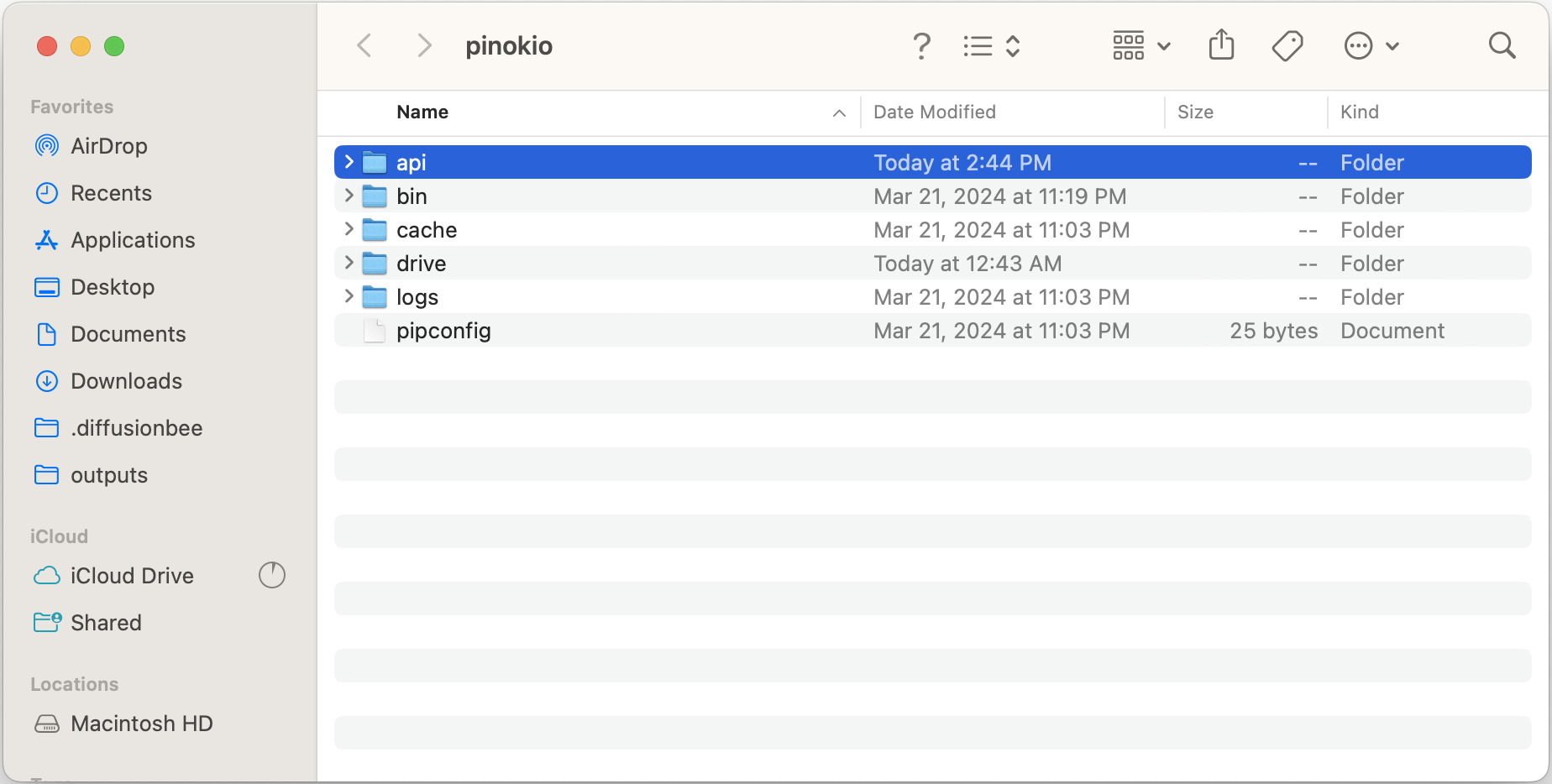
Let's quickly go through what each folder does:
1. `api`: stores all the downloaded apps (scripts).
- The folders inside this folder are displayed on your Pinokio's home.
2. `bin`: stores Pinokio-managed shared runtimes, package managers, and tools so multiple apps can reuse them without redundant installs.
- For example, `ffmpeg`, `node.js`, `bun`, `tmux` (macOS/Linux), `python`, etc.
3. `cache`: stores all the files automatically cached by apps you run.
- When something doesn't work, deleting this folder and starting fresh may fix it.
- It is OK to delete the `cache` folder as it will be re-populated by the apps you use as you start using apps.
- This also stores app preferences such as stars and launch history.
4. `drive`: stores all the virtual drives created by the [fs.link](#fslink) Pinokio API
5. `plugin`: stores reusable plugins
6. `tasks`: stores reusable task packages and prompt templates
7. `workspaces`: stores persistent agent workspaces / sandboxes
8. `logs`: stores all the log files for each app.
> You can learn more about the file system [here](#file-system)
---
## Self-contained File System
The top level folders under the Pinokio home directory look like the following
> We'll use the `/PINOKIO_HOME` notation to refer to the pinokio home directory from this point.
>
> The `/PINOKIO_HOME` folder is whichever folder you set as your Pinokio home.
```
/PINOKIO_HOME
/api
/stable-diffusion-webui.git
/comfyui.git
/brushnet.git
...
/bin
/miniforge
/homebrew
/bun
/npm
/py
/drive
/drives
/peers
...
/pip
/plugin
/cache
/tasks
/workspaces
/logs
```
Actual contents of `/bin` vary by platform and by which setup bundles/tools you have installed. Many shared tools live inside prefixes such as `/miniforge`, `/homebrew`, `/bun`, `/npm`, and `/py` rather than getting their own top-level folder.
### /api
The `api` folder is where the downloaded app repositories are stored. An API folder can contain either of the following:
1. **downloaded from git:** repositories you downloaded from git.
2. **locally created:** you can manually create folders and work from there.
### /bin
The `bin` folder stores the shared runtimes, package managers, and tools commonly used by Pinokio apps and agents.
- **miniforge:** for the isolated conda environment and conda-installed tools such as `ffmpeg`, `uv`, and `tmux` on macOS/Linux
- **brew:** for dealing with Homebrew on macOS
- **bun:** for the Bun runtime, package manager, and Bun-installed tools
- **py:** for Pinokio's shared Python-side tooling
- **npm:** for global npm-installed tools used with the shared Node.js runtime, such as `pterm`
- etc.
Some upgraded installs may also contain a legacy `/bin/miniconda` compatibility alias that points to `/bin/miniforge`. New scripts should use `/bin/miniforge`.
Things installed into the `/bin` folder can be shared across multiple apps in the `/api` folder.
### /drive
The `drive` folder stores virtual drives, used for deduplicating redundant files to save the disk space, sharing data across multiple apps, and overall separating data from application for many useful scenarios.
> Learn more about virtual drives [here](#virtual-drive)
### /plugin
The `plugin` folder stores standalone reusable plugins.
- Every plugin is a single `pinokio.js` file inside its own folder
- Built-in plugins ship with Pinokio and are listed alongside standalone plugins, but are not stored in this folder
- Standalone plugins automatically show up in `/plugins`, **Ask AI**, and `/p/:name/dev`
- Apps may also ship bundled plugins inside `/api/<app>/...` by declaring `plugins` in the app launcher `pinokio.js`
### /tasks
The `tasks` folder stores reusable task packages.
- Each installed task lives in its own folder such as `PINOKIO_HOME/tasks/t15`
- The package itself stays under `/tasks`
- The task's `target` decides where it is actually used or created when run:
- `workspaces` => `PINOKIO_HOME/workspaces`
- `api` => `PINOKIO_HOME/api`
- `plugin` => `PINOKIO_HOME/plugin`
- The `/tasks` page is a library of task templates, not a listing of actual app or workspace folders
### /cache
The `cache` folder stores cache files programmatically downloaded or generated by apps (through `pip`, `torch`, the Hugging Face `hf` CLI, etc.)
It also stores app preference metadata used by the home page and the Pinokio skill:
- `cache/apps/preferences.json`
- starred apps
- star timestamps
- last launch time
- last launch source
- launch counts
### /workspaces
The `workspaces` folder stores persistent agent workspaces (sandboxes).
- The **Agents** tab creates and reuses these folders
- Each workspace can contain multiple reusable agent sessions
- When a workspace is started with selected skills, Pinokio can materialize skill instructions into provider-native files inside that workspace
### /logs
The `logs` folder contains the logs, essential for debugging when something doesn't work.
---
## Distributed File URI
Pinokio uses a unique **distributed URI system** that lets you:
- Reference **local files**
- With **universally unique identifiers**
Let's first take a look at the most obvious option--Relative file paths.
### Relative Path
A URI can be a relative path. The path is resolved relative to the currently running script.
Let's say we have a folder at `/PINOKIO_HOME/api/myapp`, which looks like this:
```
/myapp
start.js
subroutine.json
```
And here's what `start.js` looks like:
```json
// start.js
module.exports = {
"run": [{
"method": "script.start",
"params": {
"uri": "subroutine.json"
}
}]
}
```
In this example, the `start.js` script calls another script named `subroutine.json`. This is a relative path.
The Pinokio interpreter automatically resolves the path of `subroutine.json` as the same folder that contains `start.js`, which is `/PINOKIO_HOME/api/myapp`.
So the `script.start` call will look for the file `/PINOKIO_HOME/api/myapp/subroutine.json` and run that script.
### Git Path
The relative path is enough for most cases, but what if the script you want to run is NOT from the same repository? What if you want to download a remote repository and run some script inside it?
This is where the Git URI scheme comes in.
#### Specification
This goal is achieved by adopting the [git url protocol](https://www.git-scm.com/docs/http-protocol#_url_format).
```
<REMOTE_GIT_URI>/<RELATIVE_PATH_WITHIN_THE_REPOSITORY>
```
For example, to reference a file at `install.js` inside the https://github.com/cocktailpeanutlabs/comfyui.git git repository, the HTTP path would look like:
https://github.com/cocktailpeanutlabs/comfyui.git/install.js
Some rules:
1. The `<REMOTE_GIT_URI>` must end with `.git` (This is the standard way to reference git repositories)
2. The URL info is derived from the `.git/config` file within the downloaded repository.
- This means a local repository without `.git/config` won't have a publicly addresable URI. You will need to publish it somewhere before you can use the universal git uri.
#### Content Addressable
In addition to being able to reference filenames, you can also reference files within a specific version, such as:
1. a file path in a specific commit hash
2. a file path in a specific branch
```json
// commit hash uri
{
"method": "script.start",
"params": {
"uri": "https://github.com/facefusion/facefusion-pinokio.git/install.js",
"hash": "ced4e76aa2a7c60a08535af8c340efea153ec381"
}
}
// git branch uri
{
"method": "script.start",
"params": {
"uri": "https://github.com/facefusion/facefusion-pinokio.git/install.js",
"branch": "master"
}
}
```
Above scripts will:
1. check whether the repository is locally installed
2. if not, `git clone` the repository `https://github.com/facefusion/facefusion-pinokio.git`
3. switch to the **commit hash** (`ced4e76aa2a7c60a08535af8c340efea153ec381`) or the **branch** (`master`)
4. resolve the locally downloaded file path `install.js` from the auto-downloaded git repository
5. and run it
---
## Virtual Drive
### Introduction
Virtual drives let you store data outside of applications while making them behave as if they are inside, by utilizing symbolic links.

This is useful for various cases such as:
1. Storing files that persist across multiple installs (Similar to Docker Volumes)
2. Sharing files across multiple apps (for example, ComfyUI, Fooocus, and Stable-Diffusion-WebUI sharing `.safetensor` AI model files among them so you don't have to download redundant files for each app)
3. Storing all the library files (such as pytorch) in a deduplicated manner, which saves a lot of disk space.
### Use Cases
1. **Persistence:** Because Drives exist independently, they stay around even if you delete the apps or update them. If you want to store large AI model files for some apps, and want the models to persist even when you delete or update the app, this is very useful.
2. **Shareable:** Virtual drives can also specify **peers**, which lets multiple apps share a single virtual drive. When you specify a `peer` array, the `fs.link` API will look for any pre-existing peer drive before creating a new dedicated drive. If a peer drive exists, the `fs.link` will simply link to the discovered drive path instead of creating a new one.
3. **Save Disk Space:** The primary purpose of the virtual drive is to avoid duplicate files as much as possible, which **significantly saves disk space**. In many cases, it can save tens of gigabytes **per application**.
### How it works
#### 1. Symbolic Link
Virtual drives are internally implemented with [symbolic links](https://en.wikipedia.org/wiki/Symbolic_link#:~:text=In%20computing%2C%20a%20symbolic%20link,FreeBSD%2C%20Linux%2C%20and%20macOS.) on Linux/Mac, and [junctions](https://learn.microsoft.com/en-us/sysinternals/downloads/junction) on Windows.
When you create a set of virtual drives using the `fs.link` API, here's what happens:
1. Create a set of virtual drive folders under the `/PINOKIO_HOME/drive` folder.
2. Create symbolic links from the specified app folders to the newly created virtual drive folders (which exist OUTSIDE of the app repository)
3. Thanks to the symbolic links, when you reference one of the app folders that link to the virtual drives, it will behave as if the files are actually insdie the specified app folder path, but in reality the files are stored in the external "virtual drive" folder.
4. When you delete the app repository, the files you stored using virtual drivees will stay, since the virtual drives exist outside of the app repository. Only the links are deleted.
#### 2. Programmable
Normally creating symbolic links is a tedious process that people must do manually, since every person's system environment is different.
However thanks to Pinokio's [self-contained](#self-contained-file-system) and [distributed](#distributed-file-uri) file system architecture, it is possible to write scripts that will deterministically automate symbolic link creation regardless of what the user's global system environment looks like.
> Learn more about the `fs.link` API [here](#fslink).
#### 3. It "just" works.
The virtual drive abstraction seamlessly blends into whichever apps you already have, and the apps do NOT need to be written in special ways to facilitate virtual drives.
Apps work EXACTLY the same as when they do not use virtual drives, **without having to change any code**. In fact you can turn the virtual drive feature on and off very easily, simply by including or excluding a single `fs.link` API call.
**Example**: Let's say an app at path `/PINOKIO_HOM/api/sd` has a piece of code that says `open("models/checkpoint.pt")`
- **Without virtual drive:** it will open the file at `/PINOKIO_HOME/api/sd/models/checkpoint.pt` within the current repository.
- **With virtual drive:** Let's say we've created a link from `/PINOKIO_HOME/api/sd/models` to the `models` virtual drive path for this repository.
- It will try to open the file at `/PINOKIO_HOME/api/sd/models/checkpoint.pt`
- The `/PINOKIO_HOME/api/sd/models` folder itself is not an actual folder with contents, but instead a symbolic link to an externally created virtual drive.
- But this distinction doesn't change anything, the attempt to open `/PINOKIO_HOME/api/sd/models/checkpoint.pt` will be automatically redirected to open `models/checkpoint.pt` on the virtual drive.
Basically, everything works exactly the same as when you didn't create the virtual drive links, but we still end up with all the benefits that come with virtual drives.
> Learn more about the `fs.link` API [here](#fslink).
---
# Customization
## File System
Place custom files under your `PINOKIO_HOME/web` folder as follows:
```
~/pinokio
/web
config.json # configure app chrome UI (close button, etc)
/public # Static Files
browser.css # Custom CSS for App Browser Page
...
/views # template files
index.ejs # home page template file
```
1. `index.ejs`: This is the home page template file. The template can display all the installed applications in whichever way you want.
2. `browser.css`: If you want to customize the app page style, you can override the default theme by overwriting CSS attributes in `browser.css`.
## Home Page

To customize the home page, you can write your own custom `index.ejs`. The template file can display the installed apps using the following attributes:
- `kernel`: kernel API
- `agent`: **"electron"** (running as an app) or **"web"** (running as a server)
- `items`: An array of installed app items
- `icon`: `icon` value in `pinokio.js`
- `name`: `name` value in `pinokio.js`
- `description`: `description` value in `pinokio.js`
- `path`: folder path
- `url`: The app's URL. Open this URL to visit the app page.
- `browse_url`: App URL WITHOUT running (Even if `PINOKIO_SCRIPT_DEFAULT` is set to **true**, it won't autorun)
- `running`: `true` (if currently running) or `false`
- `running_scripts`: An array of scripts that are currently running. Each item is made up of the following attributes:
- `path`: The file path of the script that's running
- `name`: The file name
You can do this by adding your own `/web/views/index.ejs` file. Here's an example:
```html
<html>
<body>
<header class='grabbable'></header>
<main>
<% items.forEach((item) => { %>
<% if (item.running) { %>
<a class='item running' data-browse-url="<%=item.browse_url%>" data-href="<%=item.url% >" onclick="dblclick(event)">
<img src="<%=item.icon%>"/>
<div class='name'><%=item.name%></div>
</a>
<% } else { %>
<a class='item' data-browse-url="<%=item.browse_url%>" data-href="<%=item.url%>" data- name="<%=item.name%>" data-description="<%=item.description%>" data-path="<%=item.path%>" onclick="dblclick(event)">
<% if (item.icon) { %>
<img src="<%=item.icon%>"/>
<% } else { %>
<img src="icon.png"/>
<% } %>
<div class='name'><%=item.name%></div>
</a>
<% } %>
<% }) %>
</main>
</body>
</html>
```
---
## App Page
Each app page can be customized too.
Unlike the Home page, which can be completely customized with your own HTML, the app page currently allows only CSS customization.
You can do this by adding your own `/web/public/browser.css` file. Here's an example:
```css
body {
background: firebrick !important;
color: gold !important;
}
aside {
background: transparent !important;
}
nav {
background: none !important;
}
.header-item.btn {
color: gold !important;
}
.btn2 {
color: gold !important;
}
```
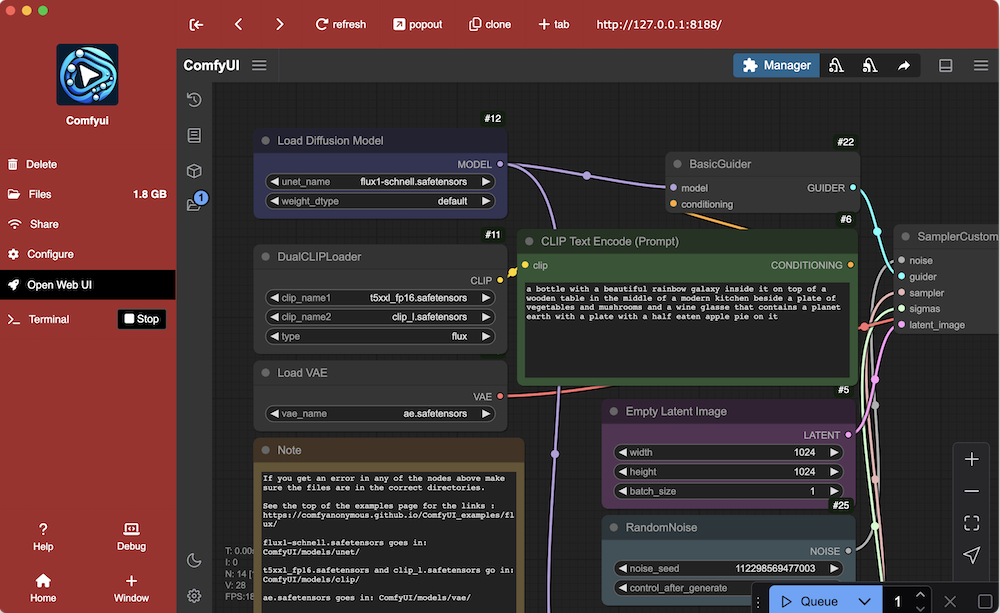
---
## Title Bar
You can customize the title bar `color` and `symbolColor` (See https://www.electronjs.org/docs/latest/tutorial/custom-title-bar#custom-window-controls)
Just need to specify those attributes inside the `web/config.json` file
```json
{
"color": "rgba(255,255,255,0)",
"symbolColor": "white"
}
```
---
## Terminal

You can fully customize the terminal by setting the `xterm` attribute in the `web/config.json` file:
```json
{
"color": "rgba(255,255,255,0)",
"symbolColor": "white",
"xterm": {
"fontSize": 20,
"theme": {
"foreground": "#637d75",
"background": "#0f1610",
"cursor": "#73fa91",
"black": "#112616",
"brightBlack": "#3c4812",
"red": "#7f2b27",
"brightRed": "#e08009",
"green": "#2f7e25",
"brightGreen": "#18e000",
"yellow": "#717f24",
"brightYellow": "#bde000",
"blue": "#2f6a7f",
"brightBlue": "#00aae0",
"magenta": "#47587f",
"brightMagenta": "#0058e0",
"cyan": "#327f77",
"brightCyan": "#00e0c4",
"white": "#647d75",
"brightWhite": "#73fa91"
}
}
}
```
---
# Tutorials
## Hello world
Let's write a script that clones a git repository.

1. Create a folder named `helloworld` under the Pinokio [api](#folder-structure) folder.
2. Create a file named `git.json` under the the Pinokio `api/helloworld` folder.
```json
{
"run": [{
"method": "shell.run",
"params": {
"message": "git clone https://github.com/pinokiocomputer/test"
}
}]
}
```
Now when you go back to Pinokio, you will see your `helloworld` repository show up. Navigate into it and click the `git.json` tab to run it:

You will see that an `api/helloworld/test` folder has been cloned from the https://github.com/pinokiocomputer/test repository.
---
## Run multiple commands
You can also run multiple commands with one `shell.run` call.
Let's try an example. We are going to install, initialize, and launch a documentation engine in one script.
Things like this used to be not accessible for normal people (since you have to run these things in the terminal), but with Pinokio, it's as easy as one click.
1. Create a folder named `docsify` under the Pinokio `api` folder
2. Create a file named `index.json` under the `api/docsify` folder. The `index.json` file should look like the following:
```json
{
"daemon": true,
"run": [{
"method": "shell.run",
"params": {
"message": [
"npx -y docsify-cli init docs",
"npx -y docsify-cli serve docs"
]
}
}]
}
```
This example does 2 things:
1. Initialize a [docsify](https://docsify.js.org/) Documentation project
2. Launch the docsify dev server
When you click the dev server link from the Pinokio terminal, it will open the documentation page in a web browser:

> Learn more ablut the `shell.run` API [here](#shell)
---
## Install packages into venv
One of the common use cases for Pinokio is to:
1. Create/activate a venv
2. Install dependencies into the activated venv
Let's try a simple example. This example is a minimal gradio app from the [official gradio tutorial](https://www.gradio.app/guides/quickstart#building-your-first-demo)
First, create a folder named `gradio_demo` under Pinokio's `api` folder.
Next, create a file named `app.py` in the `api/gradio_demo` folder.
```python
# app.py
import gradio as gr
def greet(name, intensity):
return "Hello, " + name + "!" * int(intensity)
demo = gr.Interface(
fn=greet,
inputs=["text", "slider"],
outputs=["text"],
)
demo.launch()
```
We also need a `requirements.txt` file that looks like this:
```
# requirements.txt
gradio
```
Finally, we need an `install.json` script that will install the dependencies from the `requirements.txt` file:
```json
{
"run": [{
"method": "shell.run",
"params": {
"venv": "env",
"message": "pip install -r requirements.txt"
}
}]
}
```
The folder structure will look like this:
```
/PINOKIO_HOME
/api
/gradio_demo
app.py
requirements.txt
install.json
```
Go back to Pinokio and you'll see the `gradio_demo` app. Click into the UI and click the `install.json` tab, and it will:
1. Create a `venv` folder at path `env`
2. Activate the `env` environment
3. Run `pip install -r requirements.txt`, which will install the `gradio` dependency into the `env` envrionment.
> Learn more about the venv API [here](#venv)
---
## Run an app in venv
> continued from the [last section](#install-packages-into-venv).
Now let's write a simple script that will launch the gradio server from the `app.py` from the last section. Create a file named `start.json` in the same folder:
```json
{
"daemon": true,
"run": [{
"method": "shell.run",
"params": {
"venv": "env",
"message": "python app.py"
}
}]
}
```
Go back to Pinokio and you'll see that the `start.json` file now shows up on the sidebar as well. Click to start the `start.json` script. This will:
1. activate the `env` environment we created from the install step
2. run `python app.py` in **daemon mode** (`daemon: true`), which will launch the gradio server and keep it running.
> Learn more about the venv API [here](#venv)
---
## Download a file
Pinokio has a cross-platform API for downloading files easily and reliably (including automatic retries, etc.).
Let's try writing a simple script that downloads a PDF.
First create a folder named `download` under the Pinokio `api` folder, and then create a file named `index.json`:
```json
{
"run": [{
"method": "fs.download",
"params": {
"uri": "https://arxiv.org/pdf/1706.03762.pdf",
"dir": "pdf"
}
}]
}
```
This will download the file at https://arxiv.org/pdf/1706.03762.pdf to a folder named `pdf` (The `fs.download` API automatically creates a folder at the location if it doesn't already exist).
> Learn more about the `fs.download` API [here](#fsdownload)
---
## Call a script from another script
In many cases you may want to call a script from another script. Some examples:
1. An orchestration script that spins up `stable diffusion` and then `llama`.
2. An agent that starts `stable diffusion`, and immediately makes a request to generate an image, and finally stops the `stable diffusion` server to save resources, automatically.
3. An agent that makes a request to a `llama` endpoint, and then feeds the response to a `stable diffusion` endpoint.
We can achieve this using the `script` APIs:
- `script.start`: Start a remote script (Download first if it doesn't exist yet)
- `script.return`: If the current script was a child process, specify the return value, which will be made available in the next step of the caller script.
Here's an example. Let's create a simple `caller.json` and `callee.json`:
`caller.json`:
```json
{
"run": [{
"method": "script.start",
"params": {
"uri": "callee.json",
"params": { "a": 1, "b": 2 }
}
}, {
"method": "log",
"params": {
"json2": "{{input}}"
}
}]
}
```
First step, the `caller.json` will call `callee.json` with the params `{ "a": 1, "b": 2 }`.
This params object will be passed into the `callee.json` as `args`:
`callee.json`:
```json
{
"run": [{
"method": "script.return",
"params": {
"ressponse": "{{args.a + args.b}}"
}
}]
}
```
The `callee.json` script immediately returns the value `{{args.a + args.b}}` with the `script.return` call.
Finally, the `caller.json` will call the last step `log`, which will print the value `{{input}}`, which is the return value from `callee.json`. This will print `3`:

---
## Install, start, and stop remote scripts
The last section explained how you can call a script from within the same repository. But what if you want to call scripts from other repositories?
The `script.start` API can also download and run remote scripts on the fly.
Create a folder named `remotescript` under Pinokio `api` folder and create a file named `install.json` under the `api/remotescript`:
```json
{
"run": [{
"method": "script.start",
"params": {
"uri": "https://github.com/cocktailpeanutlabs/moondream2.git/install.js"
}
}, {
"method": "script.start",
"params": {
"uri": "https://github.com/cocktailpeanutlabs/moondream2.git/start.js"
}
}, {
"id": "run",
"method": "gradio.predict",
"params": {
"uri": "{{kernel.script.local('https://github.com/cocktailpeanutlabs/moondream2.git/start.js').url}}",
"path": "/answer_question_1",
"params": [
{ "path": "https://media.timeout.com/images/105795964/750/422/image.jpg" },
"Explain what is going on here"
]
}
}, {
"method": "log",
"params": {
"json2": "{{input}}"
}
}, {
"method": "script.stop",
"params": {
"uri": "https://github.com/cocktailpeanutlabs/moondream2.git/start.js"
}
}]
}
```
1. The first step starts the script [https://github.com/cocktailpeanutlabs/moondream2.git/install.js](https://github.com/cocktailpeanutlabs/moondream2/blob/main/install.js).
- If the `moondream2.git` repository already exists on Pinokio, it will run the [install.js](https://github.com/cocktailpeanutlabs/moondream2/blob/main/install.js) script.
- If it doesn't already exist, Pinokio automatically clones the `https://github.com/cocktailpeanutlabs/moondream2.git` repository first, and then starts the [install.js](https://github.com/cocktailpeanutlabs/moondream2/blob/main/install.js) script after that.
2. After the install has finished, it then launches the gradio app using the [https://github.com/cocktailpeanutlabs/moondream2.git/start.js](https://github.com/cocktailpeanutlabs/moondream2/blob/main/start.js) script. This script will return after the server has started.
3. Now we run `gradio.predict`, using the [kernel.script.local()](#kernelscriptlocal) API to get the local variable object for the [start.js](https://github.com/cocktailpeanutlabs/moondream2/blob/main/start.js) script, and then getting its `url` value (which is programmatically set inside the `moondream2.git/start.js` script).
- Basically, this step makes a request to the gradio endpoint to ask the LLM "Explain what is going on here", passing an image.
4. Next, the return value from the `gradio.predict` is logged to the terminal using the `log` API.
5. Finally, we stop the `moondream2/start.js` script to shut down the moondream gradio server using the `script.stop` API.
- If we don't call the `script.stop`, the moondream2 app will keep running even after this script halts.
> The ability to run `script.start`, and then `script.stop` is very useful for running AI on personal computers, because most personal computers do not have unbounded memory, and your computer will quickly run out of memory if you cannot shut down these AI engines programmatically.
>
> With `script.stop` you can start a script, get its response, and immediatley shut it down once the task has finished, which will free up the system memory, which you can use for running other subsequent AI tasks.
---
## Build UI with pinokio.js
Pinokio apps have a simple structure:
1. [shortcut](#shortcut): The app shortcut that shows up on Pinokio home.
2. [app](#app): The main UI layout for the app
`Shortcut`

`App`
- **Menu:** The sidebar that displays all the links you can run (as well as their running status)
- **Window:** The viewport that displays a **web page**, or **a terminal** that runs the scripts

By default if you do not have a `pinokio.js` file in your project,
- the **shortcut** displays the folder name as the title, and a default icon as the app's icon.
- the **menu** displays all `.js` or `.json` files in your repository root.
While this is convenient for getting started, it's not flexible enough:
1. You can't control what gets displayed in the menu bar
2. You can't control how the scripts are launched (by passing `params` for example)
3. You can't control how the app is displayed
- The title of the app will be your folder name
- There is no description
- The icon will just show a default icon.
To customize how your app itself behaves, you will want to write a UI script named `pinokio.js`.
Let's try writing a minimal UI:
1. Create a folder named `downloader` in the `/PINOKIO_HOME/api` folder
2. Add any icon to the `/PINOKIO_HOME/api/downloader` folder and name it `icon.png`
3. Create a file named `/PINOKIO_HOME/api/downloader/download.json`
4. Create a file named `/PINOKIO_HOME/api/downloader/pinokio.js`
**/PINOKIO_HOME/api/downloader/icon.png**

**/PINOKIO_HOME/api/downloader/download.json**
```json
{
"run": [{
"method": "shell.run",
"params": {
"message": "git clone {{input.url}}"
}
}]
}
```
**/PINOKIO_HOME/api/downloader/pinokio.js**
```js
module.exports = {
title: "Download Anything",
description: "Download a git repository",
icon: "icon.png",
menu: [{
text: "Start",
href: "download.json",
params: {
url: "https://github.com/cocktailpeanut/dalai"
}
}]
}
```
The end result will look like this in your file explorer:

Now go back to Pinokio and refresh, and you will see your app show up:

- the title displays `Download Anything`
- the description displays `Download a git repository`
- the icon is the `icon.png` we've added
Now when you click into the app, you will see the following:

1. You will see the menu item `Start`.
2. Click this to run the `download.json` which is specified by the `href` attribute.
3. Also note that the script is passing the value of https://github.com/cocktailpeanut/dalai as the `params.url` value.
4. The `params` passed to the `download.json` is made available as the `input` variable, so the `git clone {{input.url}}` will be instantiated as `git clone https://github.com/cocktailpeanut/dalai`.
---
## Publish your script
Once you have a working script repository, you can publish to any git hosting service and share the URL, and anyone will be able to install and run your script.
---
## Install script from any git url
You can install any pinokio script repository very easily:
1. Click the "Download from URL" button at the top of the Discover page.
2. Enter the git URL (You can optionally specify the branch as well).

---
## List your script on the directory
If you published to github, you can tag your repository with "pinokio" to make it show up in the "latest" section of the Discover page.

Now it will automatically show up on the "latest" section (at the bottom of the "Discover" page):

> Pinokio constructs the "Latest" section automatically from GitHub "/repositories" API at https://api.github.com/search/repositories?q=topic:pinokio&sort=updated&direction=desc
>
> So if you tagged your repository as "pinokio" but doesn't show up, check in the API result, and try to figure out why it's not included in there.
---
## Auto-generate app launchers
While it is important to understand how all this works, in most cases you may want a simple "launcher combo", which includes:
1. **App install script:** Installs the app dependencies
2. **App Launch script:** Starts the app
3. **UI:** Displays the launcher UI.
4. **Reset script:** Resets the app state when something goes wrong.
5. **Update script:** Updates the app to the latest version with 1 click.
This use case is needed so often, that we've implemented a program that automatically generates these scripts instantly. It's called [Gepeto](#gepeto).
---